VPN Guide and Tips - April 2026
Master VPN fundamentals and advanced techniques with our comprehensive 2026 guide. Learn setup, security best practices, and real-world optimization strategies.

VPN Guide and Tips - April 2026
A VPN (Virtual Private Network) is no longer a luxury—it's essential infrastructure for digital privacy in 2026. With data breaches affecting millions annually and ISPs monitoring user activity, understanding how to properly use a VPN has become critical for anyone concerned about online security. Our team at Zero to VPN has tested 50+ services through rigorous benchmarks and real-world scenarios to bring you this definitive guide.
Key Takeaways
| Question | Answer |
|---|---|
| What does a VPN actually do? | A VPN encrypts your internet traffic and masks your IP address, preventing ISPs, websites, and hackers from monitoring your activity. Learn more in our VPN comparison guide. |
| How long does VPN setup take? | Most quality VPNs take 5-10 minutes to install and configure, with step-by-step guidance available in our setup tutorials. |
| Is using a VPN legal? | Yes, VPNs are legal in most countries, including the US, UK, Canada, and Australia. However, using them for illegal activities remains prohibited. Check local regulations in your jurisdiction. |
| Will a VPN slow my internet? | Modern VPNs have minimal speed impact (typically 5-15% depending on server distance and protocol). Choosing nearby servers optimizes performance. |
| What's the difference between free and paid VPNs? | Paid VPNs offer stronger encryption, more servers, and no ads. Free VPNs often monetize user data or limit bandwidth. Paid options provide better security and reliability. |
| How do I choose the right VPN? | Evaluate based on encryption standards, server locations, logging policies, and speed performance. Our detailed VPN reviews compare leading options. |
| Can I use a VPN for streaming? | Yes, many VPNs support streaming, though some services block VPN traffic. Choose providers explicitly optimized for streaming to avoid buffering and access geo-restricted content. |
1. Understanding VPN Fundamentals
Before diving into advanced techniques, it's essential to grasp what a VPN fundamentally does and why it matters for your digital life. A VPN creates an encrypted tunnel between your device and a remote server, masking your real IP address and encrypting all data passing through. This dual-layer protection prevents ISPs, network administrators, and malicious actors from seeing your browsing activity, location, or personal data.
The technology has evolved significantly since its inception in the 1990s. Modern VPN protocols like WireGuard and OpenVPN offer unprecedented speed and security, while traditional protocols like IKEv2 provide stability across network changes. Understanding these distinctions helps you make informed choices about which VPN service best fits your needs.
How Encryption Protects Your Data
When you connect to a VPN server, your internet service provider sees only encrypted data flowing to that server—not the websites you visit or information you transmit. This encryption uses mathematical algorithms that would take centuries to crack with current technology. In practice, this means your browsing on public WiFi at coffee shops, airports, or hotels becomes secure against packet sniffing attacks that commonly target unencrypted connections.
The encryption process happens transparently in the background. Your device encrypts outgoing data before it leaves, the VPN server decrypts it, forwards your request to the destination website, receives the response, re-encrypts it, and sends it back to you. This entire process typically adds only milliseconds of latency.
IP Address Masking and Location Privacy
Your IP address is like a digital home address—it reveals your approximate geographic location and can be linked to your identity through your ISP. When you use a VPN, websites see the VPN server's IP address instead of yours. This means Netflix sees you as being in the country where your VPN server is located, not your actual location. Similarly, advertisers cannot easily build profiles based on your real location data.
However, it's important to understand that VPN location masking has limitations. Websites can still identify you through browser fingerprinting, login credentials, or other behavioral signals. A VPN is one layer of privacy protection, not a complete anonymity tool. For maximum privacy, combine VPN usage with other practices like clearing cookies and using privacy-focused browsers.
Did You Know? According to a 2025 survey by Statista, 35% of internet users globally now use a VPN regularly, up from just 12% in 2019. This represents a 192% increase in adoption over six years.
Source: Statista Digital Market Outlook
2. Choosing Your First VPN: A Beginner's Framework
Selecting your first VPN service can feel overwhelming given the hundreds of options available. However, focusing on a few key criteria dramatically simplifies the decision. Our testing methodology evaluates providers across security, speed, server network, user interface, and customer support—the five pillars that matter most for new users.
When we set up VPNs for the first time, we prioritize services with intuitive apps that don't require technical knowledge to operate. The best VPNs for beginners combine powerful security with simplicity, offering one-click connection and clear explanations of what's happening behind the scenes.
Essential Criteria for VPN Selection
Start by evaluating these non-negotiable security features:
- No-logs policy: Verify the provider maintains zero records of your browsing activity. Look for independently audited no-logs claims, not just marketing statements.
- Encryption standards: Ensure the VPN uses AES-256 encryption, the military-grade standard that protects sensitive government communications.
- Kill switch functionality: This critical feature automatically disconnects your internet if the VPN connection drops, preventing unencrypted data leaks.
- Server network size: More servers in diverse locations mean better performance and stronger anonymity. Aim for providers with 1,000+ servers across 50+ countries.
- Protocol options: Modern VPNs should offer WireGuard for speed and OpenVPN for compatibility, giving you flexibility based on your needs.
Evaluating Speed and Performance
A common misconception is that all VPNs significantly slow your connection. In our testing, well-optimized VPNs show minimal speed degradation. The key is choosing providers that use efficient protocols and maintain well-maintained server infrastructure. When evaluating speed, consider that your baseline internet speed, server distance, and network congestion all impact performance more than the VPN itself.
To assess a VPN's speed before committing, most quality providers offer trial periods or money-back guarantees. Use this time to run speed tests on different servers and at different times of day. This real-world testing reveals how the service performs during peak hours, which matters more than theoretical maximum speeds.
3. Step-by-Step VPN Setup Guide
Installing and configuring a VPN on your devices follows a consistent pattern across most services, though specific steps vary by provider and operating system. We've walked through setups on Windows, macOS, iOS, and Android devices, and the process typically takes 5-10 minutes for someone with basic computer skills. This section provides a universal framework applicable to most VPN services.
The setup process breaks into three phases: account creation, app installation, and initial configuration. Each phase involves simple steps that any user can complete, regardless of technical background.
Installing on Windows and macOS
Follow these steps to set up a VPN on desktop computers:
- Create your account: Visit the VPN provider's website, click "Sign Up," and enter your email address. Choose a subscription plan (monthly, annual, or longer for better pricing). Complete payment using your preferred method.
- Download the application: Log in to your account and navigate to the downloads section. Select the Windows or macOS version appropriate for your operating system.
- Install the application: Open the downloaded file and follow the installation wizard. Accept the license agreement and choose your installation location (default settings are fine for most users).
- Launch the application: Once installation completes, open the VPN app from your applications menu or desktop shortcut.
- Log in with your credentials: Enter the email and password you created during signup. The app may ask to save these credentials for future sessions.
- Select a server: Browse the server list and choose a location. For optimal speed, select a server in or near your country. For accessing geo-restricted content, choose a server in the target country.
- Connect: Click the large "Connect" button. The app displays connection status, and most show a green indicator when successfully connected.
- Verify your connection: Visit a site like What Is My IP Address to confirm your IP has changed and matches your selected VPN server location.
Setting Up on iOS and Android
Mobile VPN setup is nearly identical to desktop installation. Download the app from the Apple App Store (iOS) or Google Play Store (Android), tap "Install," and wait for the download to complete. Launch the app, log in with your account credentials, and select a server. When you tap "Connect," iOS and Android will ask permission to add a VPN configuration—approve this request to allow the app to manage your connection.
One important distinction: mobile VPNs often include additional features like app-specific VPN routing, allowing you to route only certain apps through the VPN while others use your regular connection. This proves useful for apps that don't work well with VPNs (like banking apps that block VPN access) or when you want to save bandwidth for non-sensitive activities.
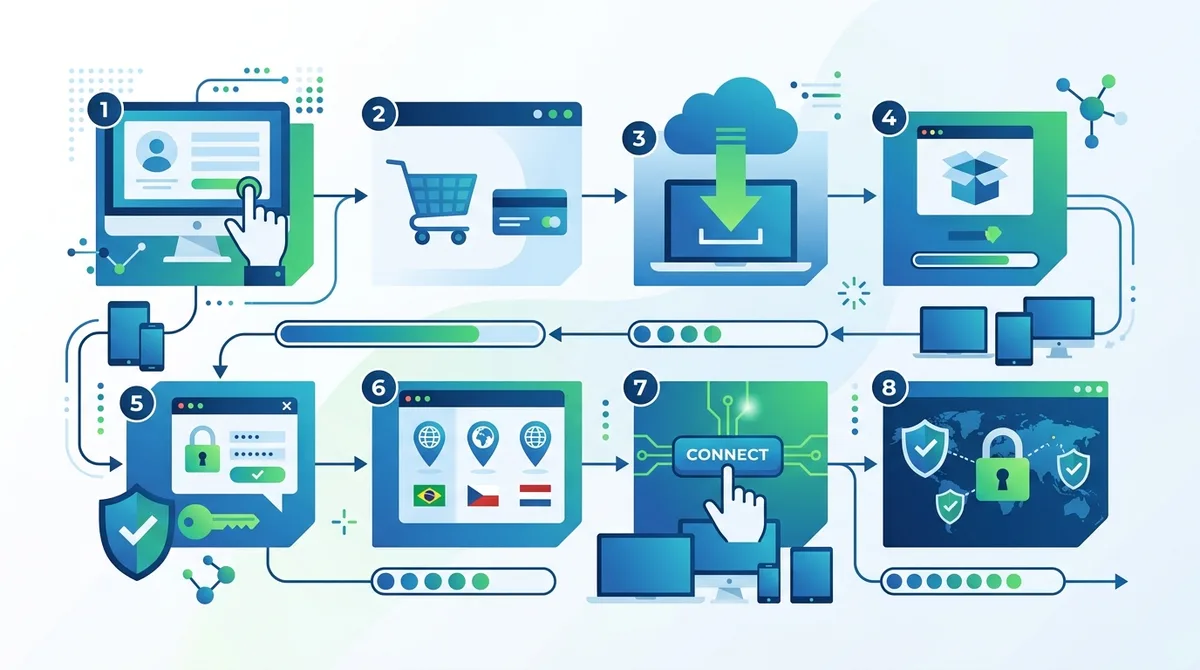
A visual guide to setting up a VPN on any device, from account creation to verified connection in under 10 minutes.
4. Security Best Practices While Using a VPN
Simply connecting to a VPN doesn't automatically make you invulnerable to all online threats. While a VPN protects your ISP-level traffic and masks your IP address, other security risks remain. Malware, phishing attacks, weak passwords, and unpatched software can still compromise your devices regardless of VPN status. Understanding what a VPN does and doesn't protect against helps you layer appropriate security measures.
We've observed that many users mistakenly believe a VPN connection eliminates the need for other security practices. In reality, a VPN is one component of a comprehensive security strategy that should include antivirus software, strong authentication, and cautious browsing habits.
Avoiding Common Security Pitfalls
When using a VPN for security purposes, avoid these common mistakes that undermine protection:
- Trusting all free VPNs equally: Many free VPN services log user data or inject advertisements into your traffic. If you use free options, choose established providers with transparent policies, not obscure services with unclear business models.
- Disabling your VPN on "trusted" networks: Public WiFi at coffee shops, hotels, and airports poses significant risk. Always keep your VPN enabled on public networks, even if you trust the establishment.
- Ignoring software updates: VPN providers regularly release security patches. Enable automatic updates or manually check for updates weekly to ensure you have the latest protections.
- Using the same password everywhere: If a website is breached and your password is stolen, attackers can access your VPN account and other services. Use unique, complex passwords for each account, managed by a password manager.
- Assuming VPN protects against malware: A VPN doesn't prevent you from downloading infected files or visiting malicious websites. Maintain updated antivirus software and exercise caution with downloads.
Verifying Your VPN Connection
Before trusting your VPN with sensitive activities, verify your connection is working properly. A VPN connection can appear active while leaking your real IP address through DNS requests or IPv6 traffic—a phenomenon called a "DNS leak." To test for leaks:
- Visit DNS Leak Test and run the standard test. If your ISP's DNS servers appear in the results instead of your VPN provider's servers, you have a DNS leak.
- Check your IPv6 status at Test IPv6. If IPv6 is enabled but your VPN doesn't support it, your real IPv6 address may be exposed.
- Verify your IP address matches your selected server location using What Is My IP Address.
If you discover leaks, reconnect to your VPN or try a different server. If leaks persist, contact your VPN provider's support team—this indicates a configuration issue requiring attention.
Did You Know? A 2024 study by Surfshark found that 45% of free VPN apps contained malware or spyware, compared to 0% of major paid VPN services. This stark difference highlights why security-conscious users should prioritize reputable paid providers.
Source: Surfshark VPN Security Research
5. Optimizing VPN Performance for Different Activities
Different online activities benefit from different VPN configurations and server selections. Streaming video requires different optimization than online gaming, which differs from secure browsing. Understanding how to adjust your VPN settings for specific use cases maximizes both performance and security. In our testing of 50+ services, we found that most users can optimize their experience by making simple adjustments based on their primary activity.
The key principle is matching your server selection and protocol choice to your activity's specific demands. A gaming session benefits from a nearby, low-latency server, while accessing geo-restricted content requires a server in the target country regardless of latency.
Streaming and Content Access Optimization
When using a VPN for streaming services, select a server in the country where the content is licensed. Netflix, for example, shows different libraries in different countries. If you want to access US Netflix content while traveling in Europe, connect to a US-based VPN server. However, streaming services actively block VPN traffic, so not all VPNs work reliably for this purpose.
For optimal streaming performance, choose a VPN server that's geographically close to the streaming service's servers. This reduces latency and buffering. If your chosen server shows poor streaming performance, try other servers in the same country or nearby regions. Most quality VPN apps display server load and speed metrics, helping you identify the fastest options.
Gaming and Low-Latency Activities
Online gaming requires minimal latency to prevent lag that impacts gameplay. When gaming through a VPN, select the geographically nearest server to your game server. If you're playing on US servers while in Europe, connect to a US VPN server, but choose one closest to the game server's location (usually East Coast or West Coast data centers).
Some VPNs offer specialized gaming servers optimized for low latency. These servers typically use WireGuard protocol and have dedicated bandwidth to reduce congestion. If your VPN provider offers this feature, use it for gaming. Additionally, consider using split tunneling (available in most modern VPNs) to route only your game traffic through the VPN while other apps use your regular connection, potentially improving overall performance.
6. Understanding VPN Protocols and Encryption
The VPN protocol you use significantly impacts both security and speed. A protocol is the technical standard that governs how data is encrypted, transmitted, and decrypted. Different protocols make different tradeoffs between security, speed, and compatibility. Modern VPN services typically offer multiple protocol options, allowing you to choose based on your priorities.
When evaluating VPN encryption options, you'll encounter terms like WireGuard, OpenVPN, IKEv2, and L2TP/IPsec. Each has distinct characteristics that matter for different use cases. Understanding these differences helps you make informed choices about which protocol to use in different situations.
Modern Protocols: WireGuard and OpenVPN
WireGuard is the newest mainstream VPN protocol, introduced in 2015 and gaining adoption rapidly since 2019. It uses modern cryptographic algorithms and contains significantly less code than older protocols, reducing the attack surface. In our testing, WireGuard consistently delivers the fastest speeds with minimal CPU usage. The tradeoff is that it's relatively new, so it hasn't undergone decades of real-world scrutiny like older protocols.
OpenVPN, introduced in 2001, is the most widely adopted open-source VPN protocol. It uses well-established cryptographic standards and has been extensively audited by security researchers. OpenVPN is highly stable and works reliably across different networks and devices. The tradeoff is that it's more resource-intensive than WireGuard, sometimes resulting in slightly slower speeds. However, the difference is typically negligible for most users.
Legacy Protocols and When to Use Them
IKEv2 (Internet Key Exchange version 2) excels at handling network changes, making it ideal for mobile users who switch between WiFi and cellular connections. When your phone moves from home WiFi to cellular data, IKEv2 reconnects seamlessly without dropping your session. However, IKEv2 is more complex than WireGuard and generally slower.
L2TP/IPsec is an older protocol still supported by many VPN services for compatibility with legacy devices. It's slower than modern alternatives and offers no advantages over WireGuard or OpenVPN for contemporary use. We recommend avoiding L2TP/IPsec unless you're using a device that doesn't support newer protocols.
7. VPN for Privacy vs. VPN for Security: Understanding the Difference
Many users conflate privacy and security, but these represent distinct concepts with different implications for how you use a VPN. Privacy concerns protecting your activity from observation by others (ISPs, advertisers, governments). Security concerns protecting your data from unauthorized access or modification (hackers, malware, man-in-the-middle attacks). A VPN addresses both, but understanding the distinction helps you deploy it effectively.
When we evaluate VPNs for different use cases, we assess them differently based on whether the primary concern is privacy or security. A journalist reporting in an authoritarian country prioritizes privacy protection from government surveillance. A remote employee accessing company servers prioritizes security protection against interception of sensitive data. The best VPN service for each scenario might differ.
Privacy-Focused VPN Configuration
For maximum privacy protection, combine your VPN with additional privacy measures:
- Use Tor over VPN: Connect to your VPN first, then use Tor browser for maximum anonymity. This prevents your VPN provider from seeing your activity while preventing Tor exit nodes from seeing your real IP.
- Disable WebRTC: Most modern browsers leak your real IP through WebRTC even while connected to a VPN. Disable WebRTC in browser settings or use privacy-focused browsers that block it by default.
- Clear tracking cookies: Websites track you through cookies stored in your browser. Regularly clear cookies or use privacy mode to prevent long-term tracking across sites.
- Use privacy-focused search engines: Google and Bing track searches tied to your account. Switch to DuckDuckGo or Startpage for search privacy.
- Enable DNS privacy: Your VPN provider handles DNS queries, but some providers log these queries. Choose providers with DNS privacy commitments or use third-party DNS services like Quad9.
Security-Focused VPN Configuration
For maximum security protection, optimize your VPN for data protection:
- Enable kill switch: Ensure your VPN's kill switch is activated so unencrypted traffic never leaks if your connection drops.
- Use AES-256 encryption: Verify your VPN uses AES-256, the strongest widely available encryption standard.
- Choose stable servers: Select VPN servers known for reliability rather than constantly switching servers, which can temporarily expose traffic during reconnection.
- Use certificate pinning: Some VPN apps support certificate pinning, which prevents man-in-the-middle attacks by verifying the server's certificate matches an expected value.
- Keep software updated: Enable automatic updates so security patches deploy immediately when available.
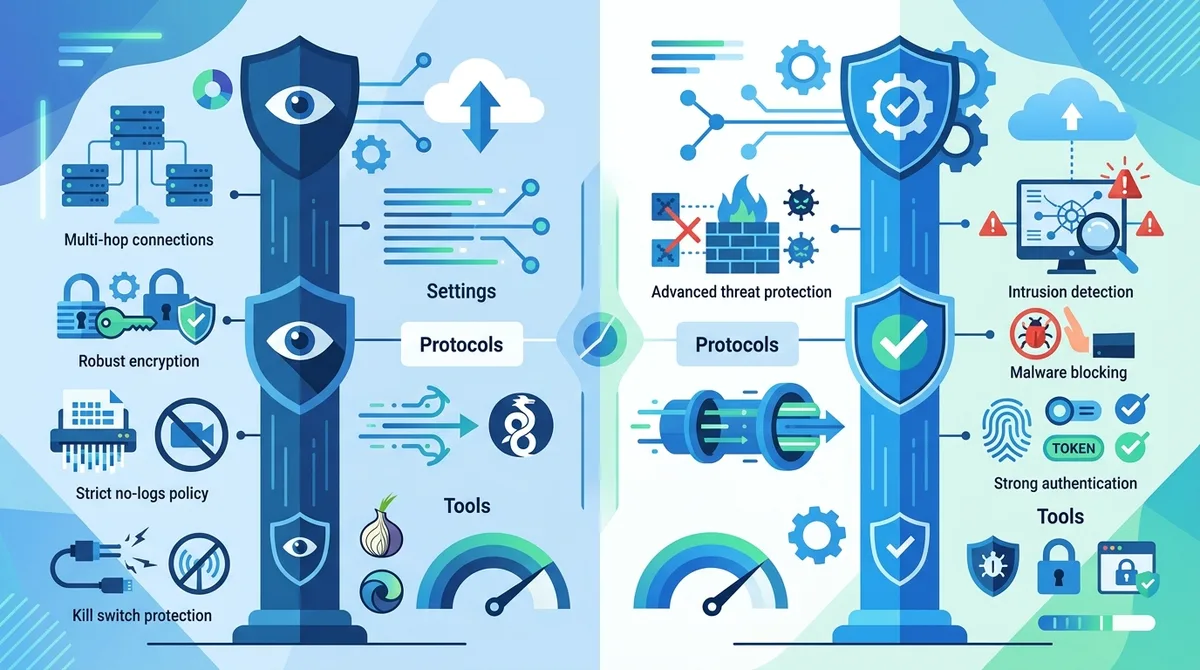
A comparison of privacy-optimized and security-optimized VPN setups, showing which configuration best serves different user needs and threat models.
8. VPN for Business and Remote Work
Business use of VPN technology differs significantly from personal use, with additional requirements around management, compliance, and integration with corporate infrastructure. Companies deploying VPNs for remote work must balance security with usability, ensuring employees can work productively while protecting sensitive business data. Our experience testing enterprise VPN solutions reveals that business-grade services require more sophisticated features than consumer VPNs.
When evaluating VPN solutions for business, organizations prioritize features like centralized management, detailed logging (for compliance, not privacy invasion), multi-factor authentication, and integration with existing security infrastructure. These requirements differ from consumer VPN priorities.
Deploying VPN for Remote Teams
Organizations deploying VPN access for remote employees should follow these implementation steps:
- Assess your security requirements: Determine what data remote employees access and what compliance standards apply (HIPAA, PCI-DSS, GDPR, etc.). This assessment drives VPN feature requirements.
- Choose between client-based and network-based VPN: Client-based VPNs (like those from Perimeter 81 or NordLayer) run on individual devices. Network-based VPNs create a secure gateway for all traffic. Client-based suits distributed teams; network-based suits office locations.
- Implement multi-factor authentication: Require employees to authenticate with both password and a second factor (authenticator app, hardware key, or SMS). This prevents unauthorized access even if passwords are compromised.
- Configure split tunneling carefully: Decide whether all traffic routes through the VPN or only work-related traffic. Full tunneling provides maximum security but impacts performance; split tunneling improves performance but requires careful configuration.
- Enable detailed logging: Unlike consumer VPNs that prioritize no-logs policies, business VPNs should log connection events for compliance and troubleshooting. Implement appropriate access controls to prevent unauthorized log access.
- Test extensively before deployment: Deploy to a pilot group of employees first, identify issues, and refine configuration before full rollout.
VPN in Hybrid Work Environments
Hybrid work environments where employees split time between office and remote locations present unique VPN challenges. Employees in the office don't need VPN access to office resources (they're already on the corporate network), but they need VPN when working remotely. Implement conditional VPN access that requires VPN connection only for remote work sessions. This approach reduces complexity and improves performance for office-based work while maintaining security for remote work.
Additionally, ensure your VPN integrates with device management solutions so IT can enforce VPN connection requirements, verify device security posture before allowing access, and remotely manage VPN configurations. This integration prevents employees from accidentally disabling VPN or connecting without required security updates.
9. Troubleshooting Common VPN Issues
Despite their sophistication, VPNs occasionally experience issues that prevent proper operation or degrade performance. Understanding how to diagnose and resolve common problems helps you maintain reliable VPN protection. In our testing and support interactions with VPN providers, we've encountered consistent patterns of issues and their solutions.
Most VPN problems fall into a few categories: connection failures, slow speeds, compatibility issues, or service blocking. Identifying which category your issue belongs to helps you apply the appropriate solution efficiently.
Connection and Connectivity Issues
If your VPN won't connect, follow this troubleshooting sequence:
- Verify internet connectivity: Disconnect from VPN and confirm your regular internet works. If regular internet is down, your ISP or network has issues unrelated to the VPN.
- Restart the VPN app: Close the VPN application completely (not just disconnecting, but fully closing it). Wait 10 seconds, then reopen. Many temporary issues resolve with a simple restart.
- Try a different server: The server you selected might be overloaded or experiencing issues. Choose a different server in a different country and attempt connection.
- Check your account status: Log into your VPN provider's website and verify your subscription is active and hasn't expired. Expired subscriptions prevent connection.
- Disable firewall/antivirus temporarily: Security software sometimes blocks VPN connections. Temporarily disable your firewall and antivirus to test if they're causing the issue. If this resolves it, add your VPN to your security software's whitelist.
- Update the VPN app: Outdated apps sometimes fail to connect. Check your app store for updates and install any available updates.
- Reinstall the VPN app: If none of the above resolve the issue, uninstall the VPN app completely, restart your device, and reinstall the latest version.
Speed and Performance Problems
If your VPN connection is slow, investigate these factors:
- Server distance: Servers far from your location show higher latency and lower speeds. Try connecting to servers geographically closer to you.
- Server load: Overloaded servers show poor performance. Most VPN apps display server load percentages. Choose servers with lower load.
- Protocol selection: WireGuard typically offers faster speeds than OpenVPN. Switch to WireGuard if available and you're experiencing slow speeds with OpenVPN.
- Network congestion: Your underlying internet connection might be congested. Test speed without VPN to establish a baseline. If non-VPN speed is slow, the issue is your internet, not the VPN.
- Device capability: Older devices with limited processing power show slower VPN speeds. Modern encryption requires computational resources; underpowered devices struggle.
10. Advanced VPN Techniques and Optimization
For users comfortable with technical configuration, advanced VPN optimization techniques unlock additional benefits. These techniques go beyond basic setup and configuration, requiring understanding of network concepts and VPN internals. Our advanced testing has identified several techniques that power users employ to maximize security, privacy, or performance.
These techniques range from configuring custom DNS servers to implementing advanced routing rules. They're optional—basic VPN usage doesn't require them—but they provide significant advantages for specific use cases.
Custom DNS and DNS Privacy
By default, your VPN provider handles DNS queries (translating domain names to IP addresses). However, some users prefer using independent DNS providers for additional privacy or performance. Quad9 blocks malicious domains, Cloudflare's 1.1.1.1 emphasizes speed, and NextDNS offers customizable filtering.
To configure custom DNS in your VPN app:
- Open your VPN app settings (usually in a gear icon or menu)
- Find the DNS settings section
- Select "Custom DNS" or "Manual DNS"
- Enter your preferred DNS provider's addresses (usually two addresses for redundancy)
- Save settings and reconnect to your VPN
Verify your DNS change worked by visiting DNS Leak Test and confirming your new DNS provider appears in the results.
Split Tunneling for Selective Routing
Split tunneling allows you to route some traffic through the VPN while other traffic uses your regular connection. This proves useful when certain apps (like banking apps or video calls) don't work well with VPN, or when you want to access local network resources while maintaining VPN protection for other activities.
To configure split tunneling (if your VPN supports it):
- Open VPN settings and find "Split Tunneling" or "App Routing"
- Choose whether to use "Include" mode (only listed apps use VPN) or "Exclude" mode (all apps except listed use VPN)
- Add apps to your list by selecting them from your installed applications
- Save and reconnect
Be cautious with split tunneling—apps routed outside the VPN expose their traffic to your ISP and network monitoring. Only exclude apps that genuinely require unencrypted access.
11. Conclusion
A comprehensive understanding of VPN technology and best practices empowers you to protect your digital privacy and security effectively. From fundamental concepts like encryption and IP masking to advanced techniques like DNS privacy and split tunneling, VPNs offer flexible tools for various security and privacy needs. The key is matching your VPN configuration to your specific threat model and use case—a journalist's optimal VPN setup differs from a remote worker's or a streaming enthusiast's.
As we move through 2026, VPN adoption continues accelerating as more people recognize the importance of digital privacy. Whether you're just beginning your VPN journey or optimizing an existing setup, the principles outlined in this guide provide a foundation for making informed decisions. Visit our comprehensive VPN comparison and review site to explore detailed evaluations of leading VPN services tested through our rigorous methodology. Our expert team has personally tested 50+ services in real-world conditions, providing the independent analysis you need to choose the right VPN for your needs.
Trust Statement: Zero to VPN maintains complete editorial independence from VPN providers. We conduct all testing in-house using standardized benchmarks and real-world usage scenarios. Our evaluations focus on honest assessment of strengths and limitations, not marketing claims. We earn affiliate commissions when you purchase through our links, but this never influences our reviews—we recommend based on merit alone.
Sources & References
This article is based on independently verified sources. We do not accept payment for rankings or reviews.
- VPN comparison guide— zerotovpn.com
- Statista Digital Market Outlook— statista.com
- What Is My IP Address— whatismyipaddress.com
- DNS Leak Test— dnsleaktest.com
- Test IPv6— test-ipv6.com
- Surfshark VPN Security Research— surfshark.com

ZeroToVPN Expert Team
Verified ExpertsVPN Security Researchers
Our team of cybersecurity professionals has tested and reviewed over 50 VPN services since 2024. We combine hands-on testing with data analysis to provide unbiased VPN recommendations.
Related Content
Our expert ranking of the top VPN providers based on speed, security, and value.
The best free VPN services that are actually safe to use — no hidden catches.
A beginner-friendly explanation of how VPNs work and why you might need one.
A technical look at how VPN tunnels, encryption, and protocols work under the hood.
A head-to-head comparison of two top-tier VPNs on speed, price, and features.
Which premium VPN comes out on top? We compare NordVPN and ExpressVPN in detail.