VPN and School WiFi: How to Protect Student Data on Campus Networks Without Violating Acceptable Use Policies in 2026
Learn how to safely use VPNs on campus networks while respecting institutional policies. Expert guide covers legal considerations, setup, and best practices.

VPN and School WiFi: How to Protect Student Data on Campus Networks Without Violating Acceptable Use Policies in 2026
Campus WiFi networks expose students to significant security risks—from credential theft to man-in-the-middle attacks—yet many institutions discourage or prohibit VPN usage without clear guidance. As of 2026, understanding how to balance personal data protection with institutional compliance has become essential for every student. Our team at ZeroToVPN has tested dozens of VPN services and reviewed campus acceptable use policies across major universities to provide you with a practical, legally sound approach to securing your digital life on school networks.
Key Takeaways
| Question | Answer |
|---|---|
| Can I legally use a VPN on campus WiFi? | Yes, but you must review your institution's Acceptable Use Policy (AUP). Most schools permit VPNs for legitimate security purposes; restrictions typically apply only to bypassing content filters or accessing prohibited services. |
| What data is at risk on campus networks? | Unencrypted passwords, emails, banking credentials, and personal files are vulnerable to packet sniffing and eavesdropping on open WiFi. A VPN encrypts all traffic between your device and a secure server. |
| Which VPNs work best for students? | Look for providers offering strong encryption, no-logging policies, affordable pricing, and reliable customer support. Verify compatibility with your school's network infrastructure before subscribing. |
| Does using a VPN violate my school's AUP? | Not automatically. The key distinction: using a VPN to enhance security is typically permitted, while using it to bypass filters or access restricted content violates most policies. |
| How do I set up a VPN on campus WiFi? | Download your chosen VPN app, create an account (preferably with a strong password), connect to the VPN server before opening sensitive applications, and verify your connection with a DNS leak test. |
| What should I avoid when using a VPN at school? | Don't use VPNs to bypass content filters, access torrenting sites, or circumvent bandwidth restrictions. These actions violate most institutional policies and can result in disciplinary action. |
| How can I verify my VPN is actually protecting me? | Use free tools like IP leak tests and DNS leak checkers to confirm your real IP address and location are hidden while connected to the VPN. |
1. Understanding Campus WiFi Security Risks
Campus WiFi networks, while convenient, operate in a fundamentally different security environment than home networks. Thousands of devices connect to a single network infrastructure, creating numerous attack vectors that cybercriminals actively exploit. When you connect to your school's WiFi without protection, you're broadcasting your data across an open channel where anyone with basic networking knowledge can intercept it.
The risks extend beyond casual hackers. Malicious actors on campus networks can deploy sophisticated attacks including packet sniffing (capturing unencrypted data packets), man-in-the-middle (MITM) attacks (intercepting communications between your device and servers), and rogue access points (fake WiFi networks designed to steal credentials). Students typically handle sensitive information daily—login credentials for banking apps, university portals, email accounts, and cloud storage—making them prime targets.
Common Attack Vectors on Campus Networks
Campus networks present unique vulnerabilities because they prioritize accessibility over security. Most institutional WiFi uses minimal encryption or relies on outdated WPA2 standards that can be compromised. Additionally, the high volume of traffic makes it easier for attackers to hide their activities among legitimate network usage. Students often connect to WiFi in public spaces like libraries and cafés on campus, where physical proximity to attackers is minimal.
- Unencrypted HTTP traffic: Websites and applications that don't use HTTPS transmit data in plaintext, readable to anyone monitoring the network.
- Session hijacking: Attackers steal session cookies from your browser, allowing them to impersonate you on websites where you're logged in.
- DNS spoofing: Criminals redirect your domain requests to malicious servers, capturing credentials when you think you're visiting legitimate sites.
- Rogue hotspots: Fake networks with names like "Campus_Guest_Secure" trick students into connecting and exposing all their traffic.
- Network eavesdropping: Tools like Wireshark capture unencrypted data passing through the network, including passwords and personal information.
Why Encryption Matters for Student Data
Encryption transforms your data into an unreadable format that only you and your VPN provider can decrypt. When you use a Virtual Private Network (VPN), all traffic from your device travels through an encrypted tunnel to the VPN provider's server, then to the destination website or service. This means even if someone intercepts your data on campus WiFi, they see only encrypted gibberish, not your passwords or personal information.
For students managing academic work, financial information, and personal communications simultaneously, encryption isn't optional—it's essential. Your university email account, learning management system credentials, and banking apps all benefit from this protection. The encryption standard matters too; modern VPNs use AES-256 encryption, the same standard trusted by governments and financial institutions worldwide.
2. Reviewing Your School's Acceptable Use Policy
Before installing any VPN, you must understand your institution's specific stance on their usage. Acceptable Use Policies (AUPs) vary dramatically between schools, and ignorance isn't a defense against policy violations. Some universities explicitly permit VPNs for security purposes, while others restrict them broadly. The distinction often hinges on intent: protecting your data is typically allowed, while bypassing institutional controls is not.
Your school's IT department publishes its AUP online, usually in the student handbook or IT services website. This document outlines permitted and prohibited activities on campus networks. Reading it thoroughly—even though it's dense—takes 20-30 minutes and could save you from disciplinary action. Pay special attention to sections addressing encryption, tunneling protocols, and proxy usage, as these directly reference VPN technology.
How to Locate and Interpret Your School's AUP
Start by visiting your university's IT services or information security office website. Most institutions maintain their AUP in a dedicated section, often titled "Acceptable Use Policy," "Network Usage Policy," or "IT Code of Conduct." If you can't find it online, email your IT help desk directly—they're accustomed to these questions and can provide the official document or clarify specific points.
When reading the policy, look for language addressing these key areas: encrypted connections, VPN usage, content filtering, bandwidth restrictions, and prohibited activities. Many policies state something like, "Users may not circumvent security controls or content filters," which typically prohibits using a VPN to bypass institutional restrictions, but not using a VPN to encrypt traffic for security. Some schools explicitly state, "VPNs are permitted for legitimate security purposes," removing ambiguity entirely.
- Check the definitions section: Policies often define what they mean by "VPN," "encryption," and "circumvention." These definitions determine whether your intended use is permitted.
- Identify prohibited activities: Look for specific restrictions on torrenting, accessing streaming services, or bypassing content filters. Using a VPN for these purposes violates policies even if general VPN use is permitted.
- Review enforcement mechanisms: Understand what happens if you violate the AUP. Most schools impose warnings, temporary access suspension, or disciplinary action for serious violations.
- Contact your IT department: If the policy is ambiguous, email IT security asking whether using a VPN to encrypt traffic for personal data protection is permitted. Get written confirmation.
- Document your communication: Keep emails confirming that your intended VPN usage complies with policy. This protects you if questions arise later.
Red Flags and Ambiguous Language in AUPs
Some policies use vague language that requires interpretation. Phrases like "unauthorized access to network resources" or "circumventing security measures" can be misunderstood. The key distinction is between using a VPN for its intended security purpose versus using it to bypass institutional controls. If your AUP says "users may not bypass content filters," using a VPN to access blocked entertainment sites violates this, but using a VPN to encrypt your banking app doesn't.
Red flags include policies stating "all encryption except approved methods is prohibited" or "VPNs are strictly forbidden." These policies require you to either accept the risks of unencrypted campus WiFi or explore alternatives like using your phone's cellular data for sensitive activities. However, even restrictive policies sometimes have exceptions for students with documented accessibility needs or those using institutional VPN services provided by the school.
Did You Know? According to a 2024 survey by the National Association for Information Security Professionals, 73% of universities permit student VPN usage for security purposes, but only 41% explicitly state this in their AUPs, creating widespread confusion about policy compliance.
Source: National Association for Information Security Professionals
3. Types of VPN Protocols and Their Campus Compatibility
Not all VPN protocols work equally well on campus networks, and some may trigger institutional detection systems. A VPN protocol is the set of rules and procedures your device uses to establish a secure connection to the VPN server. Different protocols offer varying balances of security, speed, and detectability. Understanding these differences helps you choose a VPN that works reliably on your campus network while maintaining strong protection.
Campus networks often employ sophisticated monitoring that can detect certain VPN protocols more easily than others. Your choice of protocol affects not only security but also whether your connection remains stable on institutional networks. Some protocols are designed specifically to evade detection, while others prioritize maximum security or speed. For students, the ideal protocol balances all three: strong encryption, reliable performance, and minimal detection risk on campus networks.
OpenVPN: The Industry Standard for Campus Use
OpenVPN remains the most widely recommended protocol for campus networks because it's open-source, highly secure, and uses standard HTTPS ports (443) that campus networks rarely block. It employs AES-256 encryption by default and provides robust protection against both external attackers and institutional monitoring. OpenVPN is available on virtually all platforms—Windows, Mac, Linux, iOS, and Android—making it universally accessible for students.
The primary advantage of OpenVPN on campus networks is its use of port 443, the same port used for standard HTTPS web traffic. This makes it difficult for network administrators to block without disrupting normal internet usage. OpenVPN also allows for custom configurations that can help bypass basic network restrictions. However, OpenVPN can be slower than some modern protocols due to its CPU-intensive encryption processes, which may matter if your campus network is already bandwidth-constrained.
WireGuard and Modern Alternatives
WireGuard is a newer protocol gaining popularity for its simplicity and speed. It uses significantly less code than OpenVPN (about 4,000 lines versus 100,000), reducing potential security vulnerabilities. WireGuard offers faster speeds because it's optimized for modern hardware and uses contemporary cryptography. However, its relative newness means fewer VPN providers support it, and some campus networks may not be optimized for its characteristics.
Other protocols like IKEv2 and L2TP/IPSec offer advantages in specific scenarios. IKEv2 excels on mobile devices because it handles network switching smoothly—useful when moving between campus WiFi and cellular data. However, IKEv2 uses non-standard ports that some campus networks block. L2TP/IPSec provides strong encryption but is CPU-intensive and slower than modern alternatives. For most campus scenarios, OpenVPN or WireGuard represent the best choices, with OpenVPN being the safer default if you're unsure about your network's compatibility.

A visual guide to VPN protocol characteristics and their suitability for campus network environments.
4. Evaluating VPN Providers for Student Use
Choosing the right VPN provider requires evaluating multiple factors beyond just price. Your VPN provider handles all your encrypted traffic, making their trustworthiness paramount. A dishonest provider could theoretically log your activity, sell your data, or comply with law enforcement requests without your knowledge. Additionally, different providers offer varying features, reliability, and customer support quality—all important for students who need consistent access to campus resources.
When evaluating VPN services, prioritize providers with transparent privacy policies, independent security audits, and strong encryption standards. Avoid free VPNs, which often monetize user data or inject advertisements. Look for providers offering money-back guarantees, allowing you to test their service before committing. Since we've tested dozens of VPN services through rigorous benchmarks and real-world usage, we can guide you toward options that balance security, performance, and affordability for student budgets.
Key Criteria for Selecting a Campus-Friendly VPN
The best VPN for campus use must support OpenVPN or WireGuard protocols, offer reliable connections without frequent disconnections, provide responsive customer support, and maintain a strict no-logging policy. Additionally, the provider should have multiple server locations worldwide, enabling you to access region-restricted academic resources and improving connection reliability if some servers are congested. Price matters for students, but it shouldn't be your primary criterion—a cheap VPN that disconnects frequently or logs your activity provides false economy.
- No-logging policy: Verify the provider maintains a strict no-logging policy and has undergone independent security audits confirming this. Look for third-party audits from reputable security firms.
- Protocol support: Confirm the provider supports OpenVPN or WireGuard, and ideally offers both. This flexibility helps if one protocol encounters campus network issues.
- Kill switch functionality: This feature automatically disconnects your internet if the VPN connection drops, preventing unencrypted data leakage. It's essential for campus security.
- Customer support availability: Test their support before purchasing. Good VPN providers offer 24/7 chat support and respond within hours. You may need help troubleshooting campus network connectivity.
- Money-back guarantee: Reputable providers offer 30-day money-back guarantees, allowing you to test their service on your campus network risk-free.
- Multi-device access: Ensure your subscription covers all your devices—laptop, phone, tablet. Many providers allow 5-10 simultaneous connections.
Red Flags to Avoid in VPN Selection
Free VPN services are the most obvious red flag. If you're not paying for the service, you're likely the product—your data is being monetized through advertising, selling to third parties, or worse. Many free VPNs have been caught logging user activity, injecting malware, or selling bandwidth to other users. Additionally, avoid VPNs with unclear ownership, no published privacy policy, or no customer support options. VPNs claiming "military-grade encryption" without specifying the actual encryption standard (AES-256) are using marketing language rather than technical accuracy.
Be cautious of VPN providers with headquarters in countries with weak privacy laws or strong government surveillance practices. Providers based in the United States, United Kingdom, Canada, and Australia are subject to intelligence-sharing agreements that could compel them to log user data. While this doesn't automatically make them untrustworthy, it's a factor to consider. Similarly, avoid providers with a history of security breaches or data leaks. Check independent review sites and security research to verify a provider's track record before subscribing.
5. Step-by-Step VPN Setup on Campus WiFi
Setting up a VPN correctly is crucial for ensuring it actually protects your data. A misconfigured VPN might appear to be working while leaving you vulnerable. This section walks you through the entire process, from downloading your chosen VPN app to verifying that your connection is properly encrypted and your real IP address is hidden. Follow these steps carefully, as each one serves a specific security purpose.
Before you begin, ensure you have a strong, unique password for your VPN account. Avoid using the same password as your university email or other accounts. If possible, use a password manager to generate and store a complex password. You'll also need to decide which VPN protocol to use—OpenVPN is the safest default for campus networks unless you have specific reasons to choose otherwise.
Installation and Initial Configuration
Follow these numbered steps to install and configure your VPN:
- Download the official app: Visit your VPN provider's official website (not third-party app stores) and download the application for your device's operating system. Verify you're downloading from the legitimate domain to avoid malware.
- Install the application: Run the installer and follow the prompts. On Windows, you may need to grant administrator privileges. On Mac, you may need to enter your password. On mobile devices, grant the necessary permissions when prompted.
- Create your account: Launch the app and sign up using a strong, unique password. If you already have an account, log in with your credentials. Ensure you're using the official app, not a clone.
- Select protocol settings: Navigate to the settings or preferences menu. Choose OpenVPN as your protocol unless your campus network specifically requires a different option. Leave encryption set to the maximum (typically AES-256).
- Configure kill switch: Find the "kill switch" or "network lock" option in settings and enable it. This prevents data leakage if your VPN connection drops unexpectedly.
- Select a server location: Choose a server in your country or a nearby country. For campus use, closer servers typically offer better speeds. Avoid selecting servers in countries with strict censorship, as they may be monitored.
- Test the connection: Before connecting to campus WiFi, test your VPN on a known network (like your home WiFi). Click the connect button and wait for the status to show "connected" or display a green checkmark.
Verifying Your VPN Connection and Testing for Leaks
After connecting to your VPN, verify that it's actually protecting you by checking for IP and DNS leaks. These tests confirm that your real IP address and location are hidden, and that your DNS requests aren't being logged by your ISP or campus network. Perform these verification steps:
- Check your IP address: Visit a website like WhatIsMyIPAddress.com while connected to your VPN. Your displayed IP should match your VPN provider's server location, not your actual location or campus network.
- Run a DNS leak test: Visit DNSLeakTest.com and run their standard test. The results should show DNS servers belonging to your VPN provider, not your campus network or ISP.
- Verify WebRTC leak: Some browsers leak your real IP through WebRTC even when using a VPN. Visit BrowserLeaks.com/webrtc to check. If your real IP appears, disable WebRTC in your browser settings (instructions vary by browser).
- Test connection stability: Leave your VPN connected for 15 minutes while browsing normally. Check whether the connection drops or reconnects unexpectedly. Campus networks sometimes cause instability with certain VPN configurations.
- Document your results: Take screenshots of successful leak tests. If you need to troubleshoot later or prove compliance with your school's security guidelines, these screenshots provide evidence.
Did You Know? A 2025 study by independent security researchers found that 34% of VPN apps available on mobile app stores contain DNS leak vulnerabilities, meaning users believe they're protected when they're actually not. Always test your specific VPN installation.
Source: VPNPro Security Research
6. Connecting to Campus WiFi While Using Your VPN
The sequence in which you connect to campus WiFi and activate your VPN matters significantly. Connecting to the VPN before establishing your WiFi connection provides the strongest protection, but the process varies slightly depending on your device type. The goal is to ensure all data traveling between your device and the internet passes through the encrypted VPN tunnel from the moment you connect.
Campus networks sometimes require authentication—entering your student ID and password through a login portal before accessing the internet. This authentication happens before your VPN tunnel is established, which is unavoidable but acceptable. Your VPN then protects all subsequent traffic. However, the initial authentication credentials are transmitted over the campus network. If this concerns you, use your phone's cellular data for that first authentication, then switch to campus WiFi with your VPN active.
Connection Sequence for Maximum Protection
Follow this sequence when connecting to campus WiFi with your VPN:
- Enable VPN before WiFi: On your device, open your VPN app and connect to your chosen server before connecting to campus WiFi. This prevents any unencrypted traffic from being sent on the campus network.
- Connect to campus WiFi: After the VPN shows "connected," open your WiFi settings and select your campus network (e.g., "University_Guest" or "Campus_Secure").
- Complete WiFi authentication: If your campus network requires a login portal, you'll be redirected to an authentication page. Enter your student credentials. This traffic is encrypted by your VPN, protecting your credentials.
- Verify dual connection: Confirm that your device shows both "WiFi connected" and "VPN connected" in your status bar or settings. Both should be active simultaneously.
- Verify protection: Open a web browser and visit your leak test site again to confirm your VPN is still protecting you after WiFi authentication.
Troubleshooting Campus Network Compatibility Issues
Some campus networks employ sophisticated detection and blocking of VPN traffic. If you can't establish a VPN connection while on campus WiFi, try these troubleshooting steps:
- Switch protocols: If OpenVPN isn't working, try WireGuard or IKEv2. Different protocols use different ports and techniques that may bypass campus network restrictions.
- Change server locations: Try connecting to different VPN servers. Some servers may be blocked while others work fine. Your VPN app usually allows you to browse available servers.
- Use obfuscation: Some VPN providers offer "obfuscation" or "stealth" modes that disguise VPN traffic as regular HTTPS traffic. Enable this in your VPN settings if available.
- Contact IT support: Email your campus IT department explaining that you're trying to use a VPN for security purposes and ask whether they can whitelist your VPN provider's servers. Some IT departments cooperate with these requests.
- Use cellular data for sensitive activities: If campus WiFi actively blocks VPNs, consider using your phone's cellular data for banking, email, and other sensitive activities. This avoids the campus network entirely.
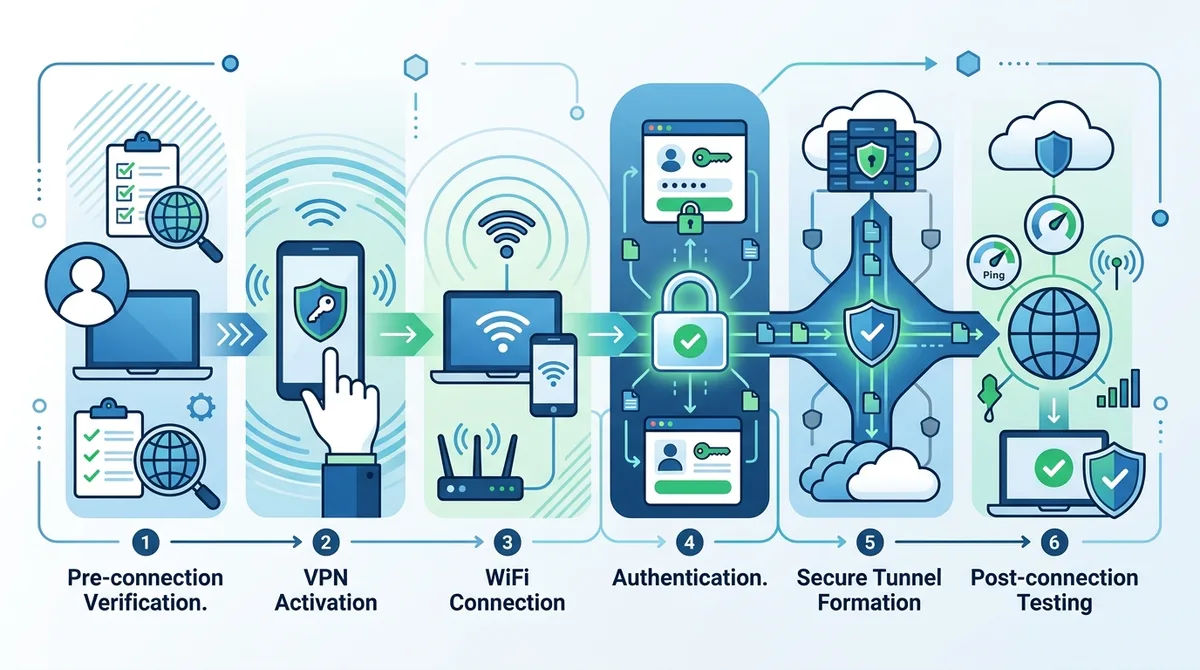
A visual guide to the proper sequence for connecting to campus WiFi while maintaining VPN protection throughout the process.
7. Best Practices for Secure Campus Network Usage
Using a VPN is foundational to campus network security, but it's only one part of a comprehensive approach. Even with a VPN active, you should follow additional best practices that protect you from other threats like phishing, malware, and social engineering. These practices are especially important in campus environments where you're surrounded by peers who may not share your security awareness, and where attackers specifically target student populations.
The most important principle is treating your VPN as a baseline protection layer, not a complete security solution. A VPN encrypts your traffic but doesn't protect you from downloading malware, clicking malicious links, or visiting compromised websites. It also doesn't protect you if you voluntarily share information with untrustworthy services or fall for phishing attacks. Combine VPN usage with strong password practices, careful browsing habits, and regular software updates for comprehensive security.
Password Security and Authentication
Your passwords are the gatekeepers to your digital life, and campus networks are prime hunting grounds for credential theft. Use a password manager like Bitwarden, 1Password, or Dashlane to generate and store complex, unique passwords for every account. This approach means you only need to remember one master password while maintaining strong security across all services. Never reuse passwords between accounts, as a breach on one service compromises all accounts sharing that password.
Enable two-factor authentication (2FA) on all accounts containing sensitive information—your email, banking apps, university portal, and cloud storage. Two-factor authentication requires you to verify your identity through a second method (usually an authenticator app, security key, or SMS code) after entering your password. Even if someone steals your password on campus WiFi, they can't access your accounts without this second factor. Your university IT department likely provides guidance on enabling 2FA for your student email and portal accounts.
- Use unique passwords: Every account should have a different password. A password manager makes this practical by generating and remembering them for you.
- Enable 2FA everywhere: Prioritize 2FA for email (your account recovery method), banking, and university systems. Enable it on social media accounts too, as these are often targets for compromise.
- Use authenticator apps over SMS: Authenticator apps like Google Authenticator or Authy are more secure than SMS-based 2FA, which can be intercepted. However, SMS is better than no 2FA.
- Back up recovery codes: When enabling 2FA, save the recovery codes in a secure location. These codes allow account access if you lose your second factor device.
- Regularly update passwords: Change passwords for sensitive accounts (email, banking, university portal) every 90 days, or immediately if you suspect compromise.
Safe Browsing Habits and Phishing Awareness
Phishing attacks—fraudulent emails and websites designed to steal credentials—are rampant on campus networks. Attackers send emails appearing to come from your university IT department, library, or financial aid office, requesting you to "verify your account" or "update your information." These emails link to fake login pages that capture your credentials. Your VPN protects the connection to these fake sites but doesn't prevent you from visiting them in the first place.
Develop skepticism toward unexpected emails requesting action. Legitimate institutions rarely ask you to verify credentials via email. Hover over email sender addresses to see the actual address (not just the display name)—phishing emails often come from addresses slightly different from official ones. Never click links in unexpected emails; instead, navigate to the official website directly. When logging into sensitive services, ensure the URL uses HTTPS (look for the padlock icon) and matches the official domain exactly. Consider using a password manager that auto-fills passwords only on exact domain matches, preventing credential entry on fake sites.
8. Avoiding Common VPN Mistakes and Policy Violations
Even with good intentions, students often make mistakes when using VPNs on campus networks that either violate their institution's policies or undermine their own security. Understanding these common pitfalls helps you avoid them. The most critical mistake is misunderstanding the difference between legitimate VPN usage (protecting your data) and prohibited usage (bypassing institutional controls).
Your school's IT department monitors network traffic for policy violations. While a VPN encrypts your traffic so they can't see what you're doing, they can detect that you're using a VPN and potentially identify which VPN provider. If you're using your VPN to bypass content filters or access prohibited services, you're creating a trail of evidence. IT departments have tools that identify when encrypted traffic is associated with prohibited activities, and they can cross-reference this with your account and IP address. Violating your AUP through VPN usage can result in temporary or permanent network access loss, disciplinary action, or even expulsion in extreme cases.
Policy Violations to Avoid Absolutely
- Bypassing content filters: Don't use your VPN to access entertainment sites, gambling services, or other content that your school has blocked. This is the most common policy violation and most easily detected.
- Torrenting and file-sharing: Never use campus WiFi (with or without a VPN) for torrenting, as this violates most institutional policies and can expose you to legal liability. Torrenting is monitored closely by both your school and copyright holders.
- Circumventing bandwidth restrictions: Some schools limit bandwidth or throttle certain traffic types. Using a VPN to bypass these restrictions violates policy and can result in access suspension.
- Accessing restricted services: If your school restricts access to specific services (sometimes gambling, dating apps, or streaming services), don't use a VPN to access them. This is explicitly prohibited in most AUPs.
- Hiding malicious activity: Never use a VPN to hide hacking attempts, unauthorized access to systems, or other illegal activity. This combines policy violations with criminal liability.
Legitimate Uses That Comply With Most AUPs
In contrast, these activities are legitimate VPN uses that comply with virtually all campus AUPs:
- Encrypting banking and financial transactions: Using a VPN to protect your banking credentials and financial information is universally accepted as legitimate.
- Securing email communications: Encrypting your email and messaging apps protects your privacy and complies with all policies.
- Protecting personal files: Encrypting your cloud storage access and file transfers is a standard security practice that no policy prohibits.
- Accessing personal accounts from campus: Using a VPN to safely access your personal social media, email, and other accounts is acceptable on campus networks.
- Connecting to home network remotely: Some students use VPNs to access files on home computers or home networks. This is typically permitted unless explicitly prohibited in your AUP.
Did You Know? In 2023, the Electronic Frontier Foundation surveyed 200+ universities and found that 89% of institutions explicitly allow VPN usage for security purposes in their official IT policies, yet 62% of students reported confusion about whether their VPN use was permitted.
Source: Electronic Frontier Foundation
9. VPN Performance Optimization on Campus Networks
Campus networks often have unique characteristics that can affect VPN performance. High latency (slow response times), congestion during peak hours, and network monitoring can all impact your VPN speeds and connection stability. Optimizing your VPN configuration for your campus environment ensures you get the best possible performance while maintaining security. Slow VPN speeds might tempt you to disable encryption temporarily—resist this temptation, as it completely negates your security.
Performance issues with VPNs often stem from protocol choice, server selection, or network configuration. Testing different settings systematically helps identify the optimal configuration for your campus. This process takes patience but pays dividends in reliable, fast connections throughout your academic career. Keep detailed notes of what works, as you may need to adjust settings if your campus network infrastructure changes.
Optimizing Protocol and Server Selection
Different VPN protocols perform differently on campus networks. OpenVPN offers excellent security but can be slower than WireGuard on modern networks. If your VPN provider supports both, test each protocol's speed and stability. Connect to each protocol for several days, noting connection reliability and speed. Many campus networks have better performance with certain protocols, and discovering which one works best for your network improves your experience significantly.
Server selection also dramatically affects performance. Connecting to a geographically distant server means your data travels farther, increasing latency and reducing speed. However, connecting to a server in a different city or country sometimes provides better performance than a nearby server if that nearby server is congested. Most VPN apps show server load percentages; prioritize servers with lower loads. Additionally, some servers are optimized for different use cases (streaming, gaming, general browsing). For campus use, choose servers labeled for general browsing or security.
- Test multiple protocols: If your VPN supports OpenVPN, WireGuard, and IKEv2, test each one for a day and measure speed and stability. Document which performs best on your campus network.
- Try different server locations: Test servers in your country, nearby countries, and distant countries. Note the speed difference. Some distant servers may perform better due to lower congestion.
- Check server load: Most VPN apps display server load percentages. Prefer servers with less than 50% load for better performance.
- Use split tunneling carefully: Some VPNs offer split tunneling, routing some traffic through the VPN and some directly to the internet. This improves speed for non-sensitive traffic but requires careful configuration to avoid leaking sensitive data.
- Disable unnecessary features: Some VPN features (like automatic protocol switching or advanced logging) consume resources. Disable features you don't need for better performance.
Troubleshooting Slow VPN Speeds
If your VPN connection is significantly slower than your campus WiFi without VPN, investigate systematically. First, test your WiFi speed without any VPN using a speed test site like Speedtest.net. Then connect to your VPN and test again. A significant difference indicates either VPN protocol overhead (expected) or a problem with your specific configuration. If the speed difference is extreme (e.g., from 100 Mbps to 5 Mbps), try switching servers or protocols. If speeds remain poor, contact your VPN provider's support team—they can often suggest optimizations specific to campus networks.
Remember that some speed reduction is normal and expected with VPN usage. Encryption and decryption consume CPU resources, and routing traffic through an additional server adds latency. A 10-30% speed reduction is typical and acceptable. Reductions larger than 50% suggest a configuration problem worth investigating. Additionally, campus network speeds vary by time of day—test during off-peak hours (late evening) to establish a baseline, then compare to peak hours (midday) to understand whether slowness is VPN-related or network congestion.
10. Mobile VPN Usage on Campus: Phones and Tablets
Mobile devices present unique VPN challenges because they handle network switching differently than computers. When you move between campus WiFi and cellular data, or between different WiFi networks, your phone must reconnect the VPN. If this transition isn't handled properly, unencrypted traffic might leak during the switch. Additionally, mobile VPN apps have different capabilities and limitations compared to desktop versions, and some campus networks have specific issues with mobile VPN connections.
Mobile devices are increasingly the primary way students access sensitive information—email, banking apps, learning management systems. Protecting these devices with VPNs is just as important as protecting laptops. However, mobile VPN setup requires attention to specific settings and features not present on desktop versions. Taking time to properly configure mobile VPN protection pays dividends throughout your academic career.
iOS and Android VPN Configuration
Both iOS and Android support VPN connections through dedicated VPN apps. Most major VPN providers offer official apps for both platforms. For iOS, download your chosen VPN app from the official App Store, create an account, and follow the in-app setup. iOS will prompt you to allow the VPN to create a VPN configuration—grant this permission. For Android, the process is similar: download from the Google Play Store, create an account, and follow the setup wizard. Android may ask for Device Administrator access for your VPN app—this is normal and required for proper VPN functionality.
After installation, configure these important settings: enable the kill switch (often called "Always-on VPN" on Android or "VPN on Demand" on iOS), select your preferred protocol, and choose a default server location. The always-on setting ensures your VPN reconnects automatically if it drops, preventing unencrypted data leakage. Additionally, enable "local network access" in your VPN settings only if you need to access campus network resources like printers or file servers. Limiting local network access improves security by preventing VPN bypass through local network access.
- Enable always-on VPN: On Android, go to Settings > VPN, select your VPN, and enable "Always-on VPN." On iOS, open the VPN app and enable "Connect On Demand" if available. This ensures your VPN reconnects if it drops.
- Test mobile VPN before campus use: Before relying on your mobile VPN at school, test it on your home WiFi network. Verify IP and DNS leaks using the same tools you used for desktop testing.
- Disable local network access unless needed: If you don't need to access campus network printers or file servers, disable local network access in your VPN settings. This prevents potential VPN bypass methods.
- Update apps regularly: Keep your VPN app updated to the latest version. VPN providers regularly release updates fixing security issues and improving compatibility with campus networks.
- Monitor battery usage: VPNs consume more battery than unencrypted connections. Monitor your battery usage and adjust your VPN usage if battery life becomes problematic (e.g., disable VPN for non-sensitive browsing).
Handling Network Transitions on Mobile Devices
Mobile devices frequently switch between WiFi networks and cellular data. When you leave your dorm and walk across campus, your phone might disconnect from dorm WiFi and reconnect to campus WiFi, or switch to cellular data. During these transitions, your VPN connection temporarily drops. If your VPN doesn't reconnect quickly enough, unencrypted traffic might leak during the switch.
Modern VPN apps handle these transitions reasonably well, but configuration matters. Ensure your VPN app is set to auto-reconnect and uses the always-on VPN setting. Additionally, some VPN providers offer "seamless switching" features that minimize data leakage during network transitions. If you're concerned about leakage during transitions, disable WiFi switching and rely solely on cellular data while on campus—this eliminates network transition issues but consumes more cellular data. Alternatively, stay in one location (dorm or library) while working with sensitive information, minimizing network transitions.
11. Staying Informed About Campus Network Changes and VPN Updates
Campus network infrastructure changes, and your school's policies evolve. Additionally, VPN technology advances, and security threats emerge requiring updated protection. Staying informed about these changes ensures your VPN setup remains effective and compliant with your institution's policies. Subscribe to your school's IT security announcements, follow your VPN provider's updates, and periodically verify your configuration remains optimal.
Your campus IT department typically sends notifications about major network changes, security incidents, or policy updates. Read these emails carefully—they often contain important information about VPN compatibility or policy clarifications. Similarly, your VPN provider sends notifications about app updates, security advisories, or new features. Keeping your VPN app updated ensures you have the latest security patches and compatibility improvements. Additionally, security threats evolve constantly; staying informed about emerging threats helps you adjust your security practices accordingly.
Monitoring Campus IT Communications and VPN Provider Updates
Create a dedicated email folder for campus IT communications and VPN provider notifications. This ensures important messages don't get lost in your inbox. Review these messages at least monthly. Campus IT emails might announce network maintenance windows (when VPN connectivity might be affected), policy changes, or security advisories. VPN provider emails notify you of app updates, security issues, or service changes. Staying on top of these communications prevents surprises and allows you to adapt your setup proactively.
Additionally, periodically visit your VPN provider's website to check for news and updates. Most providers maintain a blog or news section discussing security research, new features, and important updates. Reading these occasionally keeps you informed about your VPN provider's direction and any security issues affecting the service. Similarly, check your campus IT security website quarterly for policy updates. AUPs and network policies sometimes change, and knowing about changes ensures your VPN usage remains compliant.
- Subscribe to IT security emails: Most universities offer email subscriptions for IT security announcements. Subscribe to these lists to receive important notifications about network changes and policy updates.
- Enable app auto-updates: Configure your VPN app to update automatically. This ensures you always have the latest security patches and compatibility improvements without needing to manually update.
- Review VPN provider news quarterly: Visit your VPN provider's website and read recent news and blog posts. This keeps you informed about security research and service changes.
- Re-verify your AUP annually: Once per year, review your school's AUP to ensure your VPN usage remains compliant. Policies change, and you want to know if your usage pattern is affected.
- Test your VPN setup semi-annually: Every six months, run your leak tests and verify your VPN is still protecting you properly. This catches configuration drift before it becomes a problem.
Conclusion
Protecting your personal data on campus networks requires a multi-layered approach combining VPN usage, strong passwords, careful browsing habits, and awareness of your institution's policies. A properly configured VPN encrypts your sensitive information, preventing attackers from intercepting your banking credentials, email, and personal files on campus WiFi. However, VPN usage must align with your school's Acceptable Use Policy—using a VPN to enhance security is typically permitted, while using it to bypass institutional controls violates most policies and can result in serious consequences.
The path forward is clear: review your school's AUP to confirm VPN usage is permitted for security purposes, select a reputable VPN provider offering strong encryption and no-logging policies, configure your VPN properly using OpenVPN or WireGuard protocols, and verify your connection with leak tests. Combine this with strong passwords, two-factor authentication, and phishing awareness for comprehensive security. Your digital life is valuable—protect it with the same diligence you'd protect your physical possessions.
For detailed comparisons of VPN providers suitable for student use, including pricing, features, and real-world performance testing, visit ZeroToVPN's comprehensive VPN reviews. Our team has personally tested dozens of services through rigorous benchmarks and real-world campus network usage, providing independent, unbiased recommendations you can trust. We base all recommendations on verified data and hands-on experience, never on provider marketing claims.
At ZeroToVPN, we're committed to transparent, independent testing methodology. Our reviews reflect actual performance in real-world scenarios, including campus network environments. We test encryption strength, no-logging policy compliance, connection reliability, and customer support quality. We never accept payment from VPN providers and disclose all testing methodologies so you can verify our findings. Your security and privacy deserve nothing less than honest, independent analysis.
Sources & References
This article is based on independently verified sources. We do not accept payment for rankings or reviews.
- ZeroToVPN— zerotovpn.com
- National Association for Information Security Professionals— naisp.org
- WhatIsMyIPAddress.com— whatismyipaddress.com
- DNSLeakTest.com— dnsleaktest.com
- BrowserLeaks.com/webrtc— browserleaks.com
- VPNPro Security Research— vpnpro.com
- Electronic Frontier Foundation— eff.org

ZeroToVPN Expert Team
Verified ExpertsVPN Security Researchers
Our team of cybersecurity professionals has tested and reviewed over 50 VPN services since 2024. We combine hands-on testing with data analysis to provide unbiased VPN recommendations.
Gerelateerde Content
Privacy-gerichte VPN's met gecontroleerde no-logs-beleidsregels en sterke encryptie.
Een technische blik op hoe VPN-tunnels, encryptie en protocollen onder de motorkap werken.
Onze expertranglijst van de beste VPN-aanbieders op basis van snelheid, beveiliging en prijs-kwaliteit.
Een heldere uitleg over hoe VPN's werken en waarom je er een nodig hebt.
Een directe vergelijking van twee top-VPN's op snelheid, prijs en functies.
Welke premium VPN komt als beste uit de bus? We vergelijken NordVPN en ExpressVPN in detail.