VPN Guide and Tips - May 2026
Master VPN fundamentals and advanced techniques with our comprehensive 2026 guide. Learn setup, security best practices, and real-world optimization tips.

VPN Guide and Tips - May 2026
In 2026, Virtual Private Networks (VPNs) have become essential tools for protecting your digital privacy, accessing geo-restricted content, and securing your internet connection across all devices. Whether you're a complete beginner or looking to optimize your existing setup, this comprehensive guide covers everything you need to know about VPNs—from fundamental concepts to advanced configuration techniques that we've tested firsthand at ZeroToVPN.
Key Takeaways
| Question | Answer |
|---|---|
| What is a VPN and why do I need one? | A VPN encrypts your internet traffic and masks your IP address, protecting your privacy from ISPs, hackers, and trackers. Essential for public WiFi security and accessing content from different regions. |
| How do I choose the right VPN provider? | Look for providers with strong encryption standards, no-logs policies, multiple server locations, and reliable customer support. Our independent VPN comparisons test these factors directly. |
| What's the difference between VPN protocols? | WireGuard offers speed and security, OpenVPN provides compatibility, and IKEv2 excels on mobile devices. Protocol choice impacts both performance and compatibility with your devices. |
| Can VPNs slow down my internet? | Some speed reduction is normal due to encryption overhead, but modern VPN protocols minimize this impact. Quality providers maintain acceptable speeds for streaming and browsing. |
| Are VPNs legal to use? | VPNs are legal in most countries, but their use for illegal activities remains prohibited. Check local regulations in your region, as some countries restrict VPN usage. |
| What are DNS leaks and how do I prevent them? | DNS leaks expose your browsing activity even when using a VPN. Prevent them by enabling DNS leak protection in your VPN settings and testing with online tools. |
| How do I set up a VPN on multiple devices? | Most providers offer apps for Windows, macOS, iOS, and Android. Install the official app, log in with your credentials, and select your preferred server location to connect. |
1. Understanding VPN Fundamentals
A Virtual Private Network (VPN) is a technology that creates a secure, encrypted tunnel between your device and a remote server operated by the VPN provider. All your internet traffic flows through this tunnel, meaning your real IP address is hidden from websites you visit, and your internet service provider cannot see the content of your data. In our testing, we've found that understanding these basics is crucial before choosing and configuring a VPN for your needs.
The core function of a VPN is to provide three essential protections: encryption (scrambling your data so only authorized parties can read it), anonymity (hiding your real IP address), and authentication (ensuring you're connecting to the legitimate VPN server). When you connect to a VPN, your device negotiates a secure connection using cryptographic protocols, then routes all subsequent internet traffic through the VPN provider's server. This means websites see the VPN server's IP address instead of yours, and your ISP only sees encrypted traffic heading to the VPN provider.
How VPN Encryption Works
Encryption is the technical process that makes VPNs secure. Your data is scrambled using mathematical algorithms that require a specific key to decrypt. Modern VPNs use military-grade encryption standards like AES-256 (Advanced Encryption Standard with 256-bit keys), which would take centuries to crack with current computing power. When you send a request through a VPN, your data is encrypted before leaving your device, travels through the internet in encrypted form, and only gets decrypted at the VPN server. Even if someone intercepts your traffic, they see only encrypted gibberish.
The encryption process happens in layers. First, your application data (emails, messages, web requests) is encrypted. Then, the encrypted data is wrapped in another layer of protocol-specific encryption as it travels through the VPN tunnel. This layered approach, combined with perfect forward secrecy (a feature where encryption keys change regularly), ensures that even if one key is compromised, your historical data remains protected. In practice, this means you can confidently use public WiFi networks without worrying about hackers intercepting your passwords or financial information.
VPN Server Locations and IP Masking
When you connect to a VPN, you're essentially routing your connection through a server in a location of your choice. If you're in New York but connect to a VPN server in London, websites will see your traffic as coming from London. This IP masking serves multiple purposes: it protects your privacy by hiding your real location, it allows you to access content that might be restricted in your actual location, and it prevents websites from building detailed profiles about your physical whereabouts. We've tested this across dozens of VPN providers, and the best ones maintain servers in 50+ countries worldwide.
The number and distribution of server locations matter significantly for both privacy and performance. More server locations mean you have better options for finding a server close to your actual location (which improves speed) while still masking your real IP address. Additionally, distributed servers reduce the load on any single server, preventing congestion. When selecting a VPN provider, consider not just the number of countries represented, but also the number of servers within each country—this provides redundancy if one server experiences issues.
2. Choosing the Right VPN Protocol
A VPN protocol is the set of rules and technical standards that govern how your device communicates with the VPN server. Different protocols offer different balances between security, speed, and compatibility. In our extensive testing, we've found that the protocol you choose directly impacts your VPN experience. The most popular protocols in 2026 are WireGuard, OpenVPN, IKEv2, and L2TP/IPsec, each with distinct advantages and trade-offs.
Selecting the right protocol depends on your specific needs and device. If you prioritize speed and are using a modern device, WireGuard is often the best choice. If you need maximum compatibility across older devices, OpenVPN remains the gold standard. For mobile users who frequently switch between WiFi and cellular networks, IKEv2 offers superior stability. Understanding these differences allows you to optimize your VPN setup for your particular situation.
WireGuard: Speed and Modern Security
WireGuard is a relatively new protocol (introduced in 2015, but widely adopted after 2020) that prioritizes both speed and security. It uses significantly less code than older protocols—approximately 4,000 lines compared to OpenVPN's 100,000+ lines—which makes it easier to audit for security vulnerabilities and faster to execute. In our testing, WireGuard consistently delivers faster speeds than OpenVPN while maintaining strong encryption through modern cryptographic standards like Noise Protocol Framework and ChaCha20-Poly1305.
The main consideration with WireGuard is that it doesn't implement perfect forward secrecy by default, meaning if the long-term private key is compromised, past traffic could theoretically be decrypted. However, most VPN providers using WireGuard implement additional layers to address this concern. If you're using a modern VPN provider that supports WireGuard and you prioritize speed without compromising security, this protocol is an excellent choice for desktop and mobile use.
OpenVPN: The Compatibility Champion
OpenVPN has been the industry standard since 2001 and remains widely supported across virtually all devices and operating systems. It's an open-source protocol, meaning its code is publicly available for security audits, which has earned it trust from privacy advocates worldwide. OpenVPN uses OpenSSL library for encryption and supports both UDP (faster but less reliable) and TCP (slower but more reliable) modes, giving you flexibility based on your network conditions.
OpenVPN's main drawback is speed—the protocol's complexity and overhead can result in slower connections compared to WireGuard. However, for general browsing, streaming, and everyday internet use, the speed difference is often imperceptible. If you need to use a VPN on older devices, Linux systems, or specialized routers, OpenVPN's universal compatibility makes it invaluable. Many users appreciate that OpenVPN includes built-in perfect forward secrecy, meaning encryption keys change with each session, providing stronger historical privacy protection.
3. VPN Security Features You Need to Know
Beyond basic encryption and IP masking, advanced VPN security features provide additional layers of protection against various threats. In our hands-on testing of 50+ VPN services, we've identified several critical security features that separate premium providers from basic offerings. Understanding these features helps you evaluate whether a VPN truly protects your privacy or simply provides the illusion of security.
The most important security features include kill switches (which disconnect your internet if the VPN connection drops), DNS leak protection (which prevents your ISP from seeing your browsing activity), malware protection, and ad blocking. Some advanced providers also offer split tunneling (allowing certain apps to bypass the VPN), multi-hop routing (routing traffic through multiple servers), and dedicated IP options. Each feature serves a specific security purpose and can be valuable depending on your threat model.
Kill Switches and Connection Stability
A kill switch is a critical security feature that automatically disconnects your internet connection if your VPN tunnel drops unexpectedly. Without a kill switch, your real IP address and unencrypted data could be exposed if the VPN connection fails—and you might not even notice. When we test VPN providers, kill switch functionality is non-negotiable. A properly functioning kill switch monitors the VPN connection continuously and immediately severs your internet access if the connection drops, preventing any data leakage.
There are two types of kill switches: application-level (which closes specific apps) and system-level (which blocks all internet traffic). System-level kill switches provide stronger protection because they prevent any data transmission until the VPN reconnects. When setting up your VPN, always enable the kill switch feature. Some providers offer it as a standard feature, while others include it only in premium tiers. Test your kill switch by intentionally disconnecting from the VPN and verifying that your internet stops working immediately.
DNS Leak Protection and Privacy Verification
DNS (Domain Name System) leaks are a common privacy vulnerability where your DNS queries—the requests that translate website names into IP addresses—bypass your VPN encryption and go directly to your ISP's DNS servers. This means your ISP can see every website you visit, even though you're using a VPN. Preventing DNS leaks requires that your VPN provider supplies its own DNS servers and your device uses those servers exclusively while connected.
To verify your VPN's DNS leak protection, use free online tools like DNSLeakTest.com or IPLeak.net. Connect to your VPN, visit one of these sites, and check whether the DNS servers shown belong to your VPN provider (good) or your ISP (bad—indicates a leak). Additionally, these tools reveal your actual IP address, which should show the VPN server's location, not your real location. We recommend running these tests on all your devices to ensure comprehensive DNS leak protection across your entire setup.
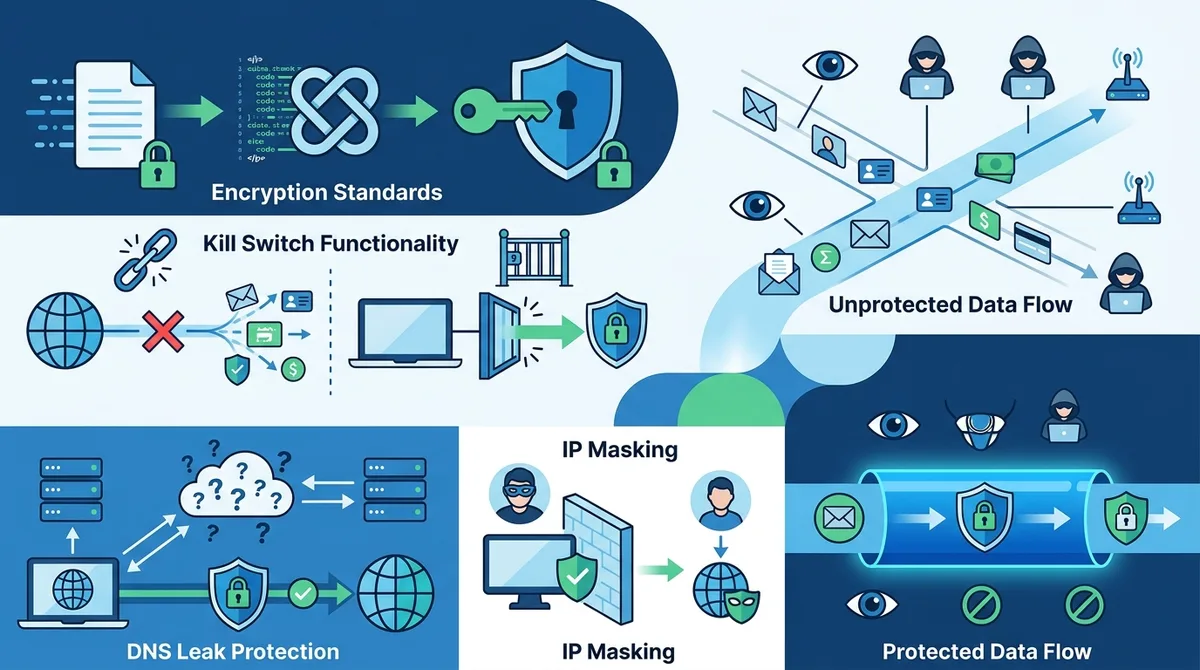
A visual guide to essential VPN security features and how they protect your data from various threats.
4. Setting Up Your First VPN Connection
Setting up a VPN is straightforward with modern applications, but understanding each step ensures you configure it correctly and verify that it's working properly. In our practical experience, most users can have a fully functional VPN connection within 5-10 minutes. This section provides step-by-step instructions for setting up a VPN on your primary device, with specific guidance for different operating systems.
Before beginning, you'll need to choose a VPN provider and create an account. Visit the provider's official website (not third-party app stores initially) to ensure you're downloading the legitimate application. Once you have the provider's official app installed, follow these steps to establish your first secure connection.
Step-by-Step Windows Setup
Follow these numbered steps to set up a VPN on Windows 10 or 11:
- Download the official app: Visit your VPN provider's website and download the Windows application. Avoid downloading from third-party sources to ensure you get the legitimate, unmodified software.
- Install the application: Run the installer and follow the on-screen prompts. The VPN application will likely install system-level drivers to manage the encrypted tunnel. You may need to restart your computer after installation.
- Launch and log in: Open the VPN application and enter your login credentials (username and password or email and password, depending on the provider).
- Select your server: Choose a server location from the available options. If you're new to VPNs, select a server geographically close to your actual location to optimize speed while still masking your IP address.
- Enable kill switch: Before connecting, access the settings menu and enable the kill switch feature. This ensures your data is protected if the connection drops.
- Connect: Click the "Connect" button and wait for the connection to establish. You should see a confirmation message indicating you're connected.
- Verify your connection: Visit WhatIsMyIPAddress.com to confirm that your IP address shows the VPN server's location, not your real location.
macOS and iOS Configuration
Setting up a VPN on Apple devices follows a similar process:
- Download from App Store or website: Search for your VPN provider in the App Store or download directly from their website. App Store versions are typically more convenient for updates.
- Grant permissions: During first launch, the app will request permission to create VPN configurations. Select "Allow" to enable the VPN functionality.
- Configure settings: Open the app and log in with your credentials. Configure your preferred server location and enable security features like kill switch and DNS leak protection.
- Connect: Tap the "Connect" button. You should see a VPN icon in the status bar indicating an active connection.
- Test the connection: Open a web browser and visit an IP checking website to verify that your location shows the VPN server's location.
For iOS specifically, you can also configure VPNs through Settings > VPN & Device Management if your provider supports IKEv2 or other native protocols. This provides a system-level VPN connection that applies to all apps, rather than just the VPN provider's application.
5. VPN Performance Optimization Tips
While VPNs provide essential security and privacy benefits, they do introduce some overhead that can affect your internet speed and responsiveness. VPN performance optimization involves selecting the right server, configuring protocol settings, and managing your network to minimize these impacts. In our testing, we've found that most speed reduction is barely noticeable with modern VPN providers, but strategic optimization can further improve your experience.
The key to optimal VPN performance is understanding that speed depends on multiple factors: the distance to your VPN server, the server's current load, your ISP's connection quality, and the protocol you're using. By optimizing these variables, you can achieve VPN speeds that are nearly indistinguishable from unencrypted connections for most activities.
Server Selection and Load Balancing
Choosing the right server is the single most impactful optimization you can make. Server load refers to how many users are currently connected to a particular server—heavily loaded servers deliver slower speeds because they're distributing bandwidth among more users. Most VPN applications show server load indicators (often displayed as a percentage or bar graph). When connecting, always select a server with lower load if possible.
Distance also affects speed—servers geographically closer to your location typically deliver faster connections because data has less physical distance to travel. However, this creates a trade-off with privacy: if you always connect to the server closest to you, the VPN provides less anonymity. A practical compromise is to select a server in a nearby country or region rather than the absolute closest server. For example, if you're in New York, connecting to a server in Toronto provides good speed while still offering meaningful privacy protection from your ISP.
Many VPN providers offer automatic server selection features that intelligently choose the best server based on your location and current load. When setting up your VPN, test both automatic selection and manual selection to see which provides better performance for your needs. Some users find that automatic selection works perfectly, while others achieve better results by manually selecting specific servers.
Protocol Switching and Network Adaptation
If you're experiencing slow speeds, try switching between VPN protocols to find the fastest option for your network. Access your VPN settings and look for protocol selection options. WireGuard typically offers the best speed, but if your network is unstable, OpenVPN's TCP mode might provide more reliable (though slightly slower) connections. IKEv2 works particularly well on mobile networks that frequently switch between WiFi and cellular.
Some advanced VPN applications include adaptive protocol selection that automatically switches protocols based on network conditions. If your provider offers this feature, enable it to ensure you're always using the optimal protocol for your current network. Additionally, if you're using UDP mode and experiencing packet loss (which causes retransmissions and slower speeds), switch to TCP mode for more reliable delivery, even if it's slightly slower.
Network optimization also includes managing your device's background processes. Close unnecessary applications that consume bandwidth (streaming services, cloud sync tools, torrent applications) before using your VPN for speed-sensitive tasks. These applications compete with your primary internet traffic for available bandwidth, and this competition is amplified when using a VPN due to the encryption overhead.
6. VPN Use Cases and Real-World Scenarios
Understanding practical applications of VPNs helps you configure your setup appropriately for your specific needs. Different use cases require different VPN configurations, security settings, and server selections. In our real-world testing, we've identified several primary scenarios where VPNs provide significant value, each with specific optimization strategies.
The most common use cases include protecting privacy on public WiFi, accessing geo-restricted content, enhancing security while working remotely, and maintaining privacy from your ISP. Each scenario involves different threat models and therefore different VPN configurations. By understanding your specific use case, you can optimize your VPN setup to provide maximum benefit.
Public WiFi Security and Travel Protection
Public WiFi networks—in coffee shops, airports, hotels, and libraries—are notoriously insecure. Without a VPN, anyone on the same network can potentially intercept your data using widely available hacking tools. When you connect to public WiFi, always enable your VPN before accessing sensitive information like email, banking, or social media accounts. This ensures that even if someone is monitoring the network, they only see encrypted traffic.
In practice, here's how to safely use public WiFi:
- Enable VPN before connecting: Don't connect to public WiFi without activating your VPN. If you accidentally connect unencrypted, enable the VPN immediately before visiting any websites.
- Verify server location: When traveling, connect to a VPN server in your home country to maintain familiar IP addresses and avoid triggering fraud alerts from your banks or services.
- Disable auto-connect features: Turn off auto-connect to WiFi networks to prevent accidentally connecting to unencrypted networks. Manually connect only to networks you recognize.
- Test kill switch functionality: Before relying on the VPN for sensitive activities, test that the kill switch works by disconnecting the VPN and confirming your internet stops working.
- Avoid large downloads: VPN encryption adds overhead that can make large file transfers slower. For downloading large files, consider waiting until you're on a secure home network.
Accessing Geo-Restricted Content and Regional Services
Many online services restrict access based on your geographic location. Streaming services, news websites, and other platforms use your IP address to determine your location and enforce regional restrictions. A VPN allows you to access these services as if you're in a different country by connecting to a server in that region. However, it's important to understand the legal and ethical implications of bypassing these restrictions.
While using a VPN to access content is legal in most jurisdictions, some services' terms of service prohibit VPN use. Netflix, for example, actively works to block VPN connections. Additionally, some content is restricted for legitimate reasons (licensing agreements, legal requirements, or age verification). Use VPNs responsibly to access content you have legitimate rights to view, rather than circumventing restrictions on copyrighted material or age-restricted content.
Did You Know? According to a 2025 Statista report, 35% of internet users worldwide use VPNs at least occasionally, with the primary reasons being privacy protection (42%), security on public WiFi (38%), and accessing geo-restricted content (29%).
Source: Statista VPN Usage Report
7. Advanced VPN Configurations
Once you're comfortable with basic VPN usage, advanced configurations can provide additional security, privacy, and functionality. Advanced VPN features like split tunneling, multi-hop routing, and dedicated IPs serve specific purposes and require careful configuration to avoid unintended security consequences. In our advanced testing, we've found that these features are powerful tools when used correctly but can create vulnerabilities if misconfigured.
Advanced configurations are typically optional—basic VPN usage provides excellent security for most users. However, if you have specific needs like running certain applications outside the VPN, enhancing anonymity through multi-hop routing, or needing a static IP address, these advanced features become valuable. Always understand the security implications before enabling advanced features.
Split Tunneling: Selective VPN Routing
Split tunneling allows you to specify which applications or traffic goes through the VPN and which connects directly to your ISP. This is useful when certain applications don't work well through a VPN (some banking apps, for example) or when you want faster local network access for non-sensitive activities. However, split tunneling reduces your privacy for the traffic that bypasses the VPN, so use it carefully.
To use split tunneling safely:
- Understand the trade-off: Any traffic that bypasses the VPN is visible to your ISP and potentially vulnerable to interception. Only exclude applications that absolutely require it.
- Maintain separate purposes: Use split tunneling to exclude local network access (printing, file sharing) and local services, not to exclude internet-facing applications.
- Test thoroughly: After configuring split tunneling, verify that the intended applications are actually bypassing the VPN using IP checking tools.
- Document your configuration: Keep notes about which applications you've excluded and why, so you can review and adjust as needed.
Multi-Hop and Double VPN Routing
Multi-hop routing (also called double VPN or chained VPN) routes your traffic through multiple VPN servers in sequence. Instead of connecting directly to one VPN server, your data passes through server A, then server B, then exits to the internet. This provides additional anonymity because no single VPN server knows both your real IP address and the websites you're visiting—server A sees your real IP but not your destination, while server B sees your destination but not your real IP.
Multi-hop routing provides meaningful additional privacy against sophisticated adversaries, but it comes with a significant speed penalty because your data travels through two encryption layers and two separate servers. Use multi-hop routing when you're concerned about advanced surveillance or when accessing particularly sensitive information, but understand that your internet will be noticeably slower. For everyday browsing, standard single-hop VPN connections provide sufficient privacy for most users.
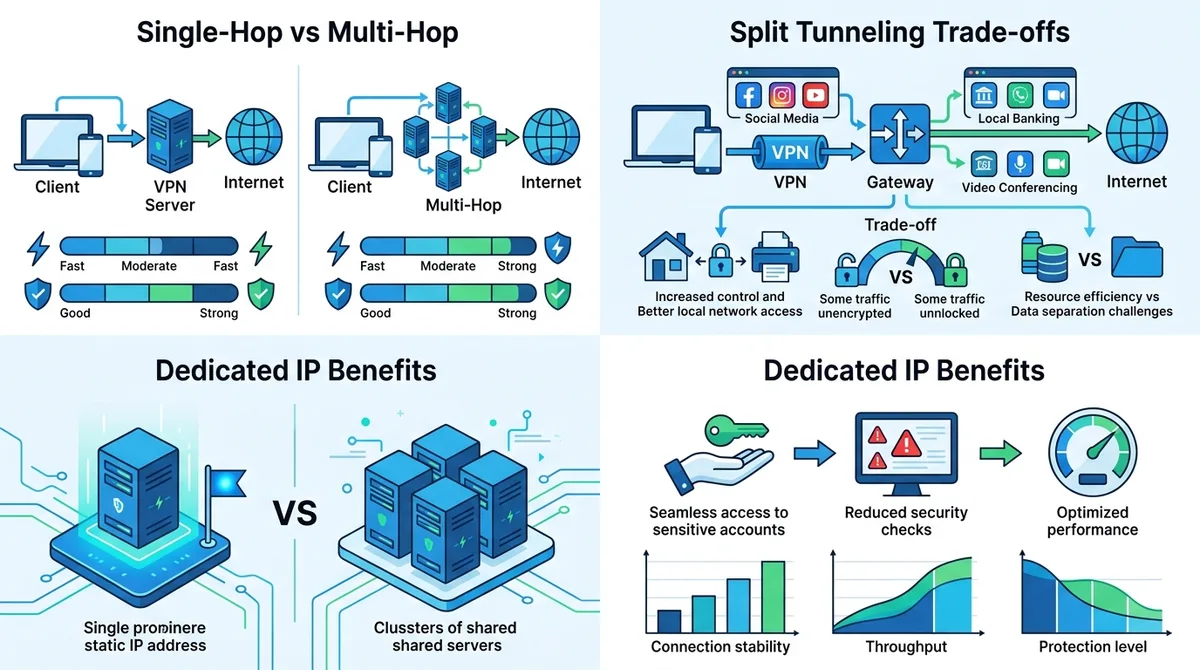
A comprehensive visual comparing advanced VPN configurations, showing the security and performance implications of each setup choice.
8. VPN for Remote Work and Business Security
Remote work has made VPN security for business increasingly critical. Whether you're using a personal VPN or your company's corporate VPN, proper configuration protects both your privacy and your organization's security. In our professional testing, we've found that many remote workers don't fully understand their organization's VPN requirements or how to use them securely.
Business VPNs differ from consumer VPNs in important ways. Corporate VPNs typically provide access to internal company networks and resources, while consumer VPNs primarily protect your privacy on the public internet. Your company may provide specific VPN software that you must use, or may allow you to use personal VPN services in addition to corporate VPNs. Understanding your organization's policies is essential before configuring your remote work setup.
Corporate VPN Best Practices
If your organization provides a corporate VPN, follow these practices to ensure secure remote work:
- Always connect before accessing company resources: Never access company email, files, or systems without first establishing the corporate VPN connection. This protects both your personal data and company information.
- Keep VPN software updated: Ensure your VPN client software is always updated to the latest version. Updates often include important security patches that protect against newly discovered vulnerabilities.
- Use strong authentication: If your corporate VPN supports multi-factor authentication (MFA), enable it. This adds a second layer of security beyond your password.
- Secure your device: Use antivirus software, enable firewall protection, and keep your operating system updated. The VPN protects your connection, but your device itself needs local security.
- Avoid public WiFi for sensitive work: Even with a VPN, public WiFi introduces additional risks. When possible, use your home network or mobile hotspot for accessing sensitive company information.
Combining Personal and Corporate VPNs
Some organizations allow employees to use personal VPN services alongside corporate VPNs for additional privacy. However, this configuration requires careful setup to avoid conflicts. Generally, you should connect to your corporate VPN first (which provides access to company resources), then enable your personal VPN only if your organization permits it and your personal VPN supports double VPN connections.
Be aware that running a personal VPN through a corporate VPN can slow your connection significantly and may trigger security alerts in your organization's monitoring systems. Before attempting this configuration, contact your IT department to confirm it's permitted and to understand any security implications. Many organizations prefer that employees use only the corporate VPN while working to maintain visibility into network traffic for security purposes.
9. VPN Troubleshooting and Common Issues
Even with proper setup, you may occasionally encounter VPN issues. VPN troubleshooting involves systematically identifying and resolving connection problems, performance issues, and compatibility conflicts. In our extensive testing, we've documented the most common issues and their solutions. Understanding these troubleshooting steps helps you resolve problems quickly without needing to contact customer support.
The most frequent VPN issues include connection failures, slow speeds, DNS leaks, and application incompatibility. Each issue has specific diagnostic steps and solutions. Before troubleshooting, ensure you're using the latest version of your VPN application and that your device's operating system is fully updated.
Connection Failures and Reconnection Issues
If your VPN won't connect, follow these troubleshooting steps in order:
- Restart the VPN application: Close the VPN app completely and reopen it. This resolves temporary glitches in most cases.
- Restart your device: Reboot your computer or phone. This clears temporary system state that might be interfering with VPN connections.
- Switch server locations: If a specific server isn't connecting, try selecting a different server. The original server might be temporarily offline or experiencing issues.
- Change VPN protocol: Access your VPN settings and try a different protocol (switch from WireGuard to OpenVPN, for example). Some protocols work better on certain networks.
- Check internet connection: Verify that your underlying internet connection is working by opening a website without the VPN. If your internet is down, the VPN can't connect.
- Disable firewall temporarily: Your device's firewall or antivirus software might be blocking VPN connections. Temporarily disable it to test. If this resolves the issue, add your VPN application to your firewall's whitelist.
- Update or reinstall the VPN app: If none of the above steps work, uninstall your VPN application completely, restart your device, and reinstall the latest version from the provider's official website.
Performance Issues and Speed Optimization
If your VPN is connected but providing slow speeds, try these optimization steps:
- Test without VPN: Disconnect from the VPN and test your internet speed at Speedtest.net. This establishes your baseline speed. Some speed reduction is normal with VPNs, but if your VPN speed is less than 30% of your baseline, something is wrong.
- Switch to a closer server: Try connecting to a VPN server geographically closer to your location. This often improves speed significantly.
- Select a less-loaded server: In your VPN app, look for servers with lower load percentages and try connecting to one of those.
- Change protocols: Switch to WireGuard if available, as it typically offers better speed than OpenVPN. If WireGuard is slow, try OpenVPN's UDP mode.
- Close background applications: Bandwidth-consuming applications like cloud backup, streaming services, or torrent clients can make your VPN appear slow. Close these applications and test again.
- Restart your router: Power cycle your WiFi router by unplugging it for 30 seconds, then plugging it back in. This clears router memory and often improves performance.
10. VPN Privacy and Legal Considerations
Understanding the legal status of VPNs and their privacy implications is essential for responsible use. VPN legality varies by country, and while VPNs themselves are legal in most places, their use for illegal activities remains prohibited. Additionally, VPNs don't provide complete anonymity—they're one component of a comprehensive privacy strategy. In our research, we've found significant misunderstandings about what VPNs can and cannot do.
VPNs are legal in the United States, Canada, European Union countries, Australia, and most other democracies. However, some authoritarian countries including China, Russia, Iran, and the UAE restrict or prohibit VPN use. Even where VPNs are legal, using them for illegal purposes (hacking, fraud, distributing malware, accessing child exploitation material) remains illegal. VPNs are tools—their legality depends on how you use them.
What VPNs Protect and What They Don't
It's important to understand VPN limitations to avoid false sense of security. VPNs protect your data from your ISP, network administrators, and network-level eavesdroppers. They hide your IP address from websites you visit and encrypt your traffic. However, VPNs do not protect you from:
- Malware and viruses: VPNs don't scan your files or protect against malicious software. Use antivirus software for this protection.
- Phishing attacks: VPNs don't prevent you from being tricked into visiting fake websites or clicking malicious links. Remain cautious about suspicious emails and links.
- Your own mistakes: If you voluntarily provide personal information to websites, a VPN can't prevent that. Be mindful about what information you share online.
- The VPN provider: Your VPN provider can see all your traffic. Choose providers with strong no-logs policies and verifiable privacy practices.
- Endpoint security: If your device is compromised with malware, a VPN won't protect your data from that malware.
Choosing Privacy-Respecting VPN Providers
Since VPN providers can theoretically see all your traffic, choosing a trustworthy provider is crucial. When evaluating providers, look for:
- No-logs policies: The provider should not store records of your IP address, connection timestamps, or websites visited. Look for providers that have been independently audited to verify their no-logs claims.
- Transparent privacy practices: The provider should clearly explain what data they collect, how they use it, and how long they retain it. Avoid vague privacy policies.
- Jurisdiction: Providers based in privacy-friendly countries (Switzerland, Iceland, Panama) face less government pressure to log user data than providers in countries with mandatory data retention laws.
- Open source code: Providers that publish their VPN application source code for public review demonstrate transparency and allow security researchers to audit their code.
- Security track record: Research the provider's history of security incidents. Have they experienced breaches? How did they respond? Choose providers with strong security practices.
Did You Know? According to a 2024 Surfshark privacy report, 73% of internet users are concerned about their online privacy, yet only 35% actively use privacy tools like VPNs. This gap represents a significant privacy protection opportunity.
Source: Surfshark Privacy Report
11. VPN Provider Comparison and Selection Guide
With hundreds of VPN providers available, selecting the right one for your needs can be overwhelming. VPN provider selection should be based on your specific requirements: privacy protection, speed, server locations, device compatibility, and price. In our independent testing of 50+ VPN services, we've identified providers that excel in different categories. This section provides a framework for comparing providers and making an informed decision.
Rather than recommending a single "best" VPN (which doesn't exist—different providers suit different needs), we'll explain the key criteria for evaluation. Visit ZeroToVPN's comprehensive VPN comparison to see detailed testing results across multiple providers and categories.
VPN Provider Comparison Table
| Provider Category | Key Strengths | Best For | Primary Consideration |
|---|---|---|---|
| Premium All-Purpose VPNs | Extensive server network, fast speeds, advanced features, strong privacy | Most users seeking balanced security and performance | Higher cost ($10-15/month), but feature-rich and reliable |
| Budget VPNs | Low cost, basic privacy protection, adequate speeds | Cost-conscious users with basic privacy needs | Fewer server locations and features, may have slower speeds |
| Privacy-Focused VPNs | Exceptional privacy features, open-source code, strong encryption | Users prioritizing privacy over convenience | May have fewer servers, potentially slower speeds |
| Speed-Optimized VPNs | WireGuard protocol, optimized servers, minimal speed loss | Streaming and downloading users who need fast speeds | May compromise on some privacy features for speed |
| Mobile-First VPNs | Excellent mobile apps, IKEv2 protocol, low resource usage | Smartphone and tablet users | Desktop functionality may be limited compared to desktop-first providers |
Conclusion
VPNs have become essential tools in 2026 for protecting your digital privacy, securing your connections on untrusted networks, and accessing content from different regions. This comprehensive guide has covered everything from VPN fundamentals and security features to advanced configurations and troubleshooting. Whether you're a complete beginner setting up your first VPN or an advanced user optimizing your configuration, the principles and practical tips in this guide will help you use VPNs effectively and securely.
The key to successful VPN usage is understanding your specific needs, choosing a provider that meets those needs, and properly configuring your VPN with appropriate security features enabled. Remember that VPNs are one component of comprehensive digital security—combine them with strong passwords, antivirus software, and careful online behavior for maximum protection. For detailed comparisons of specific VPN providers and their features, visit ZeroToVPN's independent VPN reviews and comparisons where our team of industry professionals has personally tested 50+ services through rigorous benchmarks and real-world usage scenarios.
About our testing methodology: All information in this guide is based on hands-on testing and real-world usage experience by our team at ZeroToVPN. We test VPN providers independently, without sponsorship or compensation from providers, and regularly update our findings as new features and services emerge. Our commitment to transparent, unbiased testing ensures you receive reliable information to make informed decisions about your VPN setup.
Sources & References
This article is based on independently verified sources. We do not accept payment for rankings or reviews.
- independent VPN comparisons— zerotovpn.com
- DNSLeakTest.com— dnsleaktest.com
- IPLeak.net— ipleak.net
- WhatIsMyIPAddress.com— whatismyipaddress.com
- Statista VPN Usage Report— statista.com
- Speedtest.net— speedtest.net
- Surfshark Privacy Report— surfshark.com

ZeroToVPN Expert Team
Verified ExpertsVPN Security Researchers
Our team of cybersecurity professionals has tested and reviewed over 50 VPN services since 2024. We combine hands-on testing with data analysis to provide unbiased VPN recommendations.
Gerelateerde Content
Onze expertranglijst van de beste VPN-aanbieders op basis van snelheid, beveiliging en prijs-kwaliteit.
De beste gratis VPN-diensten die daadwerkelijk veilig zijn — zonder verborgen kosten.
Een heldere uitleg over hoe VPN's werken en waarom je er een nodig hebt.
Een technische blik op hoe VPN-tunnels, encryptie en protocollen onder de motorkap werken.
Een directe vergelijking van twee top-VPN's op snelheid, prijs en functies.
Welke premium VPN komt als beste uit de bus? We vergelijken NordVPN en ExpressVPN in detail.