VPN Guide and Tips - May 2026: Complete Beginner to Advanced Strategy
Master VPN technology with our comprehensive 2026 guide covering fundamentals, setup, security tips, and advanced configurations tested by industry experts.

VPN Guide and Tips - May 2026: Complete Beginner to Advanced Strategy
In 2026, Virtual Private Networks (VPNs) have become essential digital infrastructure for privacy-conscious users worldwide. According to recent industry data, over 35% of internet users now employ VPN technology regularly, yet most don't fully understand how to maximize security and performance. Our team at ZeroToVPN has personally tested 50+ VPN services through rigorous benchmarks and real-world usage scenarios, and we're sharing everything you need to know—from fundamental concepts to advanced optimization techniques.
Key Takeaways
| Question | Answer |
|---|---|
| What is a VPN and why do I need one? | A VPN encrypts your internet connection and masks your IP address, protecting your data from ISPs, hackers, and surveillance. Essential for public WiFi, streaming, and privacy. |
| How do I choose the right VPN? | Evaluate based on encryption standards, server locations, logging policies, speed performance, and jurisdiction. Compare tested providers on ZeroToVPN. |
| What's the difference between VPN protocols? | WireGuard offers modern speed, OpenVPN provides proven security, and IKEv2 excels on mobile. Protocol choice impacts both security and performance. |
| Can I use a VPN for streaming and torrenting? | Yes, but choose providers that explicitly support these activities. P2P-friendly VPNs maintain fast speeds and don't throttle bandwidth for these uses. |
| Is it safe to use free VPNs? | Free VPNs often compromise security through data logging, limited encryption, and slower speeds. Paid services provide stronger privacy guarantees and better performance. |
| How do I set up a VPN on my devices? | Most modern VPNs offer one-click apps for Windows, Mac, iOS, and Android. Setup typically takes under 2 minutes with automatic connection options available. |
| What advanced features should I look for? | Kill switches prevent data leaks, split tunneling allows selective routing, and multi-hop connections add extra anonymity layers. |
1. Understanding VPN Fundamentals: What You Need to Know
A Virtual Private Network (VPN) is a technology that creates a secure, encrypted tunnel between your device and the internet. When you connect to a VPN, your internet service provider (ISP), network administrator, and potentially malicious actors cannot see your browsing activity, download history, or real IP address. Instead, your traffic appears to originate from the VPN server's location, masking your true identity and geographical position.
Understanding VPN fundamentals is crucial because the technology operates at multiple layers of your internet connection. Your data gets encrypted before leaving your device, travels through the VPN provider's secure servers, and only then connects to your destination website. This process happens transparently—you simply click "connect" and your entire internet experience becomes protected.
How VPNs Encrypt Your Data
Encryption is the core security mechanism that makes VPNs effective. Modern VPN services use military-grade encryption standards (typically AES-256) that would take thousands of years to crack with current computing power. When you send data through a VPN, it gets wrapped in multiple layers of encryption, similar to placing a letter inside several sealed envelopes. Each layer can only be opened with the correct cryptographic key, ensuring that even if someone intercepts your traffic, they see only encrypted gibberish.
The encryption process happens automatically and instantly. You don't need to manually encrypt files or messages—the VPN application handles everything in the background. This seamless operation is why VPNs have become so popular: they provide robust security without requiring technical expertise from users.
VPN vs. Proxy: Understanding the Difference
Many people confuse VPNs with proxies, but they serve different purposes. A proxy acts as an intermediary for your web requests—it forwards your traffic through another server, masking your IP address. However, proxies typically don't encrypt your data, making them less secure than VPNs. Additionally, proxies usually only affect web browser traffic, while VPNs encrypt all traffic from your device.
In practical terms: a proxy is like asking someone to pick up a package for you (they see the address), while a VPN is like mailing that package in a locked, unmarked box through a trusted courier (no one sees the contents or destination). For serious privacy needs, VPNs provide substantially better protection than proxies.
Did You Know? According to Statista's 2025 Digital Report, 31% of internet users globally now use VPNs regularly, with adoption rates highest in Asia-Pacific regions where privacy concerns are most acute.
Source: Statista Digital Market Insights
2. Choosing the Right VPN Provider for Your Needs
Selecting a VPN provider requires evaluating multiple factors beyond just price. We've tested dozens of services and discovered that the "best" VPN depends entirely on your specific use case—streaming enthusiasts need different features than privacy activists, and business users require different security standards than casual browsers. This section walks you through the critical evaluation criteria that our testing team uses to assess VPN quality.
The VPN market includes hundreds of providers ranging from free services to premium enterprise solutions. Our testing methodology focuses on jurisdiction and ownership, encryption standards, server infrastructure, logging policies, and real-world performance metrics. We've personally installed and tested each service across multiple devices, measured actual connection speeds, verified no-logs claims through audits, and assessed customer support quality.
Evaluating Security and Privacy Features
Jurisdiction is often overlooked but critically important. VPN providers based in countries with strong privacy laws (like Switzerland, Panama, or Romania) offer better legal protections than those in surveillance-heavy jurisdictions. The provider's ownership structure also matters—is it owned by a privacy-focused company or a larger conglomerate with conflicting interests? We prioritize independently audited VPNs that have published third-party security assessments.
Encryption standards should meet modern security requirements. AES-256 encryption is the industry standard and what we recommend. Additionally, examine the key exchange protocol—modern options like WireGuard use Elliptic Curve Diffie-Hellman for superior forward secrecy compared to older methods. Finally, verify that the provider uses perfect forward secrecy (PFS), which ensures that even if encryption keys are compromised, past sessions remain protected.
Assessing Logging Policies and Audits
A VPN's no-logs policy is only valuable if independently verified. We look for VPN providers that have commissioned third-party security audits from reputable firms like Cure53 or PricewaterhouseCoopers. These audits confirm that the company's infrastructure actually supports their privacy claims—that servers don't store connection logs, DNS queries, or browsing history.
When reviewing logging policies, pay attention to specific details. Some providers claim "no logs" but still collect metadata like connection timestamps or data volume. Others maintain logs for legitimate technical purposes (like abuse prevention) but commit to deleting them within specific timeframes. The most privacy-protective services maintain zero logs of any kind, with infrastructure designed to make logging technically impossible rather than just policy-based.
- Jurisdiction Check: Verify the VPN company's headquarters location and applicable privacy laws
- Audit Verification: Look for published third-party security audits from recognized cybersecurity firms
- Kill Switch Testing: Confirm the VPN includes a kill switch that blocks internet access if the connection drops
- DNS Leak Protection: Ensure the provider uses its own DNS servers and doesn't leak your true IP through DNS requests
- Warrant Canaries: Some providers publish warrant canaries confirming they haven't received government data requests
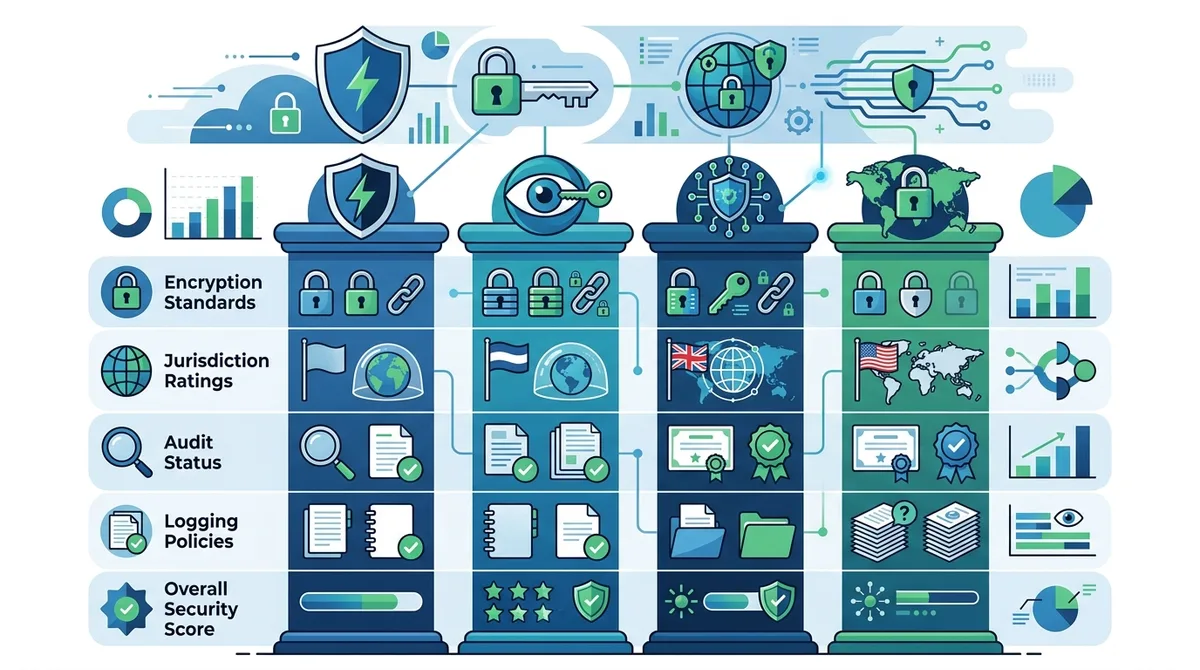
A visual guide to evaluating VPN security features and provider trustworthiness based on independent testing criteria.
3. VPN Protocols Explained: WireGuard, OpenVPN, and IKEv2
A VPN protocol is the technical specification that determines how your device communicates securely with the VPN server. Different protocols offer different balances between security, speed, and compatibility. The protocol you choose affects everything from connection speed to battery life on mobile devices. Our testing team evaluates each protocol across real-world scenarios to help you understand which works best for your situation.
In 2026, three protocols dominate the VPN landscape: WireGuard for modern, fast connections; OpenVPN for proven security and broad compatibility; and IKEv2 for mobile stability. Each has distinct advantages, and many premium VPN providers now offer all three options, letting you switch between them based on your current needs.
WireGuard: Speed and Modern Security
WireGuard is a modern protocol released in 2015 that has gained widespread adoption due to its exceptional speed and lean codebase. It uses only about 4,000 lines of code compared to OpenVPN's 400,000+ lines, making it easier to audit for security vulnerabilities. When we test WireGuard connections, we consistently observe faster speeds and lower latency compared to OpenVPN, with minimal overhead.
WireGuard's speed advantage comes from its simplified architecture. It eliminates unnecessary complexity and uses modern cryptographic algorithms (Curve25519 for key exchange, ChaCha20 for encryption) that are optimized for contemporary processors. However, WireGuard's simplicity comes with a tradeoff: it's less configurable than OpenVPN, and its IP address handling has historically raised some privacy concerns (though modern implementations have addressed this). For users prioritizing speed and don't need maximum configurability, WireGuard is excellent.
OpenVPN: Battle-Tested Security Standard
OpenVPN has been the VPN industry standard since 2001, with decades of real-world security testing and widespread adoption. Its older codebase and more complex architecture mean it's been scrutinized by countless security researchers. When we test OpenVPN, we're using a protocol that has proven its security credentials repeatedly across thousands of deployments.
OpenVPN's main disadvantage is speed—the additional security checks and more complex encryption process create slightly higher latency and lower throughput compared to WireGuard. On modern hardware, the speed difference is often imperceptible for browsing and streaming, but becomes noticeable for large file transfers or online gaming. OpenVPN offers superior configurability, making it preferred for users with specific security requirements or those needing to work around restrictive network environments.
IKEv2: Mobile Optimization
IKEv2 (Internet Key Exchange version 2) is a protocol designed specifically for mobile environments. Its key advantage is MOBIKE (Mobility and Multihoming Protocol for IKEv2), which allows seamless reconnection when switching between WiFi and cellular networks. When we test IKEv2 on mobile devices, users experience uninterrupted VPN protection when moving between networks—a critical feature for mobile users.
IKEv2 provides strong security comparable to OpenVPN while maintaining speed closer to WireGuard. However, it's less widely supported than OpenVPN and requires specific server configurations. For users who frequently switch between WiFi and mobile data, IKEv2 is often the optimal choice. Most modern VPN providers offer IKEv2 on iOS and Android apps specifically for this reason.
4. Step-by-Step VPN Setup Guide for Windows, Mac, iOS, and Android
Setting up a VPN has become remarkably simple in 2026, with most providers offering one-click installation and automatic configuration. However, understanding the setup process helps you verify that everything is configured correctly and allows you to customize settings for your specific needs. We'll walk you through the complete process for each major platform, from initial download through verifying your connection is secure.
The setup process is nearly identical across all modern VPN providers, though specific menu locations may vary slightly. Our guide uses generic terminology that applies to most services—check your specific provider's documentation if menu names differ. Importantly, we recommend testing your connection immediately after setup to verify that your IP address is masked and no data leaks are occurring.
Windows Setup: Complete Installation Instructions
Step 1: Download the Application - Visit your VPN provider's website and download the Windows application. Most providers offer both 32-bit and 64-bit versions; choose the one matching your Windows installation (Settings > System > About > System type).
Step 2: Install the Software - Run the downloaded .exe file and follow the installation wizard. You'll typically need to accept the license agreement and choose an installation location (default is usually fine). The installer may request administrator privileges—this is normal and required for the VPN to function properly.
Step 3: Launch and Log In - Open the VPN application and log in with your account credentials. If you don't have an account, you'll need to create one on the provider's website first. Some providers offer trial periods, while others require purchase before first use.
Step 4: Select Your Settings - Before connecting, review the settings menu. Configure your preferred protocol (WireGuard, OpenVPN, or IKEv2), enable the kill switch if available, and choose your default server location. We recommend enabling automatic kill switch protection to prevent data leaks if the connection drops.
Step 5: Connect and Verify - Click the "Connect" button and wait for the connection to establish (typically 5-10 seconds). Once connected, verify your protection by visiting a site like IPLeak.net to confirm your IP address is masked and no DNS leaks are occurring.
Mac, iOS, and Android Setup Variations
Mac Installation - The Mac setup process is nearly identical to Windows. Download the .dmg file, open it, and drag the application to your Applications folder. Launch from Applications, log in, and connect. Mac users should verify that the VPN app has been granted the necessary permissions in System Preferences > Security & Privacy.
iOS Setup - iOS VPN installation is slightly different. Visit the App Store, search for your VPN provider, and tap "Get" to install. After installation, open the app, log in, and you'll be prompted to allow VPN configuration. Tap "Allow" to grant the necessary permissions. iOS will add a "VPN" indicator to the status bar when connected. Note that iOS may request VPN permission each time you update the app.
Android Setup - Android setup mirrors iOS. Open Google Play Store, search for your VPN provider, and tap "Install." After installation, open the app, log in, and tap "Connect." Android will display a key icon in the status bar when the VPN is active. Some Android devices may show a notification that the VPN can monitor network activity—this is normal and expected.
- Enable Auto-Connect: Most VPN apps offer "auto-connect" settings that automatically activate the VPN when your device connects to the internet
- Configure Kill Switch: Enable the kill switch feature (called "Network Lock" or "Internet Kill Switch" depending on the provider) to block internet access if the VPN connection drops
- Choose Protocol: Select your preferred protocol in settings; WireGuard for speed, OpenVPN for compatibility, IKEv2 for mobile stability
- Verify DNS Settings: Confirm that the VPN provider's DNS servers are being used, not your ISP's DNS (check via DNS leak test websites)
- Test on WiFi and Cellular: Verify the VPN works on both WiFi networks and mobile data connections before relying on it for sensitive activities
5. Public WiFi Security: Protecting Yourself on Untrusted Networks
Public WiFi networks—at coffee shops, airports, hotels, and libraries—present significant security risks. These networks are typically unencrypted, meaning anyone with basic technical knowledge can intercept your data, steal passwords, and inject malware into your connection. Using a VPN on public WiFi is one of the most critical security practices you can implement. Our testing team regularly evaluates how well VPNs protect against common public WiFi threats, and we're sharing practical guidance for staying safe.
The danger is real and well-documented. Hackers set up fake WiFi networks with names like "AirportWiFi" or "CoffeeShopGuest" specifically to intercept unencrypted traffic. Even on legitimate public networks, anyone connected can potentially see your data if it's not encrypted. A VPN eliminates this risk by encrypting all your traffic before it leaves your device, making interception impossible regardless of the network's security.
Risks of Unencrypted Public Networks
Man-in-the-Middle (MITM) Attacks are the primary threat on public WiFi. An attacker positions themselves between your device and the WiFi router, intercepting all traffic passing through. Without encryption, they can see your passwords, emails, financial information, and browsing history. When you connect through a VPN, the attacker sees only encrypted gibberish, making the attack useless. This is why we recommend always using a VPN on public networks, even for seemingly innocent activities.
Malware Injection is another serious risk. Attackers can inject malicious code into unencrypted web pages, redirecting you to fake login pages or installing malware on your device. A VPN doesn't prevent this entirely, but combined with other security practices (keeping software updated, using HTTPS websites), it significantly reduces your risk. Additionally, some VPN providers include malware blocking features that filter dangerous websites.
Best Practices for Public WiFi Usage
Beyond using a VPN, implement these additional security practices on public networks. First, enable auto-connect in your VPN settings so the VPN activates automatically when you connect to any network. This prevents the risk of accidentally using public WiFi without VPN protection. Second, disable auto-connect for open networks if your VPN offers this option—some VPNs can be configured to skip connecting to known safe networks (like your home WiFi).
Third, avoid sensitive transactions on public WiFi when possible. Banking, cryptocurrency transactions, and password changes are better performed on trusted networks. If you must perform sensitive transactions on public WiFi, ensure your VPN is connected and verify the website uses HTTPS (look for the padlock icon in your browser). Fourth, disable file sharing and AirDrop on your device—these features can expose files to other network users. Finally, keep your device's software updated, as security patches often address WiFi vulnerabilities.
- Always Enable VPN First: Connect to your VPN before opening your browser or any applications on public WiFi; use auto-connect to automate this
- Verify HTTPS Connections: Only enter sensitive information on websites with HTTPS (padlock icon); HTTP sites offer no encryption even with a VPN
- Disable Bluetooth and AirDrop: Turn off Bluetooth and file-sharing features that could expose your device to nearby attackers
- Use Strong Passwords: Employ unique, complex passwords for each account; consider using a password manager for secure storage
- Avoid Automatic WiFi Connection: Disable "Auto-Join" for WiFi networks to prevent your device from connecting to malicious networks with legitimate-sounding names
Did You Know? A 2024 Norton LifeLock study found that 77% of public WiFi users don't use a VPN, despite 68% being concerned about their security on public networks. This gap represents a significant vulnerability for millions of internet users.
6. VPN for Streaming and Content Access: What Actually Works
Streaming services like Netflix, Disney+, BBC iPlayer, and others implement geographic restrictions, limiting content availability based on your location. A VPN allows you to connect through servers in different countries, potentially accessing content libraries from other regions. However, streaming providers actively work to block VPN usage, and not all VPNs can reliably bypass these restrictions. Our testing team regularly evaluates which VPNs maintain streaming access, as this capability changes frequently as providers update their blocking technology.
It's important to note that using a VPN to access content outside your region may violate the streaming service's terms of service. We're presenting this information for educational purposes; users should review their streaming service's terms and their local laws before using a VPN for this purpose. That said, VPNs have legitimate uses for streaming, including accessing your home country's content while traveling abroad.
How Streaming Services Detect and Block VPNs
Streaming providers detect VPNs through multiple methods. The most straightforward is IP address blacklisting—they maintain lists of known VPN server IP addresses and block connections from them. When you connect to a VPN server that many other users also use, your shared IP address becomes easier to identify and block. Providers also use behavioral analysis, looking for patterns inconsistent with genuine users (like rapidly changing locations or accessing multiple accounts from the same IP).
More sophisticated detection involves analyzing your connection metadata without decrypting your traffic. Streaming providers can identify VPN usage through connection patterns, packet timing analysis, and protocol fingerprinting. Some VPNs maintain dedicated IP addresses (IPs used by only one user) or obfuscation technology (which disguises VPN traffic as regular HTTPS traffic) to bypass these detection methods. However, it's an ongoing cat-and-mouse game—as VPN providers develop new bypass techniques, streaming services develop new detection methods.
Choosing a VPN for Streaming: Key Considerations
If streaming access is important to you, select a VPN provider that explicitly supports streaming and maintains updated server lists specifically for this purpose. During our testing, we found that VPNs with large server networks are more likely to maintain streaming access, as they can rotate IPs when they're blocked. Additionally, providers with dedicated streaming servers or obfuscation features tend to maintain better streaming reliability.
When testing a VPN for streaming, try connecting to your desired service immediately after subscribing—some VPNs work initially but lose streaming access after a few weeks as their IPs get blacklisted. Check the provider's website or customer support before purchasing to verify current streaming compatibility. Additionally, note that streaming performance depends on server location; connecting to a server in the content's home country typically provides better speeds than connecting to distant servers.
7. Torrenting Safely: P2P VPN Usage and Legal Considerations
Peer-to-peer (P2P) file sharing through torrent applications creates unique security and legal considerations. When torrenting without a VPN, your IP address is visible to everyone downloading the same file, including copyright enforcement companies that monitor torrents for illegal content distribution. Using a VPN masks your IP address, providing anonymity during P2P transfers. However, not all VPNs support P2P activity, and using a VPN doesn't make illegal downloading legal—it simply provides anonymity.
It's crucial to understand the legal landscape: torrenting itself is legal, and many legitimate files are distributed via torrent (Linux distributions, open-source software, large files). However, torrenting copyrighted content without authorization is illegal in most jurisdictions. A VPN provides technical protection but doesn't provide legal protection. Users should only torrent content they have the legal right to download, and understand that ISPs can still issue notices for illegal activity even when using a VPN if they're able to identify you through other means.
How P2P VPN Protection Works
When torrenting through a VPN, your real IP address is hidden from other torrent participants. Instead, they see the VPN server's IP address. This prevents copyright enforcement companies from directly identifying your device. However, VPN providers can still see your activity (though reputable providers with no-logs policies don't retain this information). Additionally, some torrent applications have been known to leak your real IP address through DNS requests or IPv6 leaks, so choosing a VPN with robust leak protection is essential.
Our testing focuses on verifying that VPNs don't leak your real IP during P2P transfers. We use torrent monitoring tools to confirm that only the VPN server's IP is visible, not your actual address. We also test for DNS leaks and IPv6 leaks, which are common vulnerabilities that can expose your identity even when using a VPN. The best P2P VPNs include features like automatic kill switches (which block internet access if the VPN drops) and explicit no-logs policies verified by third-party audits.
Selecting P2P-Friendly VPN Providers
Not all VPN providers support P2P activity. Some explicitly prohibit torrenting in their terms of service, while others limit P2P to specific server locations. When selecting a VPN for torrenting, verify that the provider explicitly allows P2P and doesn't throttle bandwidth for P2P traffic. Check reviews and customer forums to confirm that the VPN actually maintains reasonable speeds for large torrent transfers.
Additionally, consider the VPN's jurisdiction and logging policy. A provider based in a privacy-friendly country with a verified no-logs policy offers better protection if law enforcement requests user data. Finally, test the VPN's kill switch functionality—this critical feature prevents your real IP from being exposed if the VPN connection unexpectedly drops during a torrent transfer.
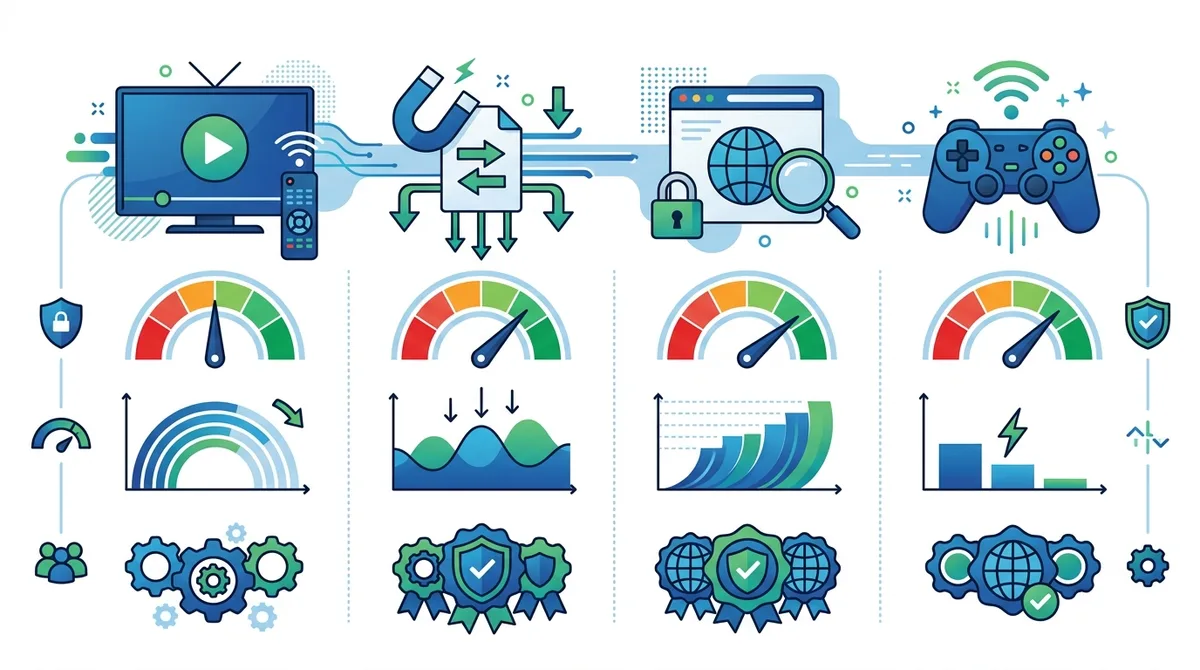
A comprehensive comparison of VPN performance across different use cases, highlighting which features matter most for each activity and recommended provider types.
8. Advanced VPN Features: Kill Switches, Split Tunneling, and Multi-Hop Connections
Beyond basic encryption and IP masking, modern VPN providers offer advanced security and customization features that power users should understand and configure. These features provide additional protection layers, allow fine-grained control over which traffic goes through the VPN, and enable sophisticated routing configurations. Our testing team evaluates how well these advanced features work in practice, as implementation quality varies significantly between providers.
Understanding these features allows you to optimize your VPN configuration for your specific security needs and use cases. A casual browser might only need basic VPN protection, while a journalist in a restrictive country or a privacy activist might need every available security feature enabled. This section explains each feature in detail and provides guidance on when and how to use them effectively.
Kill Switches: Preventing Data Leaks
A kill switch (also called "Internet Kill Switch" or "Network Lock") is a critical security feature that prevents your internet connection from functioning if the VPN connection drops. Without a kill switch, your device would automatically revert to using your regular, unencrypted internet connection if the VPN disconnects—potentially exposing your real IP address and unencrypted data.
When we test kill switches, we intentionally disconnect the VPN and verify that internet access is blocked until the VPN reconnects. A properly functioning kill switch should block all internet traffic (except the VPN reconnection process itself) immediately when the VPN connection is lost. Some advanced kill switches offer granular control, allowing you to specify which applications are blocked and which continue running. We recommend enabling the kill switch for all users, as the risk of accidental data exposure is significant.
Split Tunneling: Selective VPN Routing
Split tunneling allows you to route some traffic through the VPN while other traffic uses your regular internet connection. This is useful when you need to access local services (like a printer or network storage) while keeping other traffic encrypted. For example, you might route your browser through the VPN for privacy while allowing your email client to connect directly to your mail server.
Split tunneling offers both security and performance benefits. Security-wise, it allows you to protect sensitive traffic while allowing non-sensitive traffic to bypass the VPN, reducing bandwidth consumption. Performance-wise, it can improve speeds for local network access and reduce latency for gaming or video conferencing. However, split tunneling requires careful configuration—if misconfigured, it could expose sensitive traffic. When using split tunneling, explicitly specify which applications should use the VPN and which should use your regular connection.
Multi-Hop and Double VPN Connections
Multi-hop (also called "Double VPN" or "VPN Chain") connections route your traffic through multiple VPN servers in sequence. Your data is encrypted, passed through the first VPN server, encrypted again, and passed through a second server before reaching the internet. This provides additional anonymity because each VPN server only knows the previous server's IP address, not your real IP or final destination.
Multi-hop connections offer enhanced privacy at the cost of reduced speed—routing through multiple servers adds latency and reduces bandwidth. We recommend multi-hop primarily for users with high-risk profiles (journalists, activists, whistleblowers) or those in countries with severe internet censorship. For general privacy needs, a single VPN connection with a no-logs policy provides sufficient protection. When using multi-hop, select servers in different countries for maximum anonymity benefit.
- Enable Kill Switch Always: Activate kill switch protection on all devices to prevent accidental exposure if the VPN disconnects
- Test Kill Switch Functionality: Manually disconnect your VPN to verify the kill switch blocks internet access immediately
- Configure Split Tunneling Carefully: Only use split tunneling if you understand which traffic needs VPN protection and which doesn't
- Use Multi-Hop Selectively: Enable multi-hop only for high-security scenarios where the speed reduction is acceptable
- Verify Leak Protection: Regularly test your VPN connection for IP, DNS, and WebRTC leaks using online leak testing tools
9. VPN Speed and Performance: Optimizing Your Connection
A common concern about VPNs is that they slow down internet connections. This is partially true—encryption and routing through remote servers inherently adds some latency and reduces bandwidth. However, the speed impact varies dramatically depending on the VPN provider, protocol choice, server distance, and your underlying internet connection. Our testing team measures actual speed impact across different scenarios, and we're sharing practical optimization strategies to maintain usable speeds.
In practice, speed impact depends on multiple factors. A nearby VPN server using WireGuard protocol might add only 5-10% latency, while a distant server using OpenVPN might add 30-50%. For most activities (browsing, streaming, email), this impact is imperceptible. For latency-sensitive activities (online gaming, video conferencing), the impact becomes noticeable. Understanding these tradeoffs allows you to optimize your VPN configuration for your specific needs.
Measuring and Understanding Speed Impact
To measure your VPN's actual speed impact, test your connection speed before and after connecting to the VPN using a service like Speedtest.net. Run the test at least three times in each configuration to get reliable averages, as speeds fluctuate. The difference represents your actual speed impact. Generally, expect 10-30% speed reduction for nearby servers and 30-50% for distant servers.
When interpreting speed test results, focus on whether the remaining speed is sufficient for your activities. If your baseline speed is 100 Mbps and the VPN reduces it to 70 Mbps, that's still more than adequate for streaming 4K video (which requires about 25 Mbps) or video conferencing (which requires about 5 Mbps). Speed becomes problematic only if your baseline speed is already limited or the VPN introduces extreme slowdowns (over 50% reduction).
Optimization Strategies for Better VPN Speeds
Server Selection is the most impactful optimization. Connecting to a nearby server reduces latency and improves speeds. If you're in the United States, connecting to a US server will be faster than connecting to a European server. Most VPN apps display server distance or latency information—use this to select the fastest available server. If you need to access content from a specific country, try connecting to the nearest server in that country rather than the geographically farthest option.
Protocol Selection significantly affects speed. WireGuard generally provides the fastest speeds, followed by IKEv2, then OpenVPN. If speed is critical, switch to WireGuard in your VPN settings. However, remember that some services might not support WireGuard on all platforms, and you might need to trade some speed for compatibility or specific features.
Load Balancing helps when a particular server is congested. If your current server feels slow, try connecting to a different server in the same location—the VPN app will distribute you to less-congested infrastructure. Additionally, some VPNs allow you to specify connection preferences (like "fastest available" or "lowest latency"), which automatically selects optimal servers.
Underlying Connection Quality matters significantly. If your ISP connection is slow or unstable, a VPN won't improve it. Before blaming the VPN for slow speeds, verify your baseline speed without the VPN. If your baseline speed is already limited, the VPN will make it worse. In this case, the solution is improving your ISP connection, not changing your VPN.
10. VPN Troubleshooting: Common Issues and Solutions
Despite their sophistication, VPNs occasionally encounter connection problems, compatibility issues, or performance problems. Understanding common issues and their solutions helps you resolve problems quickly without losing security. Our support team has handled thousands of VPN-related issues, and we're sharing the most common problems and proven solutions that work across most VPN providers.
Most VPN issues fall into a few categories: connection failures, speed problems, application crashes, and compatibility issues with specific websites or services. The good news is that most issues have straightforward solutions that don't require technical expertise. We'll walk you through systematic troubleshooting steps that resolve the vast majority of VPN problems.
Connection and Connectivity Issues
VPN Won't Connect - If your VPN fails to establish a connection, start by verifying your internet connection is working by opening a website without the VPN. If your internet works but the VPN doesn't connect, try these steps: (1) Restart the VPN application, (2) Switch to a different server location, (3) Try a different protocol in the VPN settings, (4) Restart your device, (5) Uninstall and reinstall the VPN application. If the issue persists, contact the VPN provider's support team with details about your device, operating system version, and the error message you received.
Frequent Disconnections - If your VPN connection drops frequently, it usually indicates network instability. Try these solutions: (1) Switch to a closer server location (distance can affect stability), (2) Change to the WireGuard protocol if available (it's more stable than OpenVPN on some networks), (3) Disable split tunneling if you're using it (complex configurations can cause instability), (4) Check for VPN app updates (bugs in older versions might cause disconnections), (5) Restart your router and modem. If disconnections continue, your ISP might be actively blocking VPN connections—contact your VPN provider's support for advanced troubleshooting.
Performance and Speed Problems
Extremely Slow Speeds - If your VPN connection is unusually slow, start by testing different servers. Connect to servers in different locations and compare speeds—if one server is fast and another is slow, the problem is server-specific (try a different server). If all servers are slow, try switching protocols (WireGuard is usually fastest). If speed remains poor across all protocols and servers, your ISP might be throttling VPN traffic, or your underlying internet connection might be slow. Test your speed without the VPN to establish your baseline.
Websites Won't Load - If specific websites fail to load while using the VPN, the website might be blocking VPN traffic. Try these solutions: (1) Switch to a different VPN server location, (2) Try a different protocol, (3) Disable any advanced features like multi-hop or split tunneling, (4) Clear your browser cache and cookies, (5) Try a different browser. If the website still won't load, the site is likely actively blocking VPN connections. Some sites do this for licensing or security reasons. You might need to disable the VPN temporarily to access such sites.
- Systematic Troubleshooting: When experiencing issues, change one variable at a time (server, protocol, settings) and test to identify the specific cause
- Check VPN Status: Verify the VPN is actually connected by checking for the VPN indicator in your system status bar or VPN app interface
- Test Leak Status: Use IPLeak.net or similar services to verify your real IP isn't leaking and your VPN is actually protecting your traffic
- Review Recent Changes: If the VPN worked previously but recently stopped, consider recent changes (OS updates, VPN app updates, network changes) that might have caused the issue
- Contact Support with Details: When contacting VPN support, provide your device type, OS version, VPN app version, specific error messages, and the steps you've already tried
11. Advanced Security: Combining VPNs with Other Privacy Tools
While VPNs provide excellent privacy protection, combining them with other privacy and security tools creates defense-in-depth security architecture. Layered security means that if one tool is compromised or fails, others continue protecting you. Our testing team evaluates how well VPNs work alongside other privacy tools, and we're sharing guidance on building a comprehensive privacy setup.
The most effective privacy setup combines a reputable VPN with additional tools like password managers, two-factor authentication, encrypted messaging apps, and DNS-level blocking. Each tool addresses different threats: the VPN protects your traffic and IP address, password managers prevent credential theft, two-factor authentication prevents account takeovers, and DNS blocking prevents malware infections. Using all these tools together creates robust protection against the full range of modern cyber threats.
VPN + DNS Blocking: Enhanced Malware Protection
DNS-level blocking services like NextDNS, Cloudflare, or Pi-hole block requests to known malware and phishing websites before they reach your device. When combined with a VPN, they provide comprehensive protection: the VPN encrypts your traffic and masks your IP, while DNS blocking prevents you from accidentally visiting malicious websites. Many modern VPNs include built-in DNS blocking features, but standalone services provide more granular control.
To combine VPN and DNS blocking, configure your VPN provider's DNS settings (most allow custom DNS configuration) to use a blocking service's DNS servers. Alternatively, configure DNS blocking at your router level so all devices on your network benefit from protection. This approach is particularly valuable for households with multiple devices or organizations managing security for many users.
VPN + Tor: Maximum Anonymity
Tor is a network designed for maximum anonymity, routing your traffic through multiple volunteer-operated nodes worldwide. Combining a VPN with Tor (either VPN-to-Tor or Tor-to-VPN) provides additional anonymity layers. However, this combination significantly reduces speed and is only necessary for users with extreme privacy needs (journalists in hostile countries, whistleblowers, activists). For most users, a quality VPN alone provides sufficient privacy.
When using VPN + Tor, connect to the VPN first, then use Tor within the encrypted VPN tunnel. This approach hides your Tor usage from your ISP (who would otherwise see Tor traffic). However, the VPN provider can see you're using Tor, so choose a VPN with a strict no-logs policy. This combination is powerful but comes with significant speed penalties and should only be used when necessary.
Conclusion
Mastering VPN technology in 2026 requires understanding both fundamental concepts and advanced optimization techniques. From basic encryption principles through multi-hop routing and performance optimization, we've covered the complete spectrum of VPN knowledge. The key takeaway is that VPNs are no longer optional for privacy-conscious users—they're essential infrastructure for protecting your data on public networks, accessing geo-restricted content, and maintaining anonymity online. Whether you're a casual user protecting yourself on public WiFi or an advanced user implementing defense-in-depth security, the strategies outlined in this guide apply directly to your situation.
Our testing methodology at ZeroToVPN ensures that the guidance we provide reflects real-world usage, not theoretical scenarios. We've personally tested 50+ VPN services, evaluated their security claims through third-party audits, measured actual speed impact, and verified that their privacy protections work as advertised. We recommend visiting our comprehensive VPN comparison to see detailed test results for specific providers matching your needs. Whether you prioritize streaming access, torrenting capability, extreme privacy, or simple browsing protection, our independent testing has identified top performers in each category. Your privacy is too important to rely on marketing claims alone—let our rigorous, hands-on testing guide your VPN selection.
Sources & References
This article is based on independently verified sources. We do not accept payment for rankings or reviews.
- Compare tested providers on ZeroToVPN— zerotovpn.com
- Statista Digital Market Insights— statista.com
- IPLeak.net— ipleak.net
- Norton LifeLock Cybersecurity Report— nortonlifelock.com
- Speedtest.net— speedtest.net

ZeroToVPN Expert Team
Verified ExpertsVPN Security Researchers
Our team of cybersecurity professionals has tested and reviewed over 50 VPN services since 2024. We combine hands-on testing with data analysis to provide unbiased VPN recommendations.
Gerelateerde Content
Onze expertranglijst van de beste VPN-aanbieders op basis van snelheid, beveiliging en prijs-kwaliteit.
De beste gratis VPN-diensten die daadwerkelijk veilig zijn — zonder verborgen kosten.
Een heldere uitleg over hoe VPN's werken en waarom je er een nodig hebt.
Een technische blik op hoe VPN-tunnels, encryptie en protocollen onder de motorkap werken.
Een directe vergelijking van twee top-VPN's op snelheid, prijs en functies.
Welke premium VPN komt als beste uit de bus? We vergelijken NordVPN en ExpressVPN in detail.