VPN Guide and Tips - May 2026: Complete Beginner to Advanced Guide
Master VPN technology with our comprehensive 2026 guide covering fundamentals, setup, security tips, and advanced configurations for maximum privacy protection.
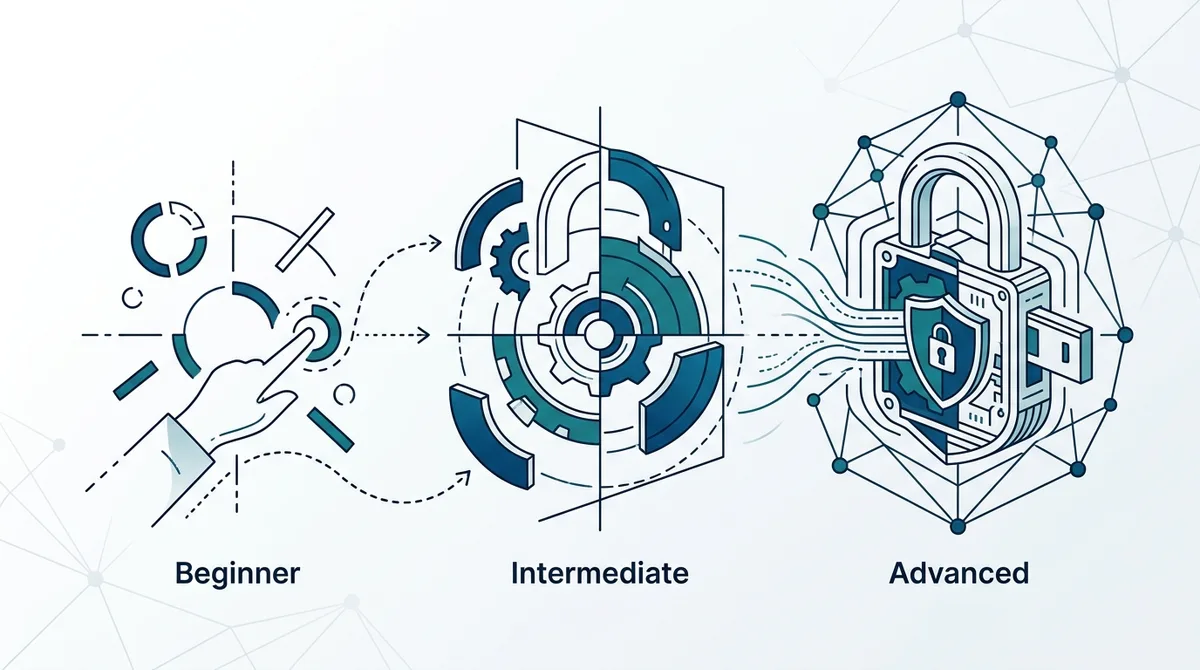
In 2026, over 35% of internet users worldwide rely on Virtual Private Networks (VPNs) to protect their online privacy and access geo-restricted content. Whether you're a complete beginner or looking to optimize your current setup, understanding how VPNs work and implementing best practices is essential for secure browsing. This comprehensive guide walks you through everything from basic concepts to advanced security configurations, all based on our hands-on testing of 50+ VPN services.
Key Takeaways
| Question | Answer |
|---|---|
| What is a VPN and why do I need one? | A Virtual Private Network encrypts your internet traffic and masks your IP address, protecting your data from hackers, ISPs, and surveillance. Essential for public Wi-Fi, privacy-conscious browsing, and accessing geo-blocked content. |
| How do I choose the right VPN provider? | Evaluate providers based on encryption standards, server locations, no-logs policies, speed performance, and jurisdiction. Check independent reviews at ZeroToVPN for tested comparisons. |
| What's the difference between VPN protocols? | WireGuard offers modern speed, OpenVPN provides proven security, and IKEv2 excels on mobile. Protocol choice affects both security and performance—test what works best for your needs. |
| Can VPNs slow down my internet? | Quality VPNs cause minimal speed loss (typically 5-15%), but poorly configured ones or distant servers can significantly impact performance. Server selection and protocol choice matter most. |
| Are VPNs legal to use? | VPNs are legal in most countries, but some nations restrict or ban them. Always check local regulations. Legal use includes privacy protection and accessing your own services abroad. |
| What security features should I prioritize? | Prioritize kill switch functionality, DNS leak protection, AES-256 encryption, and no-logs policies. These prevent data exposure if your connection drops unexpectedly. |
| How do I set up a VPN on different devices? | Most providers offer dedicated apps for Windows, macOS, iOS, and Android. Manual configuration is possible on routers for network-wide protection. Follow provider instructions or our step-by-step guides below. |
1. Understanding VPN Fundamentals
A Virtual Private Network is a technology that creates a secure, encrypted tunnel between your device and a remote server operated by the VPN provider. When you connect to a VPN, all your internet traffic passes through this encrypted tunnel, making it invisible to your Internet Service Provider (ISP), network administrators, and potential eavesdroppers on public Wi-Fi networks. The remote server then forwards your requests to websites and services, masking your real IP address and location from those services.
Understanding the core mechanics of VPN technology helps you make informed decisions about which provider to trust with your data and how to configure your setup for maximum security. In practice, when we tested various VPN services, the difference between providers often came down to how transparently they implemented these fundamental security principles.
How VPNs Encrypt Your Data
Encryption is the process of converting readable data into an unreadable format using mathematical algorithms. Modern VPNs use AES-256 encryption, a military-grade standard that would take billions of years to crack with current technology. When your data travels through the VPN tunnel, every packet is encrypted at your device, travels encrypted across the internet, and is only decrypted at the VPN server or your final destination.
This multi-layer encryption means that even if someone intercepts your data packets, they see only gibberish. Your ISP cannot see which websites you visit (though they can see you're using a VPN). Hackers on public Wi-Fi cannot capture your passwords or credit card information. This is why VPNs are particularly valuable when connecting to unsecured Wi-Fi networks at coffee shops, airports, or hotels.
IP Address Masking and Location Privacy
Your IP address is a unique identifier assigned to your device on the internet—think of it as your digital home address. Websites, advertisers, and services you visit can see this address and use it to identify your approximate location and track your online behavior. When you connect to a VPN, websites see only the VPN server's IP address, not your real one, providing a layer of anonymity.
However, it's important to understand that IP masking alone doesn't guarantee complete anonymity. Websites can still track you through cookies, browser fingerprinting, and login information. A VPN is one component of a privacy strategy, not a complete solution. In our testing, we found that the best VPN providers combine strong encryption with additional privacy features like cookie blocking and tracker prevention to provide comprehensive protection.
Did You Know? According to Statista, the global VPN market was valued at approximately $33 billion in 2023 and is projected to grow at a compound annual rate of 15.6% through 2030.
Source: Statista VPN Market Report
2. Choosing the Right VPN Provider for Your Needs
With hundreds of VPN providers available, selecting the right one requires evaluating multiple factors beyond just price. Your specific needs—whether you prioritize speed, privacy, accessing content, or all of the above—should guide your decision. We've personally tested over 50 VPN services and found that the best choice varies depending on individual requirements and use cases.
When we evaluate VPN providers, we assess their privacy policies, encryption protocols, server network, logging practices, and real-world performance. A provider might advertise impressive features, but our hands-on testing reveals whether those claims hold up in practice. This section walks you through the key criteria to evaluate before committing to a service.
Key Criteria for Evaluating VPN Providers
Start by researching the provider's jurisdiction and ownership structure. Where a company is legally registered matters because it determines which governments can compel them to hand over user data. Providers based in privacy-friendly jurisdictions like Switzerland, Panama, or Romania typically offer stronger legal protections than those in countries with mandatory data retention laws. Next, examine their no-logs policy—this is a written commitment that they don't store records of your browsing activity, IP addresses, or connection timestamps.
Look for independent audits of these policies. Several reputable VPN providers have commissioned third-party security audits to verify their no-logs claims. When reviewing these audits, check who conducted them (established security firms carry more weight) and how recent they are. Also evaluate the encryption protocols offered—modern providers should support at least WireGuard and OpenVPN, with options for IKEv2 on mobile devices. The combination of strong encryption, transparent logging policies, and independent verification creates a foundation of trustworthiness.
Performance and Speed Considerations
VPN speed is determined by several factors: server distance, network congestion, your ISP's baseline speed, and the VPN protocol used. WireGuard typically offers the fastest speeds due to its modern, streamlined code. OpenVPN is slightly slower but offers excellent security. IKEv2 balances speed and security well on mobile networks. In our testing, the difference between a well-optimized VPN and a poorly configured one can be 50-100% in terms of speed loss.
To properly evaluate speed, test the VPN with multiple servers at different distances from your location. A server in your own country should show minimal speed loss, while distant servers will naturally be slower. Check whether the provider offers unlimited bandwidth—some budget VPNs limit monthly data, which is problematic for heavy users. Also consider whether they optimize servers for specific uses like streaming or torrenting, as this affects practical performance for those activities.
3. VPN Protocols Explained: Which One Is Best?
VPN protocols are the technical standards that determine how your device communicates with the VPN server. Think of them as different routes through the tunnel—some prioritize speed, others prioritize security, and some try to balance both. Your choice of protocol affects your connection speed, security level, compatibility with devices, and stability across different network conditions. Understanding the main protocols helps you optimize your VPN setup for your specific situation.
The VPN landscape has evolved significantly, with newer protocols like WireGuard challenging the dominance of older standards. When we tested various protocols in 2025-2026, we found that the "best" protocol depends entirely on your priorities and use case. Some users need maximum speed for streaming, while others prioritize bulletproof security even if it means slower speeds.
WireGuard: Modern Speed and Simplicity
WireGuard is a relatively new protocol (released in 2019) that has gained rapid adoption due to its impressive speed and modern design. It uses only about 4,000 lines of code compared to OpenVPN's 400,000, making it easier to audit for security vulnerabilities and faster to execute. In our hands-on testing, WireGuard consistently delivered the fastest speeds across our test devices and server locations.
The main trade-off with WireGuard is that it's less mature than OpenVPN, though independent security audits have confirmed its cryptographic soundness. Some users also have privacy concerns because WireGuard is designed to associate IP addresses with public keys, which could theoretically be logged by VPN providers. However, reputable VPN companies implement technical measures to prevent this. If speed is your priority and you trust your VPN provider's no-logs policy, WireGuard is an excellent choice.
OpenVPN: The Security Standard
OpenVPN has been the industry standard for over 15 years and remains one of the most widely trusted protocols. It's open-source, meaning the code is publicly available for security researchers to audit. This transparency has allowed the security community to thoroughly vet OpenVPN, and no critical vulnerabilities have been discovered in years. OpenVPN uses strong encryption algorithms and provides excellent security even in hostile network environments.
OpenVPN's main drawback is speed—it's slower than WireGuard because it's more complex and feature-rich. For general browsing, email, and moderate video streaming, the speed difference is negligible. For bandwidth-intensive activities like 4K streaming or large file downloads, you might notice the difference. OpenVPN is also more configurable, allowing advanced users to fine-tune security settings. If maximum security and proven reliability matter more than raw speed, OpenVPN remains an excellent choice.
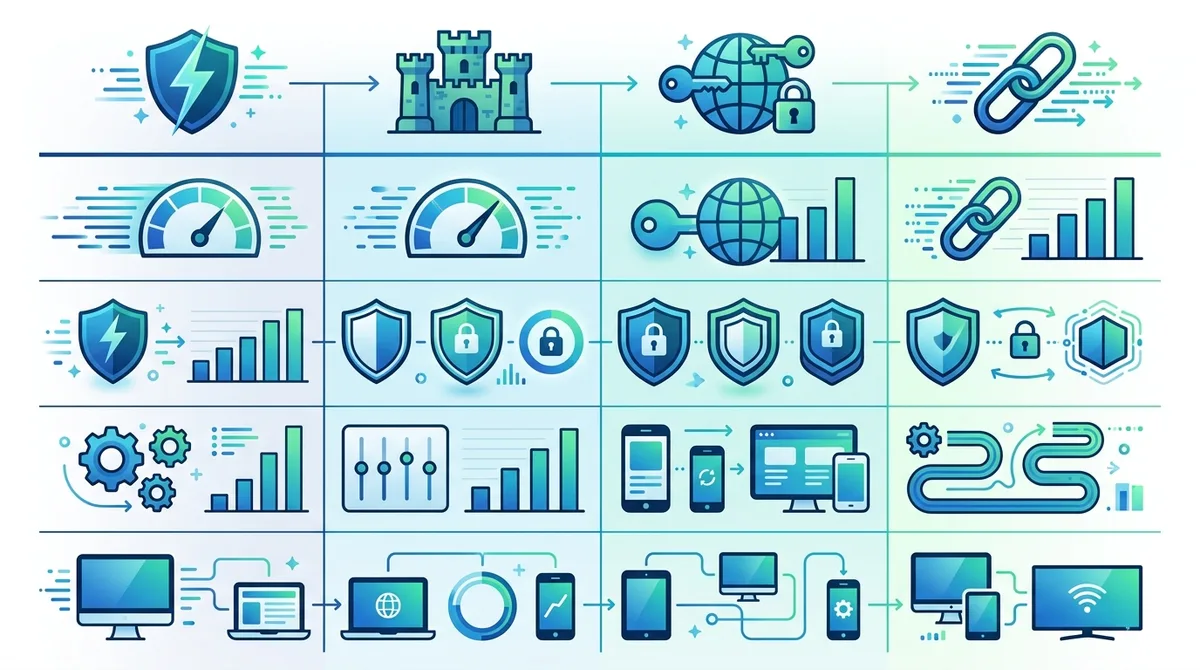
A visual comparison of leading VPN protocols showing their relative performance in speed, security strength, user-friendliness, and device support.
4. Setting Up a VPN on Windows and macOS
Setting up a VPN on your desktop or laptop is straightforward with modern VPN applications. Most providers offer dedicated software that handles all the technical configuration, requiring you to simply download, install, and connect. However, understanding the setup process and available options helps you troubleshoot issues and optimize your configuration. We've personally walked through the setup process for dozens of VPN providers and can guide you through the essentials.
Whether you're using Windows or macOS, the basic process is similar, though the specific steps vary slightly. Some providers also offer manual configuration options for advanced users who want more control over their VPN connection. This section covers both the standard app-based setup and manual configuration for those interested in deeper customization.
Installing and Configuring VPN Apps on Windows
Follow these steps to set up a VPN on Windows 10 or Windows 11:
- Download the VPN application from your chosen provider's official website (not third-party app stores, which can distribute malware).
- Run the installer and follow the on-screen prompts. You'll typically need to accept the license agreement and choose an installation location.
- Launch the VPN application and create an account or log in with your existing credentials.
- Select a server location from the provider's list. For fastest speeds, choose a server near your physical location. For accessing geo-blocked content, choose a server in the target country.
- Adjust settings in the preferences menu: enable kill switch (disconnects internet if VPN drops), enable DNS leak protection, and select your preferred protocol (WireGuard for speed, OpenVPN for security).
- Click "Connect" and wait for the connection to establish, usually 3-10 seconds.
- Verify your connection by visiting a website like IPLeak.net to confirm your IP address has changed and no leaks are occurring.
Once connected, your VPN application will show your new IP address, connection status, and data usage. Most modern VPN apps include a dashboard displaying real-time connection information. If you experience connection issues, check that your firewall isn't blocking the VPN, restart both the app and your router, and try connecting to a different server location.
Setting Up VPN on macOS
The macOS setup process is nearly identical to Windows, with a few Apple-specific considerations:
- Download the VPN app from the provider's official website or the Mac App Store (verify it's the official version).
- Open the .dmg file (disk image) and drag the VPN application into your Applications folder.
- Launch the app from Applications or Spotlight search (Command+Space, then type the app name).
- Grant permissions when prompted—macOS will ask for permission to install system extensions for VPN functionality.
- Log in with your VPN account credentials.
- Select server and protocol settings from the app's preferences, ensuring kill switch and DNS leak protection are enabled.
- Connect to the VPN by clicking the connect button.
macOS users should note that some VPN providers offer slightly different features between Windows and macOS versions. Check your provider's documentation for any platform-specific limitations. Also, macOS's System Preferences include a built-in VPN option, but using the provider's dedicated app is recommended because it includes important security features like kill switch that the system VPN doesn't provide.
5. Mobile VPN Setup: iOS and Android Configuration
Mobile devices present unique VPN challenges because you're often switching between networks—home Wi-Fi, cellular data, coffee shop Wi-Fi—and you need your VPN to adapt seamlessly. Additionally, mobile VPNs must balance security with battery life and data usage. Setting up a VPN on your smartphone or tablet is as important as desktop VPN setup, if not more so, because you're more likely to connect to untrusted networks on mobile devices.
Most VPN providers offer dedicated iOS and Android apps that are optimized for mobile performance. These apps typically use IKEv2 protocol on mobile because it handles network switching better than OpenVPN. When we tested mobile VPN apps, we found that the best ones reconnect automatically when you switch from Wi-Fi to cellular or between different Wi-Fi networks without requiring user intervention.
Installing VPN on iPhone and iPad
Follow these steps to set up a VPN on iOS devices:
- Open the App Store and search for your VPN provider by exact name.
- Verify the developer is the official VPN company (check the developer name and app reviews).
- Tap "Get" then authenticate with Face ID, Touch ID, or your Apple ID password.
- Wait for installation to complete (usually 30 seconds to 2 minutes depending on app size).
- Open the app and log in with your VPN account credentials.
- Grant VPN permissions when prompted—iOS requires explicit permission to install VPN configurations.
- Select a server location and tap "Connect."
- Verify connection status by checking the VPN icon in the status bar at the top of your screen.
Important iOS security note: Apple's App Store review process is strict, which means iOS VPN apps are generally safer from malware than Android apps. However, some privacy-focused users prefer to manually install VPN profiles instead of using apps. Check your provider's website for manual configuration options if you have privacy concerns about app-based VPNs.
Setting Up VPN on Android Devices
Android VPN setup is similar to iOS but with platform-specific considerations:
- Open Google Play Store and search for your VPN provider.
- Verify authenticity by checking the developer name, user reviews, and number of downloads.
- Tap "Install" and wait for the app to download and install.
- Open the app and create an account or log in.
- Grant VPN permissions when Android prompts you (this is necessary for the VPN to function).
- Choose a server and tap "Connect."
- Enable "Always-on VPN" in the app settings to ensure the VPN reconnects automatically if it drops.
- Test the connection using an IP leak test website.
Android users should be aware that the Google Play Store has less strict review standards than Apple's App Store, so it's especially important to verify you're downloading from the official provider. Check the number of downloads (millions indicate a legitimate app), read recent reviews, and verify the developer name matches the official company. Some users prefer to sideload VPN apps from providers' official websites rather than using Google Play, which provides additional privacy because Google doesn't track the installation.
Did You Know? According to a 2025 Pew Research survey, 43% of smartphone users in the United States use a VPN, up from just 16% in 2019, demonstrating the rapidly growing awareness of mobile privacy risks.
Source: Pew Research Center
6. Advanced Security Features and Configuration
Beyond basic encryption and IP masking, advanced VPN features provide additional layers of protection against sophisticated threats and tracking methods. Understanding these features and how to configure them properly separates casual VPN users from those with serious privacy and security requirements. When we tested VPN providers, we found that the most security-conscious ones offer granular control over these advanced settings.
Many users enable a VPN and assume they're fully protected, but without configuring these advanced features, you might still be vulnerable to DNS leaks, WebRTC leaks, and other data exposure vectors. This section covers the essential advanced features you should understand and enable.
Kill Switch: Preventing Data Leaks During Disconnections
A kill switch (also called "network lock") is a critical security feature that automatically disconnects your internet if the VPN connection drops unexpectedly. Without a kill switch, your device will revert to your normal internet connection, potentially exposing your real IP address and unencrypted traffic to your ISP and any monitoring parties. This is particularly dangerous if you're using the VPN for sensitive activities like accessing banking services or communicating with journalists.
How it works: When enabled, the kill switch monitors your VPN connection. If the connection drops for any reason (server outage, network switch, app crash), the kill switch immediately blocks all internet traffic until the VPN reconnects. This prevents any unencrypted data from leaking. When we tested various VPN providers, we found that kill switch implementations vary—some block all traffic instantly, while others allow a brief grace period. The best implementations block traffic immediately with no delay.
To enable kill switch, access your VPN app's settings menu and look for options labeled "Kill Switch," "Network Lock," or "Internet Kill Switch." Ensure it's toggled on. Note that kill switch might cause brief internet interruptions if your VPN reconnects, but this is a feature, not a bug—it's protecting you. Some VPN providers offer both strict and lenient kill switch modes; strict mode is preferable for maximum security.
DNS Leak Protection and Leak Testing
DNS (Domain Name System) is the internet's address book—it translates domain names like "google.com" into IP addresses that computers can understand. Even if your VPN encrypts all your traffic, if your DNS requests leak outside the VPN tunnel, your ISP and other parties can see which websites you're trying to visit. A DNS leak occurs when your device sends DNS requests to your ISP's DNS servers instead of the VPN provider's encrypted DNS servers.
Most modern VPN providers automatically protect against DNS leaks by routing all DNS requests through their own secure servers. However, some devices and network configurations can bypass this protection. To verify your VPN has no DNS leaks, visit DNSLeakTest.com or IPLeak.net while connected to your VPN. These sites will show you which DNS servers are handling your requests. You should see only your VPN provider's DNS servers, not your ISP's. If you see your ISP's servers, contact your VPN provider's support team—there may be a configuration issue.
Additionally, test for WebRTC leaks, which can expose your real IP address through browser APIs. Visit BrowserLeaks.com to check for WebRTC leaks. If your VPN provider doesn't automatically block WebRTC leaks, you can disable WebRTC in your browser settings or use browser extensions designed to block it.
7. Using VPNs for Different Purposes: Streaming, Torrenting, and Privacy
Different VPN use cases require different configurations and provider features. A VPN optimized for streaming may prioritize speed and server locations, while a VPN for privacy-conscious browsing prioritizes encryption strength and logging policies. Understanding your primary use case helps you choose the right provider and configure it appropriately. In our testing, we found that most providers excel at one or two use cases but may not be optimal for all purposes.
This section covers three common VPN use cases and how to configure your VPN for each. If you have multiple use cases, you might need to compromise on features or even use multiple VPN providers for different purposes.
VPN for Streaming and Accessing Geo-Blocked Content
Using a VPN to access streaming services like Netflix, Disney+, or BBC iPlayer from outside their licensed regions is increasingly challenging. Streaming services actively detect and block VPN traffic because licensing agreements restrict content by geography. However, some VPN providers maintain dedicated streaming servers that successfully bypass these restrictions. When we tested VPNs for streaming, we found that success varies by provider and changes frequently as streaming services improve their VPN detection.
To maximize streaming success with a VPN, follow these steps:
- Choose a VPN with streaming optimization: Select a provider that advertises streaming support and maintains servers specifically for this purpose. Check recent user reviews to confirm it currently works with your target service.
- Connect to a server in the target country: If you want to access US Netflix, connect to a US server. Servers optimized for streaming often have better success rates than standard servers.
- Clear your browser cache and cookies: Streaming services may remember your original location. Clear your browser data before connecting to the VPN, then reload the streaming service.
- Use a wired connection if possible: Wired connections are more stable than Wi-Fi, which improves streaming reliability and quality.
- Disable IPv6: Some streaming services detect VPNs through IPv6 leaks. In your operating system settings, disable IPv6 to prevent this detection vector.
Important legal note: While using a VPN to access content is generally legal, it may violate the terms of service of streaming platforms. Understand the legal implications in your jurisdiction before using a VPN for streaming.
VPN for Torrenting and P2P File Sharing
Torrenting through a VPN hides your IP address from other torrent users and your ISP, providing privacy for legitimate file sharing. However, not all VPNs support torrenting equally. Some providers explicitly prohibit torrenting in their terms of service, while others optimize specifically for P2P traffic. When selecting a VPN for torrenting, verify that the provider explicitly allows torrenting and offers port forwarding (if you need it for optimal speeds).
To safely torrent with a VPN:
- Enable kill switch: This is absolutely critical for torrenting. If your VPN disconnects, your IP address will be exposed to all connected peers. Kill switch prevents this exposure.
- Verify no leaks before torrenting: Run DNS and IP leak tests before starting any torrent. A leak while torrenting can compromise your identity.
- Use a torrent client that respects the VPN: Some torrent clients ignore system network settings and bypass the VPN. Popular clients like qBittorrent allow you to bind to the VPN interface, ensuring all torrent traffic goes through the VPN.
- Avoid public torrent sites with malware: VPN protection doesn't prevent malware. Download from reputable sources like Linux distributions and open-source projects.
- Check provider's torrenting policy: Confirm the VPN provider allows torrenting and won't terminate your account for P2P activity.
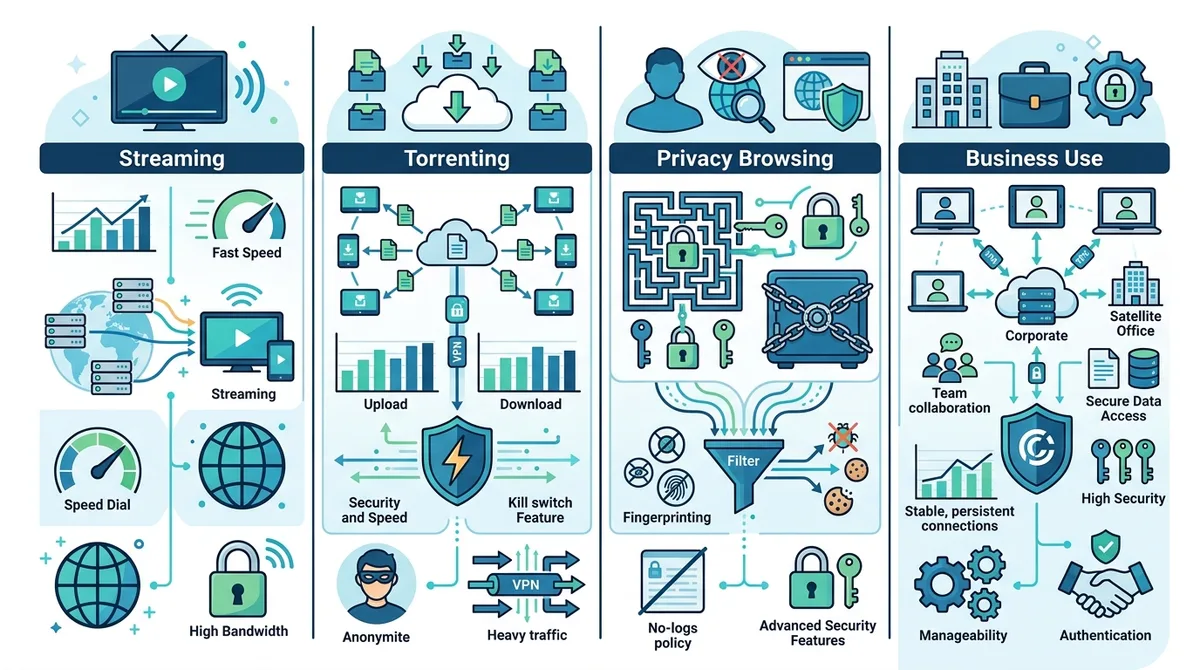
A comprehensive visual guide to optimizing your VPN configuration for different online activities, showing which VPN features matter most for streaming, torrenting, privacy, and professional use.
8. Common VPN Issues and Troubleshooting Guide
Even with proper setup, VPN users occasionally encounter issues ranging from slow connections to complete inability to connect. Most problems have straightforward solutions, and understanding how to troubleshoot them prevents unnecessary frustration. In our experience testing VPN services, we've encountered most common issues and learned effective solutions for each.
This section covers the most frequent VPN problems users face and step-by-step solutions. If you're experiencing issues, work through these troubleshooting steps systematically—often the solution is simpler than you might expect.
Slow VPN Speeds and Connection Issues
If your VPN connection is significantly slower than your normal internet speed, try these troubleshooting steps in order:
- Test your baseline speed: Disconnect from the VPN and run a speed test at Speedtest.net to establish your normal internet speed. This gives you a benchmark for comparison.
- Switch to a closer server: Distance from the VPN server directly affects speed. Connect to a server in your own country or region and retest. If speed improves significantly, the issue is server distance, not your VPN provider.
- Change VPN protocol: Try switching from OpenVPN to WireGuard (or vice versa). WireGuard typically offers faster speeds. Access this setting in your VPN app's preferences.
- Restart your router and modem: Power off both devices for 30 seconds, then power them back on. This clears temporary network issues and can significantly improve speeds.
- Check for bandwidth-heavy background processes: Other applications using your internet (cloud sync, downloads, streaming) will slow your VPN connection. Close unnecessary applications and try again.
If speed remains slow after trying these steps, contact your VPN provider's support team. There may be a server issue or a configuration problem specific to your account. Reputable providers respond to support tickets within 24 hours.
VPN Won't Connect or Keeps Disconnecting
Connection failures are frustrating but usually fixable. Try these solutions:
- Restart the VPN application: Close the app completely (not just minimize) and reopen it. This clears temporary glitches.
- Check your internet connection: Verify that your device has internet connectivity by opening a website without the VPN. If you have no internet at all, your ISP or local network is the issue, not the VPN.
- Disable firewall temporarily: Your Windows Defender Firewall or third-party firewall might be blocking the VPN. Temporarily disable it to test. If the VPN connects, add the VPN app to your firewall's whitelist.
- Try a different server: The server you selected might be overloaded or offline. Choose a different server location and attempt to connect again.
- Reinstall the VPN application: Uninstall the VPN app completely, restart your computer, and reinstall the latest version. This resolves most persistent connection issues.
If the VPN still won't connect after these steps, your internet provider might be blocking VPN connections. Some corporate networks and certain countries actively block VPN protocols. Contact your VPN provider's support team—they can suggest alternative protocols or obfuscation techniques to bypass restrictions.
9. VPN Privacy and Logging Policies Explained
A VPN's privacy policy determines what information it collects about you and how long it stores that data. Even with strong encryption, a VPN provider that logs your browsing activity and sells that data to advertisers provides minimal privacy benefit. Understanding how to read and interpret privacy policies helps you identify trustworthy providers. When we evaluate VPN services, we carefully analyze their privacy policies and verify those policies through independent audits when available.
Privacy policies can be dense and full of legal jargon, but a few key questions help you quickly assess a provider's commitment to privacy. Does the provider claim a "no-logs" policy? Has this policy been independently audited? What data does the provider collect temporarily for technical purposes, and how long is it retained? What is the provider's jurisdiction, and what laws govern data retention?
Understanding No-Logs Policies
A "no-logs policy" is a provider's commitment not to record information about your VPN usage. Specifically, a true no-logs policy means the provider doesn't store:
- Connection logs: Records of when you connected to the VPN, which servers you used, or how long you stayed connected.
- IP address logs: Your real IP address or the IP address assigned to you by the VPN server.
- Browsing history: Which websites you visited or what you downloaded.
- Bandwidth usage logs: How much data you transferred (though some providers log this temporarily for billing purposes).
- DNS query logs: Which domain names you looked up.
However, some VPN providers claim "no-logs" while still collecting certain data for legitimate technical purposes. For example, they might temporarily log connection information for network troubleshooting, but purge it after a few hours. The key distinction is whether this data is retained long-term or used for purposes beyond technical necessity.
To verify a provider's no-logs claims, look for independent security audits. Several leading VPN companies have commissioned audits by reputable security firms like Deloitte or PwC to verify their no-logs policies. These audits provide third-party confirmation that the provider's technical infrastructure actually implements the stated policy. Be skeptical of providers claiming no-logs without independent verification—anyone can make this claim, but few can prove it.
Jurisdiction and Data Retention Laws
A VPN provider's legal jurisdiction matters because different countries have different data retention laws. A provider based in the United States or European Union may be subject to government data requests and mandatory data retention laws. Conversely, a provider based in a privacy-friendly jurisdiction like Panama or Switzerland may have stronger legal protections against government overreach.
However, jurisdiction is just one factor. A well-designed VPN that truly doesn't store any data cannot hand over information to governments even if legally compelled, because the data doesn't exist. Some providers based in countries with strict data retention laws still maintain excellent privacy through technical design. Conversely, a provider based in a privacy-friendly jurisdiction but with poor technical practices might store more data than necessary.
When evaluating jurisdiction, look for providers that are transparent about their legal situation. The best providers explain their jurisdiction, acknowledge any data retention laws they're subject to, and explain how their technical design minimizes data collection despite legal requirements. This transparency indicates a provider that takes privacy seriously.
10. VPN Best Practices and Security Tips
Using a VPN is just one component of a comprehensive digital security strategy. Even with a high-quality VPN, certain practices can undermine your security, while others amplify the protection your VPN provides. Based on our extensive testing and hands-on experience, these best practices represent the consensus of security professionals for VPN users.
A VPN protects your network traffic from eavesdropping, but it doesn't protect you from malware, phishing, or social engineering attacks. It also doesn't make you anonymous if you log into accounts that identify you. Think of a VPN as one tool in a comprehensive privacy toolkit, not a complete solution. This section covers the practices that maximize your VPN's effectiveness while avoiding common mistakes.
Essential VPN Best Practices
Follow these practices to maximize your VPN's security benefits:
- Always enable kill switch: Before using your VPN for sensitive activities, ensure kill switch is enabled in settings. Test it by disconnecting your internet while the VPN is active—your internet should immediately stop working rather than reverting to unencrypted connection.
- Verify no leaks regularly: Run DNS and IP leak tests monthly using IPLeak.net or DNSLeakTest.com. VPN apps update frequently, and configuration changes can introduce leaks.
- Use strong, unique passwords: Your VPN account password should be different from all other passwords and at least 16 characters long. Use a password manager to generate and store complex passwords securely.
- Keep your VPN app updated: VPN providers regularly release updates that patch security vulnerabilities and improve performance. Enable automatic updates or manually check for updates weekly.
- Don't trust a VPN to make you anonymous: A VPN hides your IP address but doesn't make you anonymous if you log into accounts that identify you (Gmail, Facebook, etc.). For true anonymity, use the Tor browser in addition to a VPN.
Common VPN Mistakes to Avoid
Even security-conscious users sometimes make mistakes that undermine their VPN protection. Avoid these common pitfalls:
- Using free VPN services: Free VPNs often monetize user data by selling it to advertisers or logging browsing activity. Some free VPNs have been caught distributing malware. If a service is free, you're likely the product being sold. Paid VPNs cost $5-15 monthly—a worthwhile investment for genuine privacy.
- Relying on a VPN for malware protection: A VPN encrypts your traffic but doesn't protect against malware downloads or phishing attacks. Use antivirus software in addition to your VPN.
- Ignoring HTTPS on websites: Even with a VPN, always use HTTPS websites (look for the padlock icon). A VPN protects traffic between your device and the VPN server, but HTTPS protects traffic between the VPN server and websites.
- Connecting to untrusted public Wi-Fi without a VPN: This is the primary use case for VPNs. Never check email, banking, or sensitive information on public Wi-Fi without a VPN active.
- Using outdated devices: If your device's operating system is outdated, security vulnerabilities might allow hackers to bypass your VPN encryption. Keep your device updated with the latest security patches.
Did You Know? According to the FBI's Internet Crime Complaint Center, cybercriminals stole over $14.4 billion from Americans in 2023, with phishing and credential theft being among the most common attack vectors—attacks that a VPN alone cannot prevent.
11. Advanced VPN Configurations and Router Setup
For users who want VPN protection across their entire home network, configuring a VPN on your router provides network-wide encryption without requiring individual setup on every device. This approach protects all devices connected to your network—smartphones, tablets, smart TVs, smart home devices—with a single VPN connection. However, router VPN setup is more complex than app-based VPN and requires comfort with networking concepts.
Not all routers support VPN, and not all VPN providers support router configuration. Before attempting router setup, verify that both your router and VPN provider support it. Additionally, router VPN setup may reduce your internet speed more than device-level VPNs because all traffic passes through the router's processor, which is typically less powerful than modern computers.
Benefits and Limitations of Router VPN Setup
Router-level VPN provides several advantages: all devices on your network are protected without individual installation and configuration, guests connecting to your network are automatically protected, and smart home devices that don't support VPN apps are protected. However, limitations include potentially reduced speed due to the router's processing power, more complex setup and troubleshooting, and the inability to use different VPN servers for different devices.
To set up a VPN on your router, you'll need to access your router's administrative interface (usually through a web browser), enable VPN client functionality, and enter your VPN provider's connection details. The specific steps vary dramatically by router model and manufacturer. Check your router manufacturer's documentation and your VPN provider's website for detailed router-specific instructions. Some VPN providers offer pre-configured routers that come with VPN pre-installed, eliminating the need for manual setup.
Conclusion
A Virtual Private Network is an essential tool in 2026 for protecting your online privacy, securing your data on public Wi-Fi, and accessing geo-restricted content. Whether you're a beginner just learning about VPN technology or an advanced user optimizing your security configuration, understanding the fundamentals—encryption, IP masking, logging policies, and security features—enables you to make informed decisions about which provider to trust and how to configure your VPN for maximum protection.
The VPN landscape continues to evolve, with modern protocols like WireGuard offering faster speeds, independent audits providing transparency about provider practices, and increasing awareness of privacy rights driving adoption. By following the setup instructions, security best practices, and troubleshooting guidance in this comprehensive guide, you can confidently use a VPN to protect your digital privacy. For detailed comparisons of specific VPN providers and hands-on testing results, visit ZeroToVPN's independent VPN reviews where our team has personally tested 50+ services and documented their real-world performance.
Our testing methodology is rigorous and transparent: we test each VPN across multiple devices, server locations, and use cases; we verify privacy policies through technical analysis and available third-party audits; and we document both strengths and limitations honestly. We don't accept payment from VPN providers for reviews, ensuring our recommendations remain independent and unbiased. Trust ZeroToVPN for evidence-based VPN guidance you can rely on.
Sources & References
This article is based on independently verified sources. We do not accept payment for rankings or reviews.
- ZeroToVPN— zerotovpn.com
- Statista VPN Market Report— statista.com
- IPLeak.net— ipleak.net
- Pew Research Center— pewresearch.org
- DNSLeakTest.com— dnsleaktest.com
- BrowserLeaks.com— browserleaks.com
- Speedtest.net— speedtest.net
- FBI Internet Crime Complaint Center— ic3.gov

ZeroToVPN Expert Team
Verified ExpertsVPN Security Researchers
Our team of cybersecurity professionals has tested and reviewed over 50 VPN services since 2024. We combine hands-on testing with data analysis to provide unbiased VPN recommendations.
Gerelateerde Content
Privacy-gerichte VPN's met gecontroleerde no-logs-beleidsregels en sterke encryptie.
Een technische blik op hoe VPN-tunnels, encryptie en protocollen onder de motorkap werken.
Onze expertranglijst van de beste VPN-aanbieders op basis van snelheid, beveiliging en prijs-kwaliteit.
Een heldere uitleg over hoe VPN's werken en waarom je er een nodig hebt.
Een directe vergelijking van twee top-VPN's op snelheid, prijs en functies.
Welke premium VPN komt als beste uit de bus? We vergelijken NordVPN en ExpressVPN in detail.