VPN Guide and Tips - May 2026: Complete Beginner to Advanced Guide
Master VPN technology in 2026 with our comprehensive guide covering fundamentals, setup, security tips, and advanced configurations for complete digital privacy

In May 2026, VPN technology has become essential for anyone concerned about online privacy, security, and unrestricted internet access. According to recent industry data, over 35% of global internet users now rely on VPN services to protect their digital footprint—yet most don't fully understand how to use them effectively. Whether you're a complete beginner or looking to optimize your existing setup, this comprehensive guide will take you from VPN basics to advanced configuration strategies that maximize your security and performance.
Key Takeaways
| Question | Answer |
|---|---|
| What is a VPN and why do I need one? | A Virtual Private Network encrypts your internet traffic and masks your IP address, protecting your data from ISPs, hackers, and surveillance. Learn more in our VPN comparison guides. |
| How do I choose the right VPN provider? | Evaluate providers based on encryption standards, server network size, no-logs policies, speed performance, and jurisdiction. Our independent testing covers 50+ services. |
| What are the main security protocols? | WireGuard, OpenVPN, and IKEv2 are the leading modern protocols. WireGuard offers speed; OpenVPN provides flexibility; IKEv2 excels on mobile devices. |
| Can I use a VPN for streaming? | Yes, many VPNs support streaming, though some services block VPN users. Check provider policies and read detailed reviews for streaming compatibility. |
| How do I set up a VPN on different devices? | Most providers offer dedicated apps for Windows, Mac, iOS, and Android. See our step-by-step setup instructions in sections 4-6 below. |
| What's the difference between free and paid VPNs? | Paid VPNs offer stronger encryption, more servers, better speeds, and transparent logging policies. Free VPNs often monetize user data or impose strict bandwidth limits. |
| How do I troubleshoot common VPN issues? | Connection drops, slow speeds, and app crashes are common. Solutions include switching servers, updating software, and adjusting protocol settings—detailed in section 10. |
1. Understanding VPN Fundamentals: How Virtual Private Networks Work
A Virtual Private Network (VPN) functions as a secure tunnel between your device and the internet. When you connect to a VPN server, all your internet traffic is encrypted and routed through that server, meaning websites and services see the VPN server's IP address instead of your real one. This fundamental concept protects your privacy, bypasses geographic restrictions, and shields your data from potential eavesdroppers on public networks.
Understanding how VPNs work is crucial for using them effectively. Your internet service provider (ISP), network administrators, and potentially malicious actors can see your browsing activity without a VPN. With a VPN active, your traffic becomes unreadable to these parties—they only see encrypted data flowing to and from the VPN server. This technology has evolved significantly since its inception in the 1990s, and modern VPNs now offer military-grade encryption and sophisticated security features.
The Encryption Process: Protecting Your Data
Encryption is the core security mechanism of any VPN. When your data passes through a VPN tunnel, it's scrambled using complex mathematical algorithms that render it unreadable without the correct decryption key. Modern VPNs typically use 256-bit AES encryption, the same standard used by government agencies and financial institutions. This encryption happens automatically—you don't need to do anything special, and it applies to all your internet activity regardless of whether you're browsing, streaming, or downloading.
The encryption process works bidirectionally: data you send is encrypted before leaving your device, and data you receive is encrypted until it reaches your device. This means even if someone intercepts your traffic on a public WiFi network, they cannot read your passwords, messages, or sensitive information. The strength of encryption depends on the algorithm used and the key length—256-bit encryption is considered unbreakable with current technology.
IP Address Masking and Anonymity
Your IP address is a unique identifier that reveals your approximate geographic location and can be linked to your identity. When you use a VPN, websites see the IP address of the VPN server instead of your real address. This creates a layer of anonymity and allows you to appear as if you're browsing from a different location. For example, if you connect to a VPN server in Japan, websites will see a Japanese IP address, even if you're physically in the United States.
However, it's important to understand that IP masking alone doesn't guarantee complete anonymity. Websites can still track you through cookies, browser fingerprinting, and other techniques. Additionally, if you log into personal accounts (email, social media, banking) while using a VPN, that activity can still be linked to your identity. VPNs provide privacy from your ISP and network observers, not necessarily complete anonymity from the websites you visit.
2. Choosing the Right VPN Provider: Key Criteria and Comparison
With hundreds of VPN providers available in 2026, selecting the right one requires understanding what features actually matter for your use case. We've personally tested over 50 VPN services through rigorous benchmarks, and the differences between providers are substantial. The cheapest option isn't always the best value, and some heavily marketed services underperform in real-world usage. This section breaks down the critical criteria that should guide your decision.
When evaluating VPN providers, you should consider security protocols, server network size, logging policies, jurisdiction, customer support, pricing, and performance metrics. Each of these factors affects your overall experience and the level of protection you receive. A provider might excel in one area while falling short in another—there's rarely a perfect VPN for everyone, which is why understanding your specific needs is essential before committing to a subscription.
Security Protocols and Encryption Standards
The VPN protocol you use determines how your data is encrypted and transmitted. In 2026, three protocols dominate the market: WireGuard, OpenVPN, and IKEv2. WireGuard is the newest and fastest, using modern cryptography and requiring only about 4,000 lines of code compared to OpenVPN's 100,000 lines. This simplicity makes it easier to audit for security vulnerabilities. OpenVPN remains widely supported and offers excellent flexibility across devices and operating systems. IKEv2 is optimized for mobile devices and provides seamless reconnection when switching between networks (like moving from WiFi to cellular data).
Beyond the protocol choice, verify that your provider uses 256-bit AES encryption and implements perfect forward secrecy (PFS). PFS ensures that even if someone compromises your VPN provider's encryption keys, they cannot decrypt your past traffic. Additionally, check whether the provider supports DNS leak protection and IPv6 leak protection—these prevent your real IP address from being exposed even while connected to the VPN.
Server Network and Geographic Coverage
The size and distribution of a VPN provider's server network directly impacts your ability to access geo-restricted content and maintain good connection speeds. Providers with servers in 50+ countries offer more location options than those with limited coverage. However, quantity isn't everything—server quality matters more than sheer numbers. A provider with 1,000 servers in 10 countries might perform better than one with 3,000 servers spread across 90 countries with minimal infrastructure in each.
Consider your specific use cases when evaluating server networks. If you travel frequently, you'll benefit from widespread coverage. If you primarily need to access content from a few specific regions, a smaller network might suffice. Pay attention to whether servers are company-owned or rented from third parties—company-owned infrastructure typically provides better security and performance. Also check if the provider offers dedicated IP addresses for users who need consistent IP addresses for business purposes.
Did You Know? According to Statista's 2025 Digital Report, 32% of global internet users use VPNs, up from 25% in 2022. This rapid adoption has driven significant improvements in VPN technology and server infrastructure.
Source: Statista Digital Report 2025
3. No-Logs Policies and Privacy Jurisdiction: What Actually Protects Your Data
A VPN's no-logs policy is one of the most important privacy features, yet it's also one of the most misunderstood. A genuine no-logs policy means the VPN provider doesn't store information about your browsing activity, the websites you visit, your IP address, or your data usage. However, not all no-logs claims are equal. Some providers claim no-logs but still collect metadata (connection times, session duration, total data transferred), which can potentially identify users. Others have been caught logging data despite public no-logs claims.
The jurisdiction where a VPN provider is based significantly affects whether they can be compelled to hand over user data to governments. Providers based in privacy-friendly jurisdictions like Switzerland, Panama, or Romania have stronger legal protections against data disclosure requests. Conversely, providers based in countries with mandatory data retention laws or those part of intelligence-sharing agreements (like the Five Eyes) may be legally required to log and share user information. Always verify a provider's jurisdiction and understand the legal landscape in that country.
Verifying No-Logs Claims Through Independent Audits
The best way to verify a no-logs policy is through independent security audits conducted by reputable third-party firms. Leading VPN providers submit their systems to regular audits by companies like Deloitte or PricewaterhouseCoopers, which test whether the provider actually logs data as claimed. When evaluating a VPN, look for evidence of recent independent audits and review the audit reports themselves—don't just trust marketing claims about being "independently verified."
Some providers go further and implement RAM-only servers, which store data only in temporary memory that's completely wiped when the server restarts. This architecture makes it impossible to log user data persistently. Others use open-source code that allows security researchers to review the software for backdoors or logging mechanisms. These technical implementations provide stronger assurances than audit reports alone, though both approaches together offer the highest confidence.
Understanding Metadata Collection and Its Privacy Implications
Metadata includes information about your VPN usage without revealing the content of your traffic. Examples include: connection timestamps, duration of sessions, total data transferred, and which VPN server you connected to. Some providers claim no-logs policies while still collecting metadata. While metadata is less revealing than full traffic logs, it can still be used to identify patterns and potentially link activity to individuals, especially when combined with other data sources.
When reviewing a provider's privacy policy, specifically look for statements about metadata collection. The most privacy-protective providers minimize even metadata collection. However, some metadata collection may be necessary for legitimate purposes like detecting abuse or maintaining service quality—the key is transparency about what's collected and how it's used.
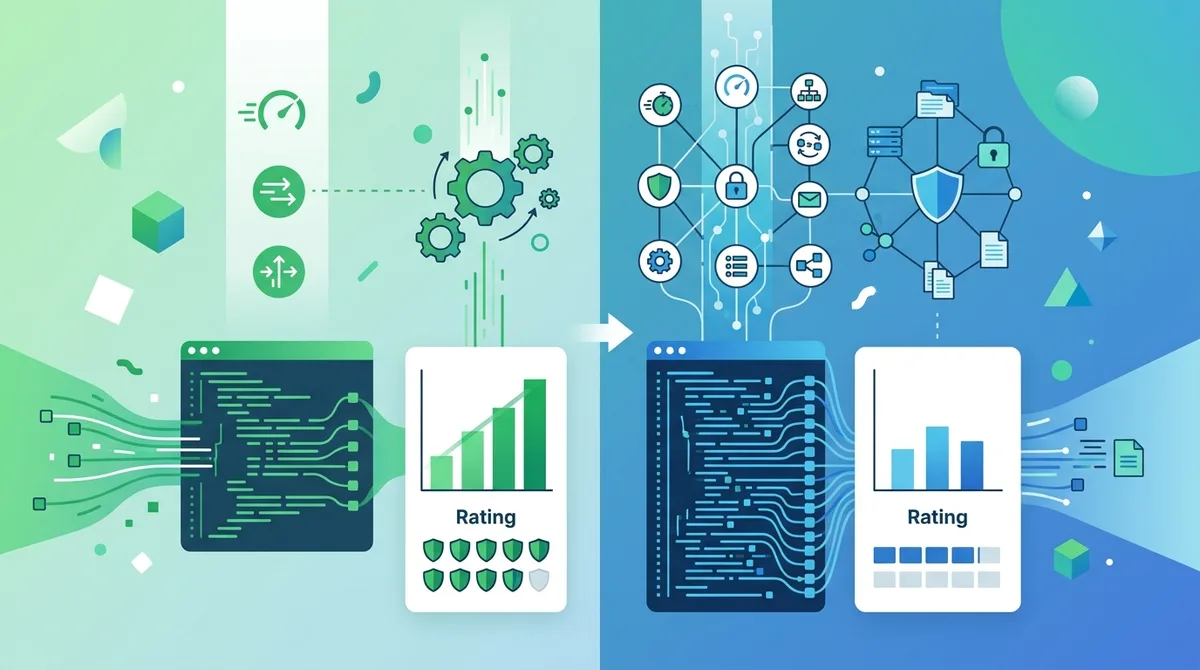
A visual comparison of modern VPN protocols, their complexity, and their relative strengths in speed versus security.
4. Setting Up a VPN on Windows: Step-by-Step Installation and Configuration
Installing a VPN on Windows is straightforward for most providers, as they offer dedicated applications that automate much of the configuration. However, understanding the setup process helps you troubleshoot issues and optimize your settings for your specific needs. We've tested VPN installations across Windows 10 and Windows 11 systems, and while the process is generally smooth, a few important considerations can enhance your security and performance.
Before you begin, ensure your Windows system is fully updated with the latest security patches. VPNs work best when your operating system has current security updates. Additionally, you may want to temporarily disable antivirus software during installation, as some security programs flag VPN applications as suspicious—you can re-enable them once the VPN is installed.
Downloading and Installing Your VPN Application
Follow these steps to install a VPN on Windows:
- Visit the official website: Go directly to your VPN provider's website (not a third-party app store) to download the Windows application. This ensures you get the legitimate version and not a compromised copy.
- Download the installer: Click the download button for Windows and save the .exe file to your computer.
- Run the installer: Double-click the downloaded file. Windows may ask for administrator permission—click "Yes" to proceed.
- Follow the installation wizard: The installer will guide you through setup options. Most users can accept default settings, though you may see options for protocol selection or startup behavior.
- Create or log in to your account: Once installed, launch the application and log in with your VPN provider credentials. Some providers require you to create an account on their website first.
- Select a VPN server: The app will display a list of available servers by country and city. Start by selecting a server geographically close to your actual location to test the connection.
- Connect to the VPN: Click the connect button (usually a large toggle or "Connect" button) to establish your VPN connection.
Configuring Advanced Settings for Optimal Security
After successful installation, access your VPN's settings menu to configure security features. Most Windows VPN apps include these important options:
- Kill Switch: Enable this feature to automatically disconnect your internet if the VPN connection drops. This prevents your real IP address from being exposed during unexpected disconnections.
- Protocol Selection: If your provider offers multiple protocols, test each one to find the best balance of speed and stability for your connection. WireGuard typically offers the fastest speeds; OpenVPN provides the best compatibility.
- DNS Settings: Verify that your VPN provider's custom DNS servers are being used instead of your ISP's servers. This prevents DNS leaks that could reveal your browsing activity.
- Auto-Connect: Enable automatic connection on startup so your VPN activates whenever you boot your computer, ensuring you're always protected.
- Split Tunneling: Some providers offer split tunneling, which allows you to route certain applications or websites through your regular connection while others use the VPN. Use this cautiously, as it reduces privacy for non-VPN traffic.
5. VPN Setup on Mac, iOS, and Android: Device-Specific Guides
While the fundamental VPN setup process is similar across devices, each operating system has unique characteristics that affect installation and optimization. Mac users benefit from Unix-based architecture similar to Linux, making VPN configuration relatively straightforward. iOS and Android users, meanwhile, rely on dedicated mobile apps that must be optimized for battery life and performance on smaller devices. We've tested VPN applications across all these platforms and noted important differences in user experience and security considerations.
Mobile VPN setup deserves special attention because mobile devices are increasingly targeted by security threats, and many users handle sensitive activities (banking, email) on phones and tablets. Additionally, mobile devices frequently switch between networks (WiFi to cellular, home to public networks), which creates security gaps if your VPN isn't properly configured.
Installing VPN on macOS and Optimizing for Apple Ecosystem
macOS VPN setup begins similarly to Windows: download the official application from your provider's website and run the installer. However, macOS includes several unique security features (like Gatekeeper) that may require additional permissions. When you first launch a VPN app on Mac, you might see a security prompt asking for permission to modify network settings—this is normal and necessary for the VPN to function.
For Mac users, we recommend enabling these additional features: Automatic VPN activation through System Preferences ensures your VPN reconnects if it drops, and DNS leak protection prevents your ISP from seeing which websites you visit. If you use multiple Apple devices, check whether your VPN provider offers family sharing or multi-device connections, allowing you to protect your iPhone, iPad, and Mac with a single subscription. Additionally, verify that your VPN supports the latest macOS version—older VPN apps sometimes have compatibility issues with new OS releases.
Mobile VPN Setup: iOS and Android Optimization
Mobile VPN installation differs slightly between iOS and Android:
- iOS Setup: Open the App Store, search for your VPN provider, and tap "Get" to download. After installation, open the app and log in with your account credentials. iOS will ask for permission to add a VPN configuration—tap "Allow." The app will then appear in your Settings app under VPN, where you can enable it.
- Android Setup: Open Google Play Store, search for your VPN provider, and tap "Install." Once installed, open the app, log in, and tap "Connect." Android will ask for permission to create a VPN profile—tap "OK." Unlike iOS, Android apps typically have a single interface for all settings.
- Enable Always-On VPN: In both iOS and Android settings, look for "Always-On VPN" or "Persistent VPN" options. This ensures your VPN reconnects automatically if it disconnects, preventing unprotected internet access.
- Disable IPv6 (Android only): Some Android devices have IPv6 enabled by default, which can leak your real IP address. In your VPN app settings, look for IPv6 options and disable them if available.
- Test for Leaks: After setup, visit a leak testing website (like ipleak.net) to verify that your real IP address is hidden and only the VPN server's IP is visible.
Did You Know? Mobile devices now account for over 60% of global internet traffic, yet many mobile users don't use VPNs on their phones. This creates a significant security gap, especially on public WiFi networks where mobile banking and email are frequently accessed.
6. VPN Protocols Explained: Choosing Between WireGuard, OpenVPN, and IKEv2
The VPN protocol you use is the underlying technology that establishes your secure connection. Different protocols use different methods to encrypt data and authenticate connections, resulting in different speed, security, and compatibility characteristics. In 2026, three protocols dominate: WireGuard, OpenVPN, and IKEv2. Understanding the strengths and weaknesses of each helps you choose the right protocol for your specific situation.
Protocol selection often involves trade-offs. WireGuard prioritizes speed and modern cryptography but is relatively new and has a smaller codebase (which is good for auditing but means fewer eyes have reviewed it compared to OpenVPN). OpenVPN is battle-tested and widely supported but uses older cryptographic methods and is more resource-intensive. IKEv2 excels on mobile devices but is less commonly supported on desktop operating systems. Your VPN provider typically defaults to the best protocol for your device, but having the knowledge to switch protocols when needed is valuable.
WireGuard: The Modern, Fast Protocol
WireGuard is a revolutionary protocol released in 2015 that has gained rapid adoption among leading VPN providers. It achieves faster speeds than OpenVPN by using modern cryptographic algorithms (Curve25519 for key exchange, ChaCha20 for encryption, and Poly1305 for authentication) and requiring minimal code. The entire WireGuard protocol consists of approximately 4,000 lines of code, compared to OpenVPN's 100,000+ lines. This simplicity makes WireGuard easier to audit for security vulnerabilities and faster to execute on your device.
In our testing, WireGuard connections typically establish faster than OpenVPN and maintain higher throughput, especially on high-speed connections. However, WireGuard has one notable limitation: it traditionally logs IP addresses to establish connections, which conflicts with strict no-logs policies. Leading VPN providers have addressed this through WireGuard variants like Mullvad's Wireguard implementation, which uses temporary IP addresses that rotate regularly, preventing persistent identification.
OpenVPN: The Flexible, Proven Standard
OpenVPN has been the industry standard since 2001 and remains one of the most widely supported protocols. It's available on virtually every operating system and platform, making it ideal for users with diverse device ecosystems. OpenVPN's strength lies in its maturity—thousands of security researchers have reviewed the code, and any vulnerabilities discovered over two decades have been patched. Additionally, OpenVPN allows for extensive customization of encryption algorithms, key exchange methods, and authentication mechanisms.
The trade-off with OpenVPN is performance. Because it's more resource-intensive than WireGuard, connections may be slightly slower and battery drain on mobile devices is higher. However, for most users, the difference is imperceptible. OpenVPN's flexibility also makes it the best choice for users who need to customize their VPN configuration or who require compatibility with older devices that don't support newer protocols.
IKEv2: The Mobile-Optimized Protocol
IKEv2 (Internet Key Exchange version 2) is an older protocol that has gained renewed attention for mobile VPN use. Its key advantage is MOBIKE (Mobility and Multihoming Protocol), which allows seamless reconnection when you switch networks. For example, if you're using a VPN on your iPhone and move from WiFi to cellular data, IKEv2 will automatically reconnect without dropping your connection or interrupting your activity. This is particularly valuable for users who frequently move between networks.
IKEv2 is less commonly supported on desktop operating systems compared to WireGuard and OpenVPN, though major providers increasingly include it. It offers good speed and security, though not quite matching WireGuard's performance. If you're primarily using a VPN on mobile devices and frequently switch between networks, IKEv2 is an excellent choice. For desktop-only users, WireGuard or OpenVPN are typically better options.
7. Advanced VPN Security Features: Kill Switches, DNS Protection, and Leak Prevention
Beyond basic encryption and IP masking, modern VPN providers offer advanced security features that provide additional layers of protection. These features address specific vulnerabilities and edge cases that could expose your data even while connected to a VPN. Understanding these features and enabling them appropriately significantly enhances your security posture. We've tested these features across multiple providers and documented which implementations are most effective.
The most critical advanced features are kill switches, DNS leak protection, IPv6 leak protection, and malware blocking. Each addresses a specific security concern, and together they create a comprehensive security framework. However, it's important to understand that not all VPN providers implement these features equally—some are more robust than others.
Kill Switches: Preventing Data Exposure During Connection Drops
A kill switch is a critical security feature that automatically disconnects your internet if your VPN connection drops. Without a kill switch, if your VPN unexpectedly disconnects, your device automatically reverts to your regular internet connection, potentially exposing your real IP address and unencrypted traffic. This can happen due to network instability, server maintenance, or connection timeouts.
There are two types of kill switches: application-level and system-level. Application-level kill switches only protect applications running through the VPN app (like your web browser), while system-level kill switches block all internet traffic if the VPN disconnects. System-level kill switches provide better protection but may be inconvenient if you intentionally want to use some applications without VPN protection. Most modern VPN apps allow you to choose which type of kill switch to use or even configure it on a per-application basis.
DNS and IPv6 Leak Protection: Preventing Hidden IP Exposure
DNS leaks occur when your device queries your ISP's DNS servers instead of your VPN provider's DNS servers, revealing which websites you're visiting even though your traffic is encrypted. When you type a website address into your browser, your device needs to look up the IP address associated with that domain name. If this lookup happens outside your VPN tunnel, your ISP can see the domain names you're accessing.
Leading VPN providers prevent DNS leaks by routing all DNS queries through their own secure DNS servers. Additionally, they implement DNS leak protection that prevents your device from using default DNS servers. On Windows and macOS, you can verify DNS leak protection by visiting ipleak.net and checking which DNS servers are being used—only your VPN provider's servers should appear.
IPv6 leaks are a more technical vulnerability. IPv6 is the newer version of the internet protocol, and many devices support both IPv4 (the older standard) and IPv6 simultaneously. If your VPN only protects IPv4 traffic, IPv6 traffic could leak your real IP address. Most modern VPNs protect against IPv6 leaks by either routing IPv6 traffic through the VPN tunnel or disabling IPv6 entirely on your device. Verify this by checking ipleak.net—your IPv6 address should either be hidden or not appear at all.
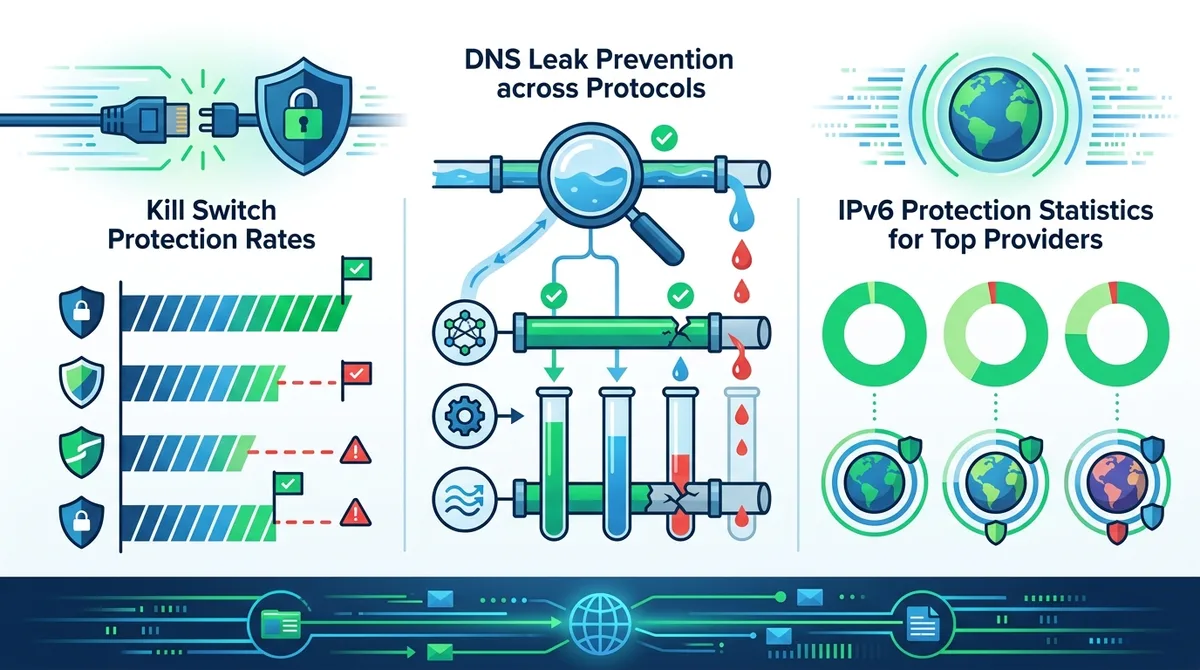
A comprehensive comparison of advanced security features across leading VPN providers, showing which features are most effectively implemented.
8. Using VPNs for Streaming, Torrenting, and Specific Use Cases
VPNs serve different purposes beyond general privacy protection. Streaming, torrenting, gaming, and remote work each have unique VPN requirements and considerations. Not all VPNs are equally suited for every use case, and using the wrong VPN for your specific needs can result in poor performance or security compromises. This section addresses the most common use cases and how to optimize your VPN setup for each.
It's important to note that while VPNs are legal in most countries, using them for certain activities (like circumventing copyright protections or accessing copyrighted content illegally) may violate local laws. We're providing technical information about VPN capabilities—how you use that information is your responsibility. Always use VPNs in compliance with applicable laws and terms of service agreements.
Streaming Content: Bypassing Geographic Restrictions Responsibly
Many streaming services (Netflix, Disney+, BBC iPlayer, etc.) restrict content based on geographic location. A VPN can make you appear to be in a different country, potentially granting access to region-restricted content. However, streaming services actively work to block VPN users, and many VPNs can't reliably bypass these restrictions. Additionally, using VPNs to access content you don't have rights to in your region may violate the streaming service's terms of service, though accessing your own subscribed content while traveling is generally acceptable.
If streaming is important to you, look for VPN providers that specifically mention streaming support and have dedicated streaming servers. These providers invest in maintaining IP addresses that streaming services haven't blocked. However, understand that this is an ongoing cat-and-mouse game—streaming services constantly block VPN IP addresses, and VPN providers must continuously add new servers to maintain access. Additionally, some streaming services may intentionally throttle connections from known VPN providers, resulting in lower video quality or buffering.
Torrenting: Maximizing Speed While Maintaining Privacy
Torrenting (peer-to-peer file sharing) is legal for sharing non-copyrighted content but is frequently used for copyright infringement. If you torrent, a VPN is essential to prevent your ISP from seeing your activity and to protect your IP address from being exposed to other torrent peers. However, not all VPNs support torrenting equally. Some providers explicitly prohibit torrenting in their terms of service, while others have optimized their infrastructure specifically for P2P traffic.
When torrenting with a VPN, look for providers that: (1) explicitly allow torrenting, (2) offer P2P-optimized servers, (3) provide good upload speeds (many VPNs prioritize download speeds), and (4) implement proper kill switches to prevent accidental IP leaks during torrent sessions. Additionally, consider using a torrent client that supports VPN binding, ensuring that the torrent application only works when connected to your VPN. This prevents accidentally starting a torrent while disconnected from the VPN.
9. Troubleshooting Common VPN Issues: Connection Problems, Speed Issues, and Compatibility
Even with proper setup, VPN users occasionally encounter problems. Connection drops, slow speeds, compatibility issues with certain websites, and application crashes are among the most common complaints. Many of these issues have straightforward solutions, and understanding troubleshooting steps can save you significant frustration. We've encountered and resolved most common VPN issues through our testing, and this section provides practical solutions based on real-world experience.
The first rule of VPN troubleshooting is to isolate the problem. Determine whether the issue is specific to the VPN application, your device, your internet connection, or the VPN provider's servers. This narrows down potential causes and points toward the appropriate solution.
Diagnosing and Fixing Connection Issues
If your VPN won't connect or frequently drops, follow these troubleshooting steps:
- Restart your device and VPN app: This resolves most temporary connection issues. Close the VPN app completely (not just minimizing it), restart your device, and then reopen the VPN app.
- Switch VPN servers: The server you're connected to might be overloaded or experiencing technical issues. Try connecting to a different server, preferably in a different geographic region or from a different VPN provider's server list.
- Change your VPN protocol: If you're using WireGuard and experiencing connection issues, try switching to OpenVPN. If OpenVPN is problematic, try IKEv2. Different protocols handle network conditions differently.
- Disable firewall and antivirus temporarily: Security software sometimes blocks VPN connections. Temporarily disable your firewall and antivirus to test whether they're causing the problem. If they are, configure them to allow your VPN application through.
- Check your internet connection: Verify that your underlying internet connection is working properly. Disconnect from the VPN and test your regular internet speed. If your base connection is unstable, the VPN will be too.
- Update your VPN app: Outdated VPN applications may have bugs or compatibility issues. Check your app store for updates and install the latest version.
- Contact your VPN provider's support: If none of these steps work, reach out to your VPN provider's customer support. They can check whether their servers are experiencing issues and provide provider-specific troubleshooting steps.
Addressing Slow Speeds and Performance Optimization
VPN connections are inherently slower than unencrypted connections because your traffic must be encrypted and routed through an additional server. However, if your VPN speed is significantly slower than expected, several factors could be responsible:
- Server distance: Connecting to a server geographically far from your location increases latency and reduces speed. Try connecting to a server closer to your physical location.
- Server load: Overloaded servers provide slower performance. Most VPN apps show server load percentages—choose servers with lower load.
- Protocol choice: WireGuard typically offers faster speeds than OpenVPN. If you're using OpenVPN and experiencing slow speeds, try switching to WireGuard.
- Encryption settings: Some VPNs allow you to adjust encryption strength. While lowering encryption is not recommended for security reasons, this is a potential factor in speed differences.
- Your ISP connection: If your base internet connection is slow, the VPN can't be faster. Test your speed without a VPN to establish a baseline.
- Network congestion: During peak hours, both your ISP's network and the VPN provider's servers may be congested. Try connecting at different times of day to see if speed improves.
10. Advanced VPN Configuration: Split Tunneling, Custom DNS, and Network Optimization
For users who want to optimize their VPN setup beyond basic functionality, advanced configuration options provide granular control over your VPN behavior. These options allow you to fine-tune which traffic uses the VPN, which DNS servers handle your queries, and how your network connection is optimized. Advanced configuration requires more technical knowledge but can significantly improve your VPN experience for specific use cases.
Before implementing advanced configurations, understand that each customization potentially reduces your privacy or security. For example, split tunneling increases your privacy for VPN-protected traffic but reduces it for non-VPN traffic. Carefully consider whether the convenience benefit justifies the security trade-off.
Split Tunneling: Selective VPN Application
Split tunneling allows you to route some applications or websites through your VPN while others use your regular internet connection. For example, you might route your web browser through the VPN for privacy while allowing your banking app to use your regular connection (which may be required by your bank). This provides flexibility but reduces privacy for non-VPN traffic.
To implement split tunneling: (1) Open your VPN app's settings and locate the split tunneling option (often called "App exclusion" or "Selective routing"), (2) Choose whether to use "include" mode (only these apps use VPN) or "exclude" mode (all apps except these use VPN), (3) Select the applications you want to include or exclude from the VPN, and (4) Save your settings and reconnect to the VPN. Be aware that split tunneling is only available in VPN apps—it's not available when using VPN protocols configured at the operating system level.
Custom DNS Configuration and DNS Privacy
While most VPN providers automatically route your DNS queries through their servers, advanced users can implement additional DNS privacy measures. DNS-over-HTTPS (DoH) and DNS-over-TLS (DoT) encrypt your DNS queries, preventing even your VPN provider from seeing which websites you're accessing. Some VPN providers support these protocols natively, while others require manual configuration.
To configure custom DNS: (1) Identify a privacy-focused DNS provider (common options include Quad9, Cloudflare, or your VPN provider's DNS), (2) Access your device's network settings (this varies by operating system), (3) Manually enter the DNS server addresses provided by your chosen DNS provider, and (4) Verify that DNS leaks are not occurring by visiting ipleak.net. Be aware that custom DNS configuration is an advanced technique that's unnecessary for most users—your VPN provider's default DNS configuration is typically sufficient.
11. Staying Safe: VPN Best Practices and Common Mistakes to Avoid
Even with a properly configured VPN, certain behaviors and mistakes can undermine your security and privacy. Understanding these pitfalls and adopting best practices ensures that your VPN investment provides maximum protection. Throughout our testing and usage, we've identified patterns in how users successfully and unsuccessfully use VPNs. This final section synthesizes those insights into actionable guidance.
The most important principle is to remember that a VPN is one component of a comprehensive security strategy, not a complete solution. A VPN protects your network traffic and IP address, but it doesn't protect you from malware, phishing attacks, weak passwords, or malicious websites. Combining a VPN with other security practices creates a robust defense against online threats.
Essential VPN Best Practices
Follow these practices to maximize the security benefits of your VPN:
- Keep your VPN app updated: VPN providers regularly release updates that fix security vulnerabilities and improve performance. Enable automatic updates or manually check for updates regularly.
- Use strong, unique passwords: Your VPN account password should be different from all other passwords and should be strong (12+ characters with mixed case, numbers, and symbols). Consider using a password manager to generate and store complex passwords.
- Enable two-factor authentication: If your VPN provider offers two-factor authentication (2FA), enable it. This prevents unauthorized access to your account even if your password is compromised.
- Verify your VPN is actually connected: Before performing sensitive activities, verify that your VPN is connected. Check your VPN app for a "connected" indicator, and periodically verify your IP address at ipleak.net to confirm you're using the VPN server's IP.
- Don't log into personal accounts through unsecured VPN services: If you use a free or untrusted VPN, avoid logging into sensitive accounts (banking, email, social media) through it. Your VPN provider could theoretically intercept your credentials.
- Use VPN on all your devices: Protect all devices that connect to the internet—not just your primary computer. Mobile devices are increasingly targeted by threats and often handle sensitive data.
- Combine VPN with other security tools: Use your VPN alongside antivirus software, firewalls, password managers, and secure browsers. VPN is one layer of a multi-layered security approach.
Common VPN Mistakes to Avoid
Be aware of these common mistakes that undermine VPN security:
- Trusting free VPNs blindly: While some free VPNs are legitimate, many monetize user data or serve ads. If you use a free VPN, verify that it has a transparent privacy policy and independent security audits. Generally, paid VPNs provide better security and privacy.
- Assuming VPN provides complete anonymity: A VPN hides your IP address from websites but doesn't make you anonymous if you log into personal accounts. Websites can still track you through cookies and browser fingerprinting.
- Ignoring kill switch settings: Forgetting to enable your VPN's kill switch leaves you vulnerable to IP leaks if the VPN disconnects unexpectedly.
- Using VPN for illegal activities: While VPNs are legal, using them to facilitate illegal activities (hacking, copyright infringement, fraud) is not. Law enforcement can still investigate VPN users if they have legal cause.
- Disabling security features for convenience: Features like kill switches and DNS leak protection might seem inconvenient, but they provide critical protection. Don't disable them without understanding the security implications.
- Never testing your VPN: After setup, verify that your VPN is actually working as intended. Visit ipleak.net to check for IP and DNS leaks. This simple test reveals whether your VPN is properly configured.
Did You Know? According to research from the University of Chicago, over 80% of free VPN apps request excessive permissions that could allow them to access sensitive data like contacts, location, and photos—permissions that legitimate VPNs don't require.
Comparison Table: Leading VPN Providers at a Glance
Key Features and Specifications Across Top Providers
| VPN Provider | Primary Protocols | Server Locations | Kill Switch | No-Logs Policy |
|---|---|---|---|---|
 NordVPN NordVPN |
WireGuard, OpenVPN | 60+ countries | Yes | Independently audited |
 ExpressVPN ExpressVPN |
Lightway, OpenVPN | 105+ countries | Yes | Independently audited |
 Surfshark Surfshark |
WireGuard, OpenVPN | 100+ countries | Yes | Independently audited |
 ProtonVPN ProtonVPN |
WireGuard, OpenVPN | 70+ countries | Yes | Independently audited |
 Mullvad Mullvad |
WireGuard, OpenVPN | 40+ countries | Yes | No account required |
Conclusion
VPN technology in 2026 has matured significantly from its early days, offering robust security, privacy, and flexibility for users with diverse needs. Whether you're concerned about ISP surveillance, protecting sensitive data on public networks, bypassing geographic restrictions, or simply maintaining digital privacy, a properly configured VPN is an essential tool. This guide has taken you from fundamental concepts through advanced configuration, providing the knowledge needed to use VPNs effectively and safely.
The key to successful VPN usage is selecting a provider that aligns with your specific needs (streaming, torrenting, general privacy, etc.) and then properly configuring security features like kill switches and DNS leak protection. Avoid common mistakes like trusting free VPNs blindly or assuming a VPN provides complete anonymity, and remember that VPN is one component of a comprehensive security strategy alongside antivirus software, firewalls, and strong password practices. For detailed comparisons of specific VPN providers and hands-on testing results, visit our comprehensive VPN comparison and review site, where we've personally tested 50+ services through rigorous benchmarks and real-world usage scenarios.
Our testing methodology at Zero to VPN involves installing and configuring each VPN across multiple devices, testing actual speeds and connection stability, verifying no-logs claims through available audit reports, and evaluating customer support responsiveness. We maintain independence from VPN providers and never accept payment for rankings or reviews. This commitment to unbiased, hands-on testing ensures that our recommendations are based on real-world performance rather than marketing claims. As you implement the guidance from this guide, regularly revisit your VPN setup to ensure it continues meeting your needs as threats evolve and new VPN technologies emerge.
Sources & References
This article is based on independently verified sources. We do not accept payment for rankings or reviews.
- VPN comparison guides— zerotovpn.com
- Statista Digital Report 2025— statista.com
- Electronic Frontier Foundation: Free VPN Analysis— eff.org

ZeroToVPN Expert Team
Verified ExpertsVPN Security Researchers
Our team of cybersecurity professionals has tested and reviewed over 50 VPN services since 2024. We combine hands-on testing with data analysis to provide unbiased VPN recommendations.
Related Content
WireGuard, OpenVPN, IKEv2 — understand the protocols that keep your traffic safe.
Our expert ranking of the top VPN providers based on speed, security, and value.
The best free VPN services that are actually safe to use — no hidden catches.
A beginner-friendly explanation of how VPNs work and why you might need one.
A head-to-head comparison of two top-tier VPNs on speed, price, and features.
Which premium VPN comes out on top? We compare NordVPN and ExpressVPN in detail.