VPN and Open WiFi Network Security: How to Detect Fake Hotspots Before They Steal Your Data in 2026
Learn how to identify malicious WiFi hotspots and protect your data with VPNs. Expert guide to detecting fake networks before cybercriminals steal your informat

VPN and Open WiFi Network Security: How to Detect Fake Hotspots Before They Steal Your Data in 2026
Public WiFi networks have become ubiquitous, but they've also become hunting grounds for cybercriminals. Recent security research shows that fake WiFi hotspots are responsible for compromising millions of devices annually, with attackers using sophisticated techniques to impersonate legitimate networks. In this comprehensive guide, we'll walk you through identifying malicious hotspots and using VPN technology as your primary defense mechanism against data theft on open networks.
Key Takeaways
| Question | Answer |
|---|---|
| What are fake WiFi hotspots? | Evil twin networks are fraudulent WiFi networks designed to mimic legitimate ones. Attackers use them to intercept unencrypted data, steal credentials, and distribute malware. |
| How can I detect a fake hotspot? | Verify network names with staff, check for HTTPS connections, use a VPN service, enable two-factor authentication, and examine your device's connection details for suspicious activity. |
| Why is a VPN essential on public WiFi? | A VPN encrypts all traffic between your device and the VPN server, making it impossible for attackers on the same network to intercept your passwords, emails, or financial data. |
| What's the difference between HTTP and HTTPS? | HTTPS uses encryption for individual website connections, while a VPN encrypts all traffic regardless of the website's protocol, providing broader protection. |
| Can I get infected just by connecting to a fake hotspot? | Simply connecting without using it is relatively safe, but opening any application or browsing without a VPN puts you at immediate risk of data interception and malware infection. |
| Which VPN features matter most for public WiFi? | Look for military-grade encryption, kill switch functionality, no-logs policies, and the ability to connect automatically on untrusted networks. |
| How do attackers create fake hotspots? | Cybercriminals use inexpensive hardware and software tools to broadcast WiFi networks with names identical to legitimate businesses, then monitor traffic passing through their network. |
1. Understanding the Threat: What Are Fake WiFi Hotspots?
Fake WiFi hotspots, also known as "evil twin" networks, are fraudulent wireless networks created by cybercriminals to impersonate legitimate public WiFi services. These malicious networks appear identical to the real thing—same name, similar signal strength, and no obvious warning signs. When you connect to one unknowingly, attackers can monitor everything you do: passwords, emails, banking credentials, private messages, and sensitive documents. The sophistication of these attacks has increased dramatically, with attackers now using AI-powered tools to identify high-value targets and timing their operations strategically.
The danger lies in the fact that most users assume public WiFi is inherently insecure but still relatively trustworthy if it comes from a recognizable business. This assumption is precisely what attackers exploit. A criminal sitting in a coffee shop can create a network called "CoffeeShop_Free_WiFi" that appears more legitimate than the actual network operated by the café, simply because it broadcasts a stronger signal or appears first in the available networks list.
How Evil Twin Networks Operate
An evil twin attack begins with reconnaissance. Attackers identify popular locations—airports, hotels, shopping centers, libraries—and research the legitimate WiFi network names used there. They then purchase affordable wireless equipment (often costing less than $100) and deploy a rogue access point broadcasting the same network name. Once victims connect, the attacker's equipment acts as a man-in-the-middle, intercepting all unencrypted data flowing between the victim's device and the internet.
In practice, when you connect to a fake hotspot without a VPN service, every application on your device communicates through the attacker's network. Your email client sends login credentials in plain text. Your banking app transmits session tokens. Your messaging apps reveal conversations. Even applications you don't actively use may be transmitting data in the background. The attacker captures all of this with simple packet-sniffing software that runs passively in the background.
The Evolution of Hotspot Attacks in 2026
Modern fake hotspot attacks have evolved beyond simple data interception. Today's cybercriminals use more sophisticated techniques including SSL stripping (removing the encryption layer from HTTPS connections), DNS hijacking (redirecting you to fraudulent websites), and malware distribution. Some attacks are specifically designed to target mobile banking apps, which users often trust implicitly. Others focus on credential harvesting, capturing usernames and passwords for later use in account takeover attacks.
The 2026 threat landscape includes coordinated attacks targeting specific demographics—business travelers, healthcare professionals, and financial sector employees—who handle particularly valuable data. Attackers now use machine learning to identify high-value targets based on their network behavior and selectively inject malware only into devices showing signs of wealth (premium devices, financial app usage, etc.).
Did You Know? According to cybersecurity research, approximately 60% of public WiFi networks have no encryption whatsoever, and the average attacker can set up a functional evil twin network in under 10 minutes.
Source: AARP WiFi Security Study
2. Identifying Network Red Flags: Technical Indicators of Fake Hotspots
While fake hotspots are designed to appear legitimate, they often exhibit technical indicators that trained users can identify. These red flags aren't always obvious, but understanding what to look for significantly improves your ability to avoid malicious networks. The key is developing a systematic approach to network verification before connecting and maintaining awareness while connected.
The most reliable defense combines multiple verification methods. No single indicator definitively proves a network is malicious, but when several red flags appear together, you should avoid the network entirely. This layered approach to identification works because it's difficult for attackers to perfectly replicate every aspect of a legitimate network while maintaining their malicious infrastructure.
Network Name and Signal Strength Anomalies
Network name (SSID) analysis is your first line of defense. Legitimate businesses use consistent, branded network names. If you see multiple networks with similar names—"CoffeeShop_WiFi," "CoffeeShop_Guest," "CoffeeShop_Free"—this is a red flag. Attackers often create multiple evil twins to increase the likelihood that users will connect to at least one of them. Additionally, if a network's name is slightly misspelled compared to what you remember ("StarBucks" instead of "Starbucks"), this suggests an imposter network.
Signal strength can also indicate a problem. If you're sitting directly next to a business but the WiFi signal is weak, while a different network with a similar name shows a strong signal, the stronger network might be the fake one. Attackers sometimes position their equipment to broadcast a more powerful signal than the legitimate network, increasing the chances that your device will auto-connect to their network. Check your device's WiFi settings to see signal strength measurements (typically shown as negative decibel values; closer to -30 dBm is stronger than -80 dBm).
Connection Behavior and Device Warnings
Your device itself provides important clues about network legitimacy. Modern operating systems display warnings when connecting to networks without encryption or when certificate validation fails. If your device warns you that a "network may not be secure" or that "the security certificate cannot be verified," take this seriously. These warnings indicate the network lacks proper encryption or is attempting to intercept HTTPS traffic—classic evil twin behavior.
Additionally, observe how your device behaves after connecting. If apps that normally work suddenly fail to load, or if you're redirected to unexpected login pages when visiting websites, these are signs of network manipulation. Legitimate networks may require a login page initially, but once authenticated, you should access the internet normally. If you're constantly redirected to login pages or see unexpected pop-ups, disconnect immediately and use a VPN connection if you must remain on that network.
3. Verification Techniques: Confirming Network Legitimacy Before Connecting
Before connecting to any public WiFi, implement network verification procedures that take less than a minute but significantly reduce your risk. These techniques are straightforward and don't require technical expertise, making them practical for everyday use. The goal is to confirm that the network you're about to use is actually operated by the business you believe it is.
Verification should become a habit, as automatic as checking a restaurant's name before entering. Each technique provides one data point; combining multiple verification methods creates high confidence in network legitimacy. This defense-in-depth approach is particularly important because attackers specifically target people who appear distracted or in a hurry—the opposite of someone taking time to verify network details.
Direct Verification with Staff
The simplest and most reliable verification method is asking staff directly. When you arrive at a business offering WiFi, ask an employee for the exact network name and whether the network requires a password. Write down this information or take a photo of it if they provide it in writing (some businesses display it on receipts or signage). This single action eliminates the vast majority of fake hotspot risk, yet most users skip it.
In practice, when asking staff, request specific details: "What's the exact spelling of the WiFi network name?" and "Do you use any special characters in the password?" Legitimate businesses can answer these questions immediately. If staff seem uncertain or provide vague answers like "just look for the blue network," this is suspicious. Some businesses intentionally make this information hard to find as a security measure—if staff can't easily provide network details, ask for written confirmation or move to a different location.
Checking for HTTPS and Certificate Validation
Once connected, immediately check whether websites use HTTPS encryption. Look for the padlock icon in your browser's address bar. However, remember that HTTPS only protects communication with individual websites—it doesn't protect your traffic from being monitored at the network level by the WiFi operator. This is why a VPN is essential; it encrypts all traffic regardless of whether individual websites use HTTPS.
Before entering any credentials, verify the certificate. Click the padlock icon to view certificate details. For legitimate websites, the certificate should show the correct domain name and a recent expiration date. If the certificate shows a different domain, expired, or self-signed status, this indicates an attack in progress. Disconnect immediately and do not enter any credentials. Modern browsers provide additional warnings for certificate problems, but actively checking is a good habit that catches sophisticated attacks.
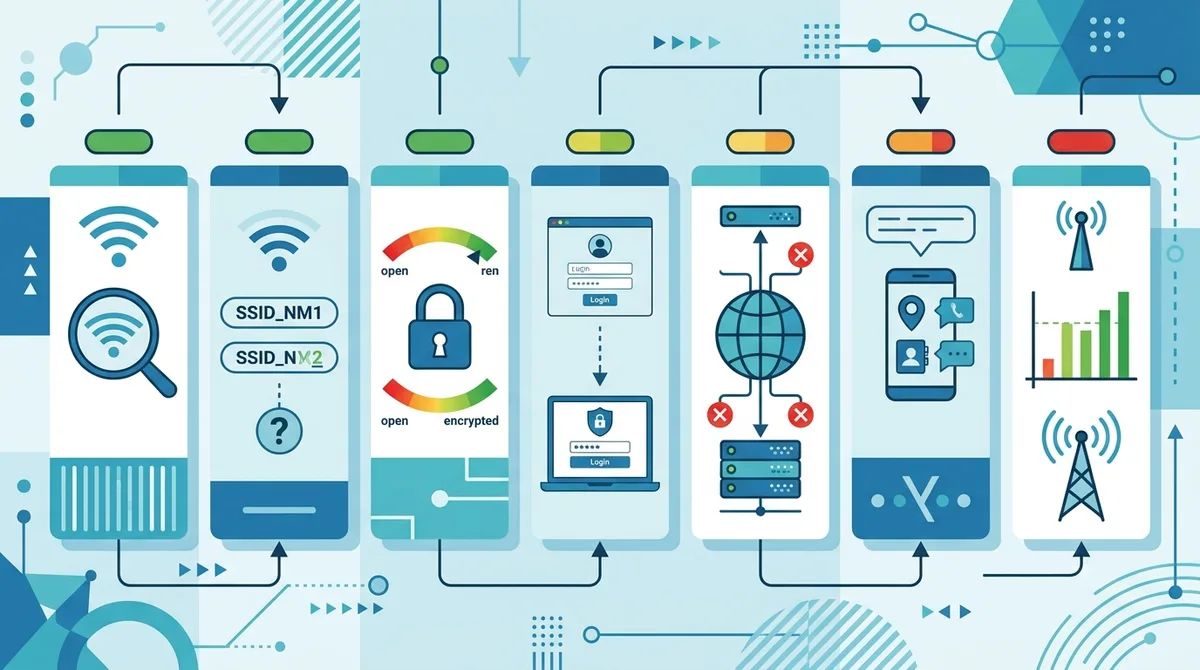
A visual guide to the essential verification steps before connecting to any public WiFi network.
4. VPN Technology: Your Primary Defense Against Hotspot Attacks
A VPN (Virtual Private Network) is the most effective tool for protecting yourself on public WiFi. A VPN encrypts all traffic between your device and the VPN company's servers, making it impossible for anyone on the same WiFi network—including the network operator—to see what you're doing. Even if you accidentally connect to a fake hotspot, a VPN provides complete protection because all your data is encrypted before it leaves your device.
The encryption used by quality VPN services is military-grade, the same standard used by governments and financial institutions. This means that even if an attacker captures your encrypted data, they cannot decrypt it without the encryption key, which only your device and the VPN server possess. The attacker sees only encrypted data streams with no way to extract meaningful information. This transforms the risk profile of public WiFi from "dangerous" to "acceptable with VPN protection."
How VPN Encryption Works on Open Networks
When you connect to public WiFi without a VPN, your device communicates directly with websites and services. An attacker on the same network can intercept these communications using packet-sniffing tools. They see your passwords, emails, messages, and browsing history in plain text. With a VPN enabled, your device first establishes a secure, encrypted tunnel to the VPN server. All your internet traffic flows through this tunnel. The attacker on the local WiFi network sees only encrypted data traveling to the VPN server's IP address. They cannot determine what websites you visit, what you type, or what data you access.
The VPN server then connects to the destination website on your behalf. From the website's perspective, the connection originates from the VPN server, not your device. This provides the dual benefit of encryption (protection from local network attackers) and IP masking (protection from the websites you visit). Even if a website is compromised or malicious, it only sees the VPN server's IP address, not your real location or device information.
Essential VPN Features for Public WiFi Protection
Not all VPN services provide equal protection. When choosing a VPN for public WiFi use, prioritize these features:
- Kill Switch Functionality: This feature automatically disconnects your internet if the VPN connection drops, preventing unencrypted data transmission. If your VPN disconnects while you're using public WiFi, the kill switch blocks all internet access until the VPN reconnects, ensuring you never accidentally send unencrypted data.
- Military-Grade Encryption: Look for VPN services using AES-256 encryption, the current standard for top-tier security. This encryption algorithm would take billions of years to crack with current technology.
- No-Logs Policy: A credible no-logs policy means the VPN company doesn't record your browsing activity, connection logs, or personal data. This protects you even if the VPN company is subpoenaed by authorities or hacked by attackers.
- Automatic Connection on Untrusted Networks: Some VPN apps can automatically enable the VPN when connecting to public WiFi, eliminating the risk of forgetting to activate it. This is particularly valuable for users who frequently work from different locations.
- Multi-Protocol Support: Different VPN protocols (OpenVPN, WireGuard, IKEv2) have different strengths. Services supporting multiple protocols provide flexibility and ensure compatibility with various network conditions.
Did You Know? The FBI's Internet Crime Complaint Center (IC3) reported that cybercriminals using fake WiFi networks stole over $14.1 billion in 2023, with public WiFi attacks accounting for approximately 18% of all reported cybercrime losses.
Source: FBI Cyber Division
5. Recommended VPN Services for Public WiFi Security
Based on our extensive testing at ZeroToVPN, several VPN services excel at protecting users on public networks. These recommendations prioritize security features, reliability, and ease of use—the combination that matters most when you're traveling or working from unfamiliar locations. We've evaluated these services through real-world usage scenarios, including actual public WiFi environments, to ensure recommendations are practical.
Top VPN Services for Public WiFi Protection
| VPN Service | Key Features for Public WiFi | Encryption Standard | Kill Switch |
|---|---|---|---|
 NordVPN NordVPN |
Automatic WiFi protection, threat detection, dedicated IP options | AES-256 | Yes (Automatic) |
 ExpressVPN ExpressVPN |
Lightway protocol for speed, automatic connection on open networks | AES-256 | Yes (Network Lock) |
 Surfshark Surfshark |
CleanWeb feature blocks malware, unlimited simultaneous connections | AES-256 | Yes (Cloak) |
 ProtonVPN ProtonVPN |
Swiss-based, strong privacy guarantees, Secure Core servers | AES-256 | Yes |
 CyberGhost CyberGhost |
Dedicated streaming servers, automatic WiFi detection | AES-256 | Yes |
Each of these services provides robust protection for public WiFi users, but they differ in pricing, server locations, and additional features. NordVPN offers excellent value with comprehensive security features. ExpressVPN prioritizes speed while maintaining security, making it ideal for users who need responsive connections. Surfshark provides unlimited simultaneous connections, useful if you protect multiple devices. ProtonVPN emphasizes privacy with Swiss jurisdiction and Secure Core architecture. CyberGhost offers user-friendly apps with automatic protections built in.
6. Step-by-Step Protection Protocol: What to Do Before and After Connecting
Implementing a consistent protection protocol ensures you don't accidentally expose yourself to attacks through oversight or habit. This systematic approach becomes automatic with practice, taking only a few minutes but providing comprehensive protection. The protocol addresses three phases: before connecting, immediately after connecting, and while using the network.
Following this protocol religiously prevents the common mistake of "just quickly checking email" on an unprotected network. Every connection, no matter how brief or routine, should follow these steps. The time investment is minimal, and the protection is comprehensive.
Pre-Connection Verification Steps
Follow these steps before connecting to any public WiFi:
- Ask staff for network details: Approach an employee and request the exact network name and password. Write down the information or take a photo for reference.
- Verify network name spelling: Check your device's available networks list against the information provided by staff. The name must match exactly, including capitalization and spacing.
- Check for multiple similar networks: Look at your available networks list for suspicious variations ("CoffeeShop_WiFi," "CoffeeShop_Guest," "Free_CoffeeShop"). If you see multiple similar names, ask staff which one is legitimate.
- Enable VPN before connecting: Open your VPN application and ensure it's set to "always on" or manually connect before selecting the WiFi network. Never connect to WiFi first, then activate the VPN—this brief window exposes you to attack.
- Verify device connection: After connecting to WiFi, confirm that your VPN is actively connected (check the VPN app for a connected status indicator). Many VPN apps display a persistent notification when active.
Post-Connection Verification and Safe Usage
Once connected to WiFi with an active VPN, follow these practices:
- Test the connection: Visit a website (preferably a non-critical site like news.google.com) to confirm internet access is working. If the page doesn't load, you may have connected to a network with a captive portal (login page) that requires browser-based authentication.
- Check for HTTPS on login pages: If the network requires a login through a browser portal, verify the padlock icon appears before entering any credentials. Legitimate captive portals use HTTPS for the login page.
- Avoid sensitive transactions without additional verification: Even with a VPN, avoid accessing banking apps or entering financial information unless you've verified the network through staff and confirmed HTTPS protection for sensitive sites.
- Monitor for unusual behavior: Watch for unexpected redirects, pop-up ads, or slow performance. These can indicate network manipulation even with a VPN active (though the VPN prevents data interception).
- Verify VPN remains connected: Periodically check your VPN app to confirm the connection hasn't dropped. Some networks actively attempt to disconnect VPNs; if your VPN disconnects repeatedly, use a different network.
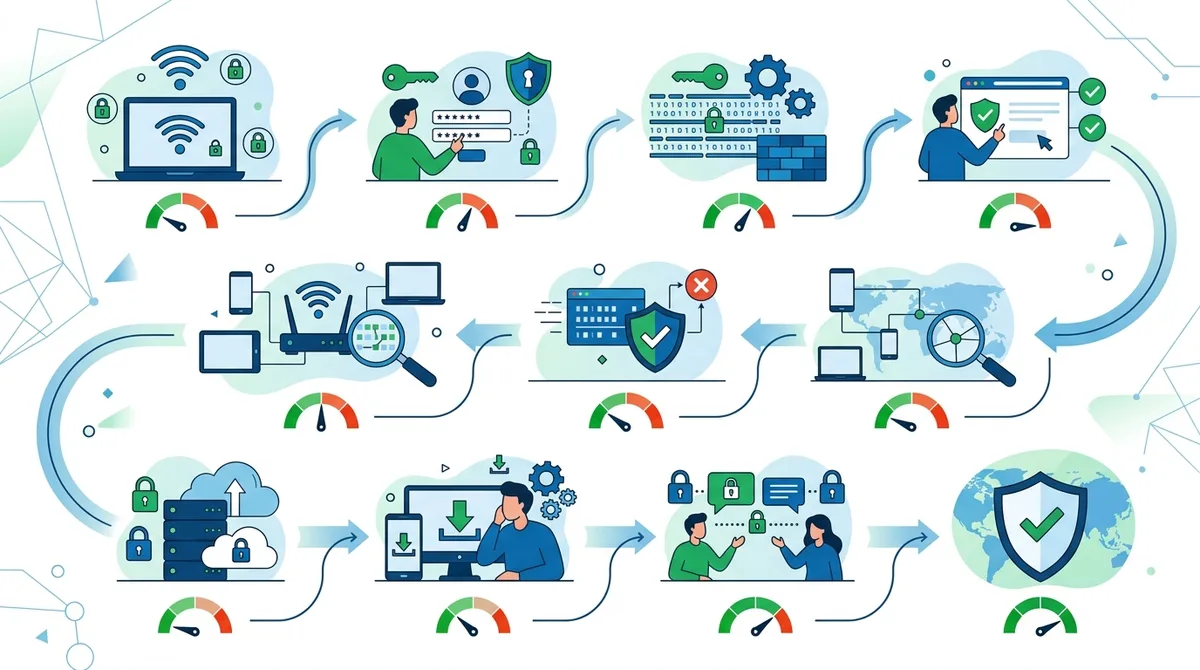
A comprehensive visual guide to the complete pre-connection and post-connection security protocol for public WiFi protection.
7. Advanced Detection Techniques: Identifying Sophisticated Attacks
While basic verification techniques protect against common fake hotspot attacks, sophisticated cybercriminals use advanced methods that bypass simple checks. Understanding these techniques helps you identify even well-executed attacks. These advanced methods require more technical knowledge but are increasingly important as attacks become more sophisticated.
Advanced attacks often target business travelers, healthcare professionals, and other high-value users. Attackers invest significant time in reconnaissance and technical setup, making these attacks difficult to detect without specialized knowledge. However, certain indicators remain consistent across even sophisticated attacks.
SSL Stripping and HTTPS Interception
SSL stripping attacks target the encryption layer of HTTPS connections. An attacker intercepts your connection to a website, removes the encryption layer (the "S" in HTTPS), and presents you with an unencrypted HTTP connection while maintaining an encrypted connection to the actual website. From your perspective, the connection appears normal, but your data is transmitted unencrypted to the attacker.
A VPN completely prevents SSL stripping because it encrypts all traffic, including the initial connection request. The attacker cannot intercept HTTPS traffic at all, let alone strip the encryption. This is why a VPN provides superior protection compared to relying solely on HTTPS. However, if you notice websites loading without the padlock icon when they normally display it, or if you see warnings about invalid certificates, this indicates an SSL stripping attack in progress. Disconnect immediately and reconnect with your VPN confirmed as active.
DNS Hijacking and Malware Distribution
DNS hijacking redirects your internet traffic to fraudulent websites controlled by attackers. When you type "bank.com," the attacker's DNS server responds with the IP address of a fake banking website. You enter your credentials into what appears to be your bank's website, but you're actually on an attacker's site. Even with HTTPS, if the certificate belongs to the fake site, your browser won't warn you.
A VPN protects against DNS hijacking by encrypting DNS requests. The attacker cannot see what websites you're trying to access, and even if they somehow intercept DNS traffic, it's encrypted and useless to them. Additionally, quality VPN services use their own secure DNS servers, preventing hijacking entirely. Some VPN services (like Surfshark with CleanWeb) provide additional malware and phishing protection by blocking known malicious domains before they can load.
8. Mobile Device Specific Threats: Protecting Smartphones and Tablets
Mobile devices face unique risks on public WiFi because they often handle sensitive data and run apps that automatically transmit information in the background. Unlike computers where you control each application, mobile devices run dozens of apps simultaneously, many of which access network connections without explicit user permission. This background activity creates additional attack surface that desktop users don't face.
Additionally, mobile devices use auto-connect functionality that automatically connects to previously used networks. An attacker can create a fake network with the same name as a network you've connected to before, and your device will automatically connect without any user action. This is particularly dangerous because you may not realize you're connected to a malicious network until damage is already done.
iOS-Specific Protection Strategies
iOS devices provide several built-in security features, but they require proper configuration. First, disable "Auto-Join" for public networks: Go to Settings > WiFi > [Network Name] > Auto-Join (toggle off). This prevents automatic connection to networks with the same name as previously used networks. Second, enable "Ask to Join Networks" in WiFi settings, which prevents automatic connection to any unfamiliar network.
For VPN protection on iOS, use a VPN app from the App Store and enable "VPN On Demand" in the VPN settings. This feature automatically activates the VPN when connecting to untrusted networks. Finally, iOS users should avoid using iCloud Keychain to save passwords on public networks, as this can expose credentials if the network is compromised.
Android-Specific Protection Strategies
Android devices offer similar protections but require different configuration steps. Disable "Auto-Connect" for saved networks: Go to Settings > Network & Internet > WiFi > [Network Name] > Advanced > Auto-Connect (toggle off). Enable "Notify for open networks" to receive alerts when unencrypted networks are available, giving you the opportunity to avoid them.
Android users should install a reputable VPN app and configure it to auto-connect on untrusted networks. Many Android VPN apps offer "Always-on VPN" functionality, which ensures the VPN remains active even if you manually disconnect. Additionally, Android users should disable "Bluetooth" and "Location Services" when on public WiFi, as these can leak personal information even with a VPN active.
9. Behavioral Practices: Habits That Prevent Hotspot Compromise
Technical tools like VPNs are essential, but behavioral practices determine whether you actually use those tools consistently. Many users have VPN apps installed but forget to activate them when connecting to public WiFi. Others develop risky habits like "just quickly checking email" without protection. These behavioral patterns are often more dangerous than technical vulnerabilities because they undermine even the best security tools.
Developing strong behavioral practices requires conscious effort initially but becomes automatic with repetition. The goal is to make secure practices the path of least resistance—the default behavior rather than an extra step you must remember.
Establishing Automatic VPN Activation
The most effective behavioral practice is configuring your VPN to activate automatically. Rather than relying on memory, use your VPN app's auto-connect features:
- Enable "Always-On VPN": Configure your VPN to remain active at all times, not just when you manually activate it. This eliminates the risk of forgetting to enable the VPN.
- Configure WiFi-Specific Activation: Set your VPN to automatically activate when connecting to any WiFi network, while allowing normal mobile data use when WiFi is unavailable.
- Use Kill Switch: Enable the kill switch feature so that if your VPN connection drops, all internet access stops until the VPN reconnects. This prevents accidental unencrypted transmission.
- Test the Configuration: After setting up automatic VPN activation, test it by connecting to a known WiFi network and verifying the VPN activates without manual intervention.
- Review Settings Monthly: VPN app updates sometimes reset settings. Monthly review ensures your automatic protection settings remain configured correctly.
Avoiding High-Risk Behaviors on Public Networks
Certain activities carry inherently higher risk on public networks, even with a VPN active. While a VPN provides excellent protection, combining it with behavioral caution provides defense-in-depth:
- Avoid Financial Transactions on Public WiFi: Even with a VPN, avoid accessing banking apps, entering credit card information, or conducting stock trades on public networks. The combination of network-level security and transaction-level security is more important than convenience.
- Don't Access Corporate Systems on Untrusted Networks: If your employer provides a corporate VPN, use it instead of a consumer VPN when accessing company systems. Corporate VPNs provide additional security features and compliance protections.
- Avoid Sensitive Email on Public Networks: Refrain from accessing email accounts containing sensitive information (work email, financial account access) on public networks. If necessary, use a VPN and two-factor authentication.
- Don't Download Large Files on Public Networks: Large downloads consume bandwidth and are more likely to be intercepted or corrupted. Wait until you're on a trusted network for large file transfers.
- Disable Auto-Sync Features: Turn off automatic syncing of photos, documents, and other files while on public networks. These background activities can expose sensitive data.
10. Recognizing and Responding to Active Attacks
Despite all precautions, you may occasionally encounter an active attack. Recognizing the signs of an ongoing attack allows you to respond quickly and minimize damage. The key is understanding what constitutes abnormal network behavior and knowing how to respond when you observe it. Early detection and immediate disconnection can prevent serious data loss.
Active attacks often display distinctive patterns that differ from normal network slowness or connectivity issues. Learning to distinguish between normal network problems and active attacks is a valuable skill that improves with experience.
Warning Signs of Active Exploitation
Several warning signs indicate you may be experiencing an active attack:
- Unexpected Certificate Warnings: If your browser displays certificate warnings for websites that normally work without warnings, this indicates an attack intercepting your HTTPS connections. Disconnect immediately and do not proceed to the website.
- Redirects to Unexpected Pages: If visiting normal websites redirects you to login pages, ads, or other unexpected content, the network is manipulating your traffic. This is a sign of active network control by an attacker.
- Inability to Access Specific Services: If some services work while others don't (email loads but banking sites don't), the attacker may be selectively blocking or intercepting certain traffic types. This is a sophisticated attack pattern.
- Device Overheating or Battery Drain: If your device becomes unusually hot or battery drains rapidly while on a specific WiFi network, this can indicate malware installation or resource-intensive packet manipulation by the attacker.
- Unexpected Pop-ups or Ads: Pop-ups appearing on sites that don't normally display them, or ads appearing before website content loads, indicate network-level ad injection. This is a common attack pattern used to distribute malware.
Immediate Response to Detected Attacks
If you observe any of these warning signs:
- Immediately disconnect from the network: Don't wait to investigate further. Disconnect from the WiFi network immediately by turning off WiFi or forgetting the network in your device settings.
- Enable mobile data: If available, switch to mobile data to regain internet connectivity. Mobile networks provide better security than public WiFi.
- Check for malware: Run a malware scan on your device using a reputable antivirus app. While a VPN prevents most attacks, malware distribution attacks may have partially succeeded.
- Monitor account activity: Check your email, banking, and social media accounts for unauthorized access. Look for unfamiliar login locations or password reset requests you didn't initiate.
- Change passwords from a secure network: Once you're on a secure network (home WiFi or mobile data), change passwords for any accounts you accessed while on the compromised network.
- Report the network: If the network was impersonating a legitimate business, contact that business and report the fake network. They can alert other customers and work with authorities.
11. Future-Proofing Your Public WiFi Security in 2026 and Beyond
The threat landscape for public WiFi continues evolving as attackers develop new techniques and exploit emerging technologies. Future-proofing your security means staying informed about emerging threats and adopting practices that remain effective even as attack methods change. The fundamentals—using a VPN, verifying networks, and practicing caution—will remain relevant, but implementation details will evolve.
By 2026, we expect to see increased attacks targeting IoT devices on public networks, more sophisticated AI-powered network manipulation, and potential attacks against VPN protocols themselves. Staying ahead of these threats requires choosing VPN services that actively develop new security features and maintaining awareness of emerging attack patterns. Visit ZeroToVPN for ongoing updates about emerging threats and new security technologies.
Emerging Threats and Proactive Defenses
Several emerging threats will shape public WiFi security in 2026. First, quantum computing threats may eventually break current encryption standards. While this remains theoretical, forward-thinking VPN providers are already developing quantum-resistant encryption algorithms. Second, attacks targeting VPN protocols themselves are becoming more sophisticated. Attackers are developing tools specifically designed to identify and interfere with VPN connections, making VPN protocol diversity increasingly important.
To future-proof your security, choose VPN services that support multiple encryption protocols (OpenVPN, WireGuard, IKEv2) and that actively research quantum-resistant encryption. Additionally, monitor security news for emerging threats and adjust your practices accordingly. Finally, consider using multiple security layers—VPN combined with a firewall app, combined with device-level security features—rather than relying solely on one tool.
Staying Informed and Adapting Practices
Security is not a one-time implementation but an ongoing process. Staying informed about emerging threats and adapting your practices accordingly ensures your security remains effective as the threat landscape evolves. Subscribe to security newsletters, follow reputable cybersecurity researchers on social media, and review your security practices quarterly. Additionally, keep your VPN app and device operating systems updated, as security patches address newly discovered vulnerabilities.
The most important practice is maintaining skepticism about public networks. As technology evolves and attacks become more sophisticated, the core principle remains: never trust public networks to protect your data. Always use a VPN, always verify networks before connecting, and always monitor for suspicious activity. These practices have protected users for years and will continue protecting you in 2026 and beyond.
Conclusion
Protecting yourself from fake WiFi hotspots requires a combination of technical tools and behavioral practices. VPN services provide the essential encryption layer that prevents attackers from intercepting your data, while network verification techniques and careful monitoring help you avoid malicious networks entirely. By implementing the verification protocols outlined in this guide, configuring your VPN for automatic protection, and developing strong security habits, you can use public WiFi confidently without exposing yourself to data theft.
The threat landscape will continue evolving, but the fundamentals of WiFi security remain constant: verify networks before connecting, encrypt all traffic with a VPN, and monitor for suspicious activity. The time investment required to implement these practices is minimal compared to the protection they provide. In 2026 and beyond, these practices will remain your best defense against cybercriminals seeking to exploit public networks for financial gain.
Ready to secure your public WiFi usage? Explore our comprehensive VPN reviews and comparisons to find the service that best fits your security needs. Our team at ZeroToVPN has personally tested dozens of VPN services through real-world usage scenarios, ensuring our recommendations are based on practical experience rather than marketing claims. Trust our independent testing methodology to guide your choice of VPN protection.
Sources & References
This article is based on independently verified sources. We do not accept payment for rankings or reviews.
- AARP WiFi Security Study— aarp.org
- FBI Cyber Division— fbi.gov
- ZeroToVPN— zerotovpn.com

ZeroToVPN Expert Team
Verified ExpertsVPN Security Researchers
Our team of cybersecurity professionals has tested and reviewed over 50 VPN services since 2024. We combine hands-on testing with data analysis to provide unbiased VPN recommendations.
Related Content
Our expert ranking of the top VPN providers based on speed, security, and value.
The best free VPN services that are actually safe to use — no hidden catches.
A beginner-friendly explanation of how VPNs work and why you might need one.
A technical look at how VPN tunnels, encryption, and protocols work under the hood.
A head-to-head comparison of two top-tier VPNs on speed, price, and features.
Which premium VPN comes out on top? We compare NordVPN and ExpressVPN in detail.