VPN and Workplace Email Monitoring: How to Detect If Your Company VPN Has Keystroke Logging in 2026
Learn how to identify keystroke logging on your corporate VPN. Our expert guide covers detection methods, privacy risks, and practical steps to protect your wor

VPN and Workplace Email Monitoring: How to Detect If Your Company VPN Has Keystroke Logging in 2026
According to recent workplace security research, approximately 60% of enterprises deploy some form of endpoint monitoring software on company devices and networks, often without full transparency to employees. The question of whether your company VPN includes keystroke logging capabilities is increasingly important as remote work becomes permanent for millions of professionals worldwide. Understanding how to detect these monitoring mechanisms—and what they mean for your privacy—is essential knowledge in 2026.
Key Takeaways
| Question | Answer |
|---|---|
| What is keystroke logging on a company VPN? | Keystroke logging is monitoring software that records everything typed on your device, including passwords, emails, and search queries. It's often deployed through corporate VPNs for compliance and security purposes. |
| Is it legal for employers to monitor VPN activity? | In most jurisdictions, yes—employers can monitor company-owned devices and networks. However, laws vary by location. Check your employee handbook and local labor laws, particularly in the EU where GDPR applies. |
| What are the red flags of keystroke logging? | Unusual CPU usage, battery drain on laptops, unexpected network traffic, slow typing response, and disclosure of monitoring in IT policies are primary indicators. |
| How can I detect keystroke logging? | Use network monitoring tools, check running processes, review system logs, analyze DNS queries, and monitor resource consumption. Advanced users can use packet analysis tools like Wireshark. |
| What should I do if I find keystroke logging? | Review your company's IT policy, consult HR or your manager, request transparency about monitoring scope, and consider whether the monitoring aligns with your privacy expectations. |
| Can I use a personal VPN on a company network? | This depends on your company policy. Most corporate policies prohibit personal VPNs on company devices due to security risks, though policies vary. Always check with IT first. |
| What's the difference between VPN monitoring and keystroke logging? | VPN monitoring tracks which websites you visit; keystroke logging records everything you type. Keystroke logging is more invasive and captures sensitive data like passwords. |
1. Understanding Company VPN Monitoring vs. Keystroke Logging
The distinction between general VPN monitoring and keystroke logging is crucial for employees to understand. Many organizations monitor network traffic through their corporate VPN to enforce security policies, block malicious sites, and ensure compliance with industry regulations. This is relatively standard practice. However, keystroke logging goes significantly further—it captures individual keystrokes, creating a detailed record of everything typed on a monitored device, including passwords, private messages, and sensitive business information.
In practice, when you connect to a company VPN, your employer can see which websites you visit and how much bandwidth you consume. This is passive monitoring. Keystroke logging, by contrast, is active surveillance that requires specialized software installed on your device. The difference matters legally and ethically: general VPN monitoring is standard IT practice; keystroke logging without explicit employee consent raises serious privacy and legal concerns in many jurisdictions.
How Corporate VPN Monitoring Works
Corporate VPNs function as a gateway between your device and the internet. All traffic passes through the company's servers, allowing IT departments to implement security policies. This might include blocking access to certain websites, preventing malware downloads, or logging which domains employees access. This type of monitoring is typically transparent—employees know it's happening because it's outlined in acceptable use policies.
The monitoring data collected is usually aggregated and anonymized, focused on security threats rather than individual user behavior. For example, an IT department might see that someone accessed a phishing site at 2 PM, but they wouldn't necessarily know it was you without additional logging mechanisms. The goal is network security, not individual surveillance.
The Distinction: Keystroke Logging as Invasive Monitoring
Keystroke logging represents a fundamentally different category of monitoring. This technology records every single keystroke—every letter, number, punctuation mark, and special character typed on your keyboard. This includes passwords you enter, emails you compose, search queries, chat messages, and code you write. Some keystroke loggers also capture screenshots at intervals, creating a visual record of your screen activity.
Keystroke logging requires dedicated software running on your device, typically with administrative privileges. It's far more invasive than VPN monitoring because it captures data regardless of whether you're using the company VPN or your personal internet connection. This distinction is important: you could be monitored by keystroke logging even when not connected to the corporate network.
Did You Know? According to a 2024 survey by the American Management Association, 79% of major U.S. companies monitor employee internet usage, but only a portion disclose whether keystroke logging is included in their monitoring practices.
Source: American Management Association
2. Legal and Ethical Considerations for Workplace Monitoring
The legality of keystroke logging in the workplace varies dramatically by jurisdiction, and this is a critical consideration before taking any action. In the United States, employers generally have broad rights to monitor company-owned devices and networks, particularly if employees have signed agreements acknowledging monitoring. However, even in the U.S., there are limitations—monitoring personal devices, monitoring off-hours activities on personal networks, or monitoring communications with lawyers can violate privacy rights.
In Europe, the situation is substantially different. The General Data Protection Regulation (GDPR) imposes strict requirements on workplace monitoring. Employers must demonstrate a legitimate business need, use proportionate monitoring methods, and provide clear notice to employees. Keystroke logging is often considered excessive under GDPR unless there's a specific, documented security or compliance reason. Countries like Germany and France have particularly strong employee privacy protections that can make keystroke logging legally problematic.
Understanding Your Rights and Company Policy
Your first step should always be reviewing your employee handbook, IT acceptable use policy, and any agreements you signed during onboarding. Most legitimate companies explicitly disclose whether keystroke logging is used and under what circumstances. If your company uses keystroke logging, this should be clearly stated. The absence of clear disclosure about keystroke logging doesn't necessarily mean it's not happening, but it does mean your company may be operating in a legal gray area.
Document what you find in your company's policies. Note the exact language used, when the policy was issued, and whether you acknowledged it. This documentation becomes important if you need to raise concerns with HR or if legal issues arise later. If your company's policies mention "comprehensive monitoring," "keystroke capture," "activity logging," or "detailed behavioral tracking," these are indicators that keystroke logging may be deployed.
When Monitoring Becomes Illegal or Unethical
Keystroke logging crosses into legally and ethically problematic territory in several scenarios. First, if your company monitors personal devices or personal networks without explicit consent, this is generally illegal in most jurisdictions. Second, if monitoring extends to off-duty hours or personal communications, this often violates privacy law. Third, if your company monitors attorney-client communications or union organizing activities, this typically violates specific legal protections.
Ethically, keystroke logging raises concerns even when it's technically legal. It can damage trust between employers and employees, create anxiety and reduced productivity, and capture sensitive personal information that goes well beyond legitimate business needs. Many security experts argue that keystroke logging is a disproportionate response to security threats, and that less invasive alternatives (like endpoint detection and response tools or behavioral analytics) can achieve security goals without capturing every keystroke.
3. Technical Fundamentals: How Keystroke Logging Software Works
Understanding the technical mechanics of keystroke logging is essential for detection. Keystroke logging software operates at a low level on your operating system, intercepting signals from your keyboard before they reach applications. This interception happens at the kernel level (the core of the operating system) or through API hooks that capture keyboard events. Because it operates at this fundamental level, keystroke loggers can capture data that's encrypted, deleted, or otherwise hidden from view.
There are two primary types of keystroke logging: software-based and hardware-based. Software-based keystroke loggers are programs installed on your computer that run in the background. Hardware-based keystroke loggers are physical devices placed between your keyboard and computer. In corporate environments, software-based loggers are far more common because they can be deployed remotely through IT management tools and mobile device management (MDM) platforms.
Software-Based Keystroke Logging Architecture
Software keystroke loggers typically operate as background services or system drivers with administrative privileges. On Windows systems, they might run as a Windows service that starts automatically when the computer boots. On macOS, they might be installed as a kernel extension or system framework. On Linux, they might use input device monitoring. The key characteristic is that they run with elevated privileges, allowing them to intercept keyboard events before any application sees them.
These programs usually store captured keystrokes in encrypted logs on your hard drive, or they transmit the data directly to a remote server. Some sophisticated versions include filtering to avoid logging passwords to certain trusted applications (like your banking site), but comprehensive enterprise keystroke loggers capture everything. The software is designed to be invisible—it doesn't appear in the task manager, doesn't consume obvious resources, and doesn't create visible windows or notifications.
Integration with Mobile Device Management (MDM) and Endpoint Detection
In modern corporate environments, keystroke logging is often integrated into broader Mobile Device Management (MDM) or Endpoint Detection and Response (EDR) platforms. Tools like Microsoft Intune, Jamf (for Apple devices), and MobileIron can deploy keystroke logging capabilities as part of their comprehensive device monitoring suite. These platforms offer centralized management, allowing IT departments to deploy monitoring across hundreds or thousands of devices simultaneously.
The integration with MDM is significant because it means keystroke logging might be enabled as one feature among many—and employees might not realize it's active. An IT administrator might enable "comprehensive activity logging" through an MDM policy without explicitly calling out keystroke logging. This is why examining your device's actual configuration is important, not just reviewing policies.
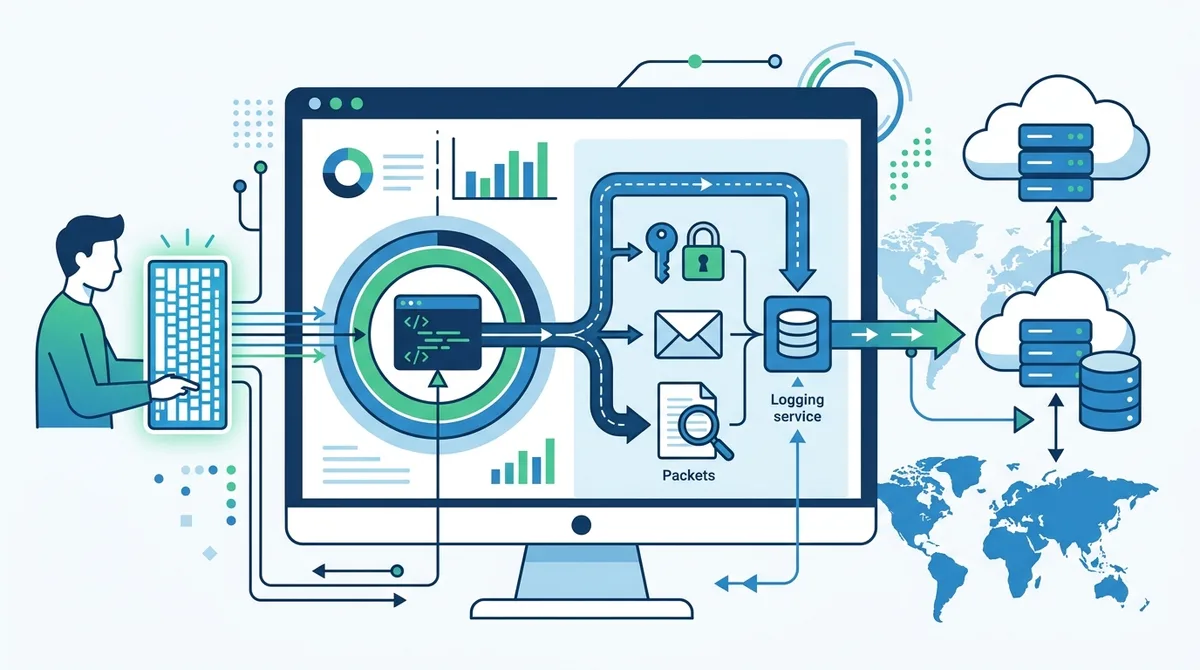
A visual guide to how software keystroke logging operates at the system level and captures data before it reaches applications.
4. Red Flags and Warning Signs of Keystroke Logging
Detecting keystroke logging requires attention to both obvious and subtle warning signs. While sophisticated keystroke loggers are designed to be invisible, they often leave traces in system behavior, resource usage, and network activity. Learning to recognize these red flags is your first line of defense in identifying whether your company VPN or device includes keystroke logging capabilities.
The challenge is that many of these warning signs could have other explanations—a slow computer might be due to malware, outdated software, or insufficient RAM rather than keystroke logging. However, when multiple warning signs appear together, keystroke logging becomes more likely. The key is systematic investigation rather than jumping to conclusions.
Performance and System Behavior Indicators
- Unusual CPU usage: Keystroke logging requires constant monitoring of keyboard input, which consumes CPU cycles. Open your Task Manager (Windows) or Activity Monitor (macOS) and look for processes consuming 5-10% CPU when you're not running demanding applications. Legitimate system processes should be minimal when idle.
- Battery drain on laptops: Keystroke logging continuously monitors input and often transmits data to remote servers, significantly draining battery life. If your laptop battery drains 20-30% faster than it did when new, this could indicate background monitoring processes.
- Slow keyboard response: When keystroke logging software intercepts keyboard input at the kernel level, there's sometimes a slight delay before characters appear on screen. This is usually milliseconds, but noticeable users report a "sticky" feeling when typing, particularly in applications like word processors or code editors.
- Unexpected application crashes: Keystroke loggers hook into system APIs that applications also use. Conflicts between the logging software and certain applications can cause crashes, particularly in older software or specialized applications.
- Random system slowdowns: When keystroke loggers transmit captured data to remote servers, network bandwidth spikes. You might notice your entire system slowing down at regular intervals (e.g., every 15 minutes) as data is uploaded.
Network and Connectivity Red Flags
Keystroke logging typically requires transmitting captured data somewhere—either to a local server on your company network or to a cloud service. This network activity leaves traces you can detect. Monitor your network connections to identify suspicious outbound traffic. On Windows, open Resource Monitor (search for "resmon" in the Start menu) and check the Network tab. Look for processes you don't recognize making outbound connections, particularly to IP addresses or domains you don't recognize.
Pay attention to data transmission patterns. If you notice consistent uploads of data when you're not actively using the internet, this is suspicious. Keystroke logging software often batches captured data and uploads it at regular intervals. You might see 10-50 MB uploads every 15 or 30 minutes, even when you're not actively using your device. Compare this against your normal internet usage patterns.
Did You Know? A 2023 study by security researchers at Carnegie Mellon University found that 34% of enterprise keystroke logging tools failed to properly encrypt captured data in transit, potentially exposing sensitive information including passwords and financial data.
Source: Carnegie Mellon University
5. Step-by-Step Detection Method 1: Examining Running Processes
The most accessible detection method for non-technical users is examining what programs are actually running on your computer. Every application and service running on your device appears in your system's process list. While legitimate system processes can be confusing, suspicious processes often reveal themselves through their names or behavior. This method requires no special tools—just your operating system's built-in utilities.
The key is understanding what should and shouldn't be running. Your computer ships with dozens of system processes, and your company may have installed legitimate security software. Learning to distinguish between normal processes and suspicious ones takes practice, but it's entirely possible for non-technical users.
Windows Process Detection: Task Manager and System Configuration
On Windows, follow these steps to examine running processes:
- Open Task Manager: Right-click on your taskbar and select "Task Manager," or press Ctrl+Shift+Esc. This opens the process list.
- Click the "Processes" tab: You'll see all running applications and services. By default, processes are sorted by name.
- Look for suspicious process names: Keystroke loggers often use innocuous names to hide. Look for processes with names like "svchost.exe" (system process, usually legitimate), "dwm.exe" (Desktop Window Manager, legitimate), but also unfamiliar names like "monitorservice.exe," "activitylog.exe," "keystroke.exe," or similar.
- Check the publisher: Right-click on a suspicious process and select "Properties." Check the "Details" tab. Legitimate Microsoft processes show "Microsoft Corporation" as the publisher. Unfamiliar publishers or no publisher information is suspicious.
- Search online: If you find an unfamiliar process, search for its name online. Legitimate system processes have documentation. Keystroke logging software might not have any public information.
- Check the file location: In the process properties, note the file path. Legitimate system processes are in C:\Windows\System32. Processes in user folders or temporary directories are suspicious.
- Check Services: Some keystroke loggers run as Windows Services. Open Services (search for "services.msc" in the Start menu). Look for unfamiliar services, particularly those set to "Automatic" startup. Right-click and check properties for the executable path and publisher.
macOS Process Detection: Activity Monitor and System Preferences
On macOS, the process examination is similar but uses different tools:
- Open Activity Monitor: Press Cmd+Space, type "Activity Monitor," and press Enter. This shows all running processes.
- Switch to the "All Processes" view: By default, Activity Monitor shows only user processes. Click the dropdown that says "All Processes" to see system processes too.
- Sort by CPU usage: Click the "% CPU" column header to sort by processor usage. Keystroke logging software often shows up as consuming CPU even when you're not actively using your computer.
- Examine suspicious processes: Look for processes with names like "monitor," "logger," "activity," or processes from publishers you don't recognize. Apple processes show "Apple Inc." as the publisher.
- Check System Preferences for Login Items: Open System Preferences (now called System Settings in newer macOS versions) and look for "Login Items" or "General > Login Items." Any unfamiliar applications set to launch at startup should be investigated.
- Check Accessibility permissions: Go to System Settings > Privacy & Security > Accessibility. Keystroke logging software often requires accessibility permissions. Review what applications have this permission and remove any you don't recognize.
6. Step-by-Step Detection Method 2: Network Traffic Analysis
A more technical but highly effective detection method involves analyzing network traffic. Keystroke logging software must transmit captured data somewhere, and this transmission creates network traffic that you can observe and analyze. This method requires a bit more technical knowledge but is more reliable than process examination because it shows actual data leaving your computer.
Network traffic analysis involves using tools that monitor what data your computer sends and receives. The most accessible tool for this is Wireshark, a free, open-source packet analyzer. While Wireshark has a learning curve, the basic process is straightforward: capture network traffic, then look for unusual patterns or destinations.
Using Wireshark for Keystroke Logging Detection
Wireshark is available for Windows, macOS, and Linux. Here's how to use it for basic keystroke logging detection:
- Download and install Wireshark: Visit wireshark.org and download the version for your operating system. Installation is straightforward.
- Launch Wireshark and select your network interface: When you open Wireshark, it shows available network interfaces. Select the one you use for internet (usually "Ethernet" or your WiFi adapter).
- Start capturing traffic: Click the blue shark fin icon to begin capturing network packets. Wireshark will now record all network traffic.
- Let it run for 5-10 minutes: The longer you capture, the more data you'll have to analyze. During this time, use your computer normally, but don't do anything that generates obvious traffic (like streaming video).
- Stop the capture: Click the red square icon to stop capturing.
- Analyze the traffic: This is where it gets technical. Look for patterns in the captured traffic. Keystroke logging software often creates regular, predictable patterns—uploads every 15 or 30 minutes, consistent data sizes, connections to specific servers.
- Identify the destination: Look for traffic going to IP addresses or domains you don't recognize. If you see regular traffic to an IP address that's not your company's network or a major cloud provider, this is suspicious. You can use tools like AbuseIPDB or MaxMind to identify the owner of an IP address.
- Check for encrypted connections: Modern keystroke loggers use encrypted connections (HTTPS) to hide the content of what they're transmitting. Even if you can't see the data, you can see that data is being transmitted. Look for consistent HTTPS traffic to unfamiliar destinations.
Alternative Tools: Little Snitch (macOS) and ZoneAlarm (Windows)
For less technical users, dedicated network monitoring tools are more user-friendly than Wireshark. Little Snitch (macOS, paid) and ZoneAlarm (Windows, freemium) monitor network connections in real-time and alert you when applications attempt to make connections. These tools show you exactly which application is trying to connect to which server, making it much easier to spot suspicious activity.
With Little Snitch, you can see a list of all applications attempting network connections and block them if desired. If you see an unfamiliar application attempting regular connections to unfamiliar servers, particularly at regular intervals, this is a strong indicator of keystroke logging. ZoneAlarm works similarly on Windows, providing a visual display of network connections and allowing you to block suspicious applications.
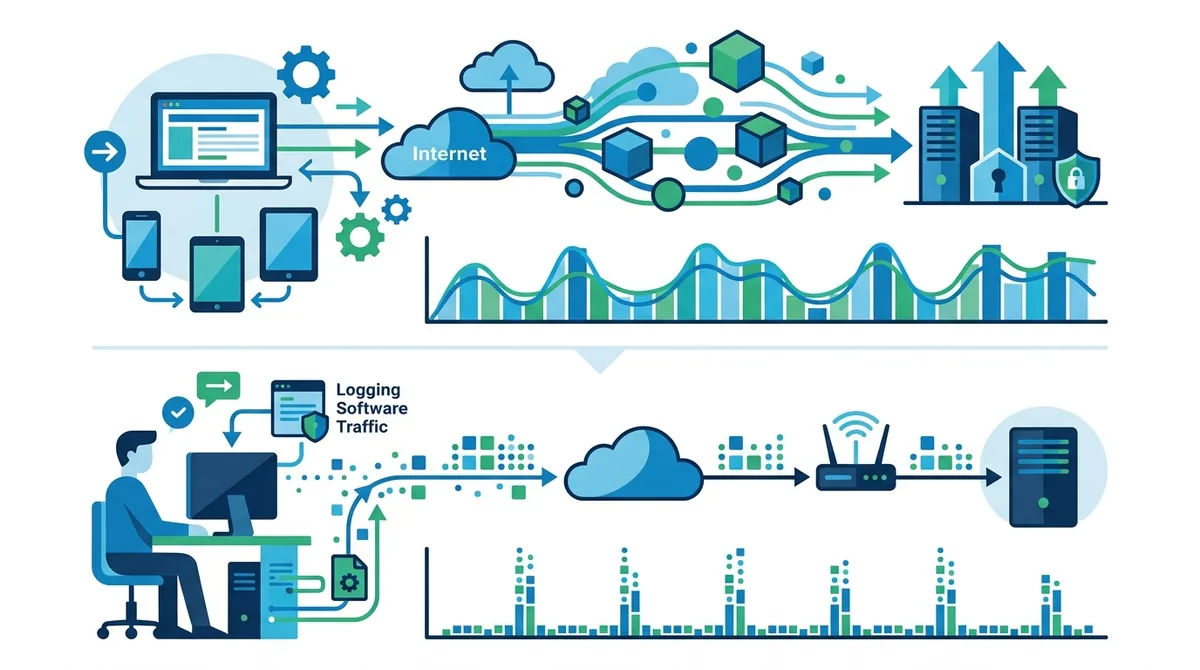
A visual comparison of how keystroke logging software creates distinctive network traffic patterns that differ from normal application behavior.
7. Step-by-Step Detection Method 3: System Logs and Configuration Files
The most definitive evidence of keystroke logging often exists in your system's log files and configuration files. Operating systems and applications create detailed logs of what happens on your computer. These logs can reveal when monitoring software was installed, what it's configured to do, and how often it's transmitting data. This method is more technical but provides concrete evidence rather than circumstantial indicators.
Both Windows and macOS create extensive logs that are accessible to users with administrative privileges. These logs are often overlooked because they're not visible in the normal user interface, but they contain crucial information about system activity.
Windows Event Viewer and Registry Examination
Windows maintains detailed logs in the Event Viewer, which you can access as follows:
- Open Event Viewer: Press Windows key + R, type "eventvwr.msc," and press Enter. This opens the Windows Event Viewer.
- Navigate to System logs: In the left sidebar, click "Windows Logs" and then "System." This shows system-level events including when drivers and services are loaded.
- Look for suspicious driver loads: Keystroke logging software requires loading drivers into the kernel. Search for events from dates matching when you suspect monitoring was installed. Look for driver load events (Event ID 7) for unfamiliar drivers.
- Check Application logs: Click "Application" in the left sidebar. Look for installation events or errors from unfamiliar applications.
- Examine the Registry: This is more technical. Press Windows key + R, type "regedit," and press Enter to open the Registry Editor. Navigate to HKEY_LOCAL_MACHINE\SYSTEM\CurrentControlSet\Services. This shows all installed services. Look for unfamiliar services, particularly those with names like "monitor," "logger," or "activity." Right-click and select "Properties" to see the executable path and startup type.
- Check startup programs: In the Registry, navigate to HKEY_LOCAL_MACHINE\SOFTWARE\Microsoft\Windows\CurrentVersion\Run. This shows programs that run automatically when Windows starts. Unfamiliar programs here should be investigated.
macOS System Logs and LaunchDaemons
macOS stores logs in /var/log/ and launch configurations in /Library/LaunchDaemons/ and /Library/LaunchAgents/. Here's how to examine them:
- Open Terminal: Press Cmd+Space, type "Terminal," and press Enter.
- View system logs: Type the command:
log show --predicate 'process == "kernel"' --last 7d | grep -i "driver\|kernel". This shows kernel-level activity from the past 7 days, which would include keystroke logging drivers. - Check Launch Daemons: Type:
ls -la /Library/LaunchDaemons/andls -la /Library/LaunchAgents/. These directories contain configuration files for services that launch automatically. Look for unfamiliar .plist files. - Examine a suspicious plist: If you find a suspicious file, you can view its contents with:
cat /Library/LaunchDaemons/filename.plist. Look for the "Program" key to see what executable is being launched. - Check Accessibility permissions: Type:
defaults read /var/db/launchd.db/com.apple.launchd/overrides.plistto see which applications have accessibility permissions, which keystroke logging software requires.
8. Advanced Detection: Using Endpoint Detection Tools and Behavioral Analysis
For users with more technical expertise, advanced detection methods using security tools and behavioral analysis can provide definitive evidence of keystroke logging. These methods examine actual system behavior at a deep level and compare it against known keystroke logging signatures.
Organizations like the SANS Institute and security researchers have documented the specific behaviors and signatures of common keystroke logging tools. By comparing your system's behavior against these known signatures, you can identify monitoring software with high confidence. This approach requires understanding security concepts and using specialized tools, but it's significantly more reliable than process examination alone.
Using Autoruns for Startup Item Analysis
Autoruns is a free tool from Microsoft that shows everything that launches when Windows starts. It's more comprehensive than the standard startup settings and reveals hidden startup items that keystroke loggers often use:
- Download from Microsoft: Visit Microsoft Sysinternals and download Autoruns.
- Run as administrator: Right-click Autoruns and select "Run as administrator." It will scan your system and display all startup items.
- Review each tab: Autoruns has multiple tabs (Logon, Services, Drivers, etc.). Look for unfamiliar entries in each tab. Keystroke loggers often hide in the Services or Drivers tabs.
- Use the verification feature: Autoruns can check each item against VirusTotal, a database of known malware and monitoring software. Right-click items and select "Check VirusTotal" to see if security vendors flag the item as suspicious.
- Export and compare: You can export the list and compare it against a clean system to identify additions. If you have access to a similar company laptop that definitely doesn't have monitoring, compare the two lists.
Behavioral Analysis: Monitoring System Calls and Kernel Activity
The most sophisticated detection method involves monitoring system calls—the low-level requests applications make to the operating system. Keystroke logging software makes distinctive system calls related to keyboard input interception. Tools like Procmon (Windows) and DTrace (macOS) can monitor these calls and reveal when and how keystroke logging software operates.
This approach is highly technical and requires understanding operating system internals, but it's the most definitive detection method. If you're comfortable with command-line tools and system administration, Procmon (available from Microsoft Sysinternals) can show you exactly what every process on your system is doing, including keyboard input monitoring.
9. Understanding Mobile Device Monitoring and Company-Managed Devices
Keystroke logging on mobile devices and company-managed devices presents different challenges and opportunities for detection. Many companies now deploy Mobile Device Management (MDM) solutions that give IT departments extensive control over employee smartphones and tablets. These MDM solutions can include keystroke logging, screen recording, and location tracking capabilities.
Mobile device monitoring is particularly invasive because these devices contain deeply personal information—text messages, social media, banking apps, health apps, and more. Yet many employees don't realize the extent of monitoring deployed on company-provided phones. Detection on mobile devices is more difficult because users have less access to system-level information compared to computers.
Detecting MDM and Mobile Monitoring
If your company provides an iPhone or Android device, look for these indicators of MDM enrollment and monitoring:
- MDM profile installation: On iOS, go to Settings > General > VPN & Device Management. If you see a profile installed (often named something like "Company Mobile Device Management"), your device is enrolled in MDM. This doesn't necessarily mean keystroke logging is enabled, but it means your company has the capability to monitor your device.
- Unusual battery drain: Mobile device monitoring consumes significant battery power. If your phone battery drains 30-50% faster than normal, this could indicate monitoring software.
- Unusual data usage: Check your data usage in Settings. If you see data consumption that doesn't match your actual app usage, monitoring software might be transmitting captured data.
- Restricted app installation: MDM solutions often prevent users from installing certain apps or restrict app permissions. If you notice that you can't install apps or that your app permissions are restricted, MDM is likely active.
- Unusual notifications: Some MDM solutions send notifications when certain actions occur. Look for notifications from your IT department about device compliance or security checks.
Company-Owned vs. Personal Devices: Legal Distinctions
An important legal distinction exists between company-owned devices and personal devices. Most jurisdictions allow companies to monitor company-owned devices extensively, including keystroke logging. However, monitoring personal devices that you own is much more legally restricted. If your company requires you to install monitoring software on your personal device, this is a red flag and may violate privacy laws depending on your location.
If your company provides a device, assume it will be monitored. If your company requires you to use your personal device for work, carefully review what monitoring they're asking you to install. In many cases, you have the right to refuse to install monitoring software on your personal device, or to use a separate personal device for personal activities.
10. What to Do If You Discover Keystroke Logging
If you've identified evidence of keystroke logging on your company device, your response should be measured and strategic. Immediately deleting monitoring software could violate your employment agreement, result in termination, or trigger security alerts. Instead, follow a deliberate process to understand the situation, document your findings, and address it appropriately.
Your response depends on several factors: whether the monitoring was disclosed in your employee handbook, whether you work in a jurisdiction with strong privacy protections, whether you're a union member with collective bargaining rights, and whether the monitoring extends to personal devices or off-hours activity. Each situation requires a different approach.
Documentation and Escalation Process
- Document your findings: Create a detailed record of what you discovered. Include screenshots of processes, network connections, log entries, and any other evidence. Include dates and times. Save this documentation securely (ideally on an external drive or cloud storage not controlled by your employer).
- Review company policy: Carefully read your employee handbook, IT acceptable use policy, and any monitoring disclosure. Print or save copies of these policies. Note whether keystroke logging is mentioned and what justification is provided.
- Check local laws: Research privacy laws in your jurisdiction. If you're in the EU, GDPR may provide protections. If you're in the U.S., check your state's laws—some states have stronger privacy protections than others. If you're in a country with strong labor protections, consult those laws.
- Consult HR or your manager: If monitoring wasn't disclosed, raise the issue with HR or your direct manager. Ask directly: "I've noticed monitoring software on my device. Can you explain what's being monitored and why?" Document their response in writing if possible.
- Request transparency: Ask for a detailed explanation of what data is being captured, how long it's retained, who has access to it, and what it's used for. Your company should be able to provide this information.
- Consult an employment lawyer if necessary: If your company deployed keystroke logging without disclosure, or if monitoring extends to personal devices or off-duty activity, consult an employment lawyer. Many offer free initial consultations. This is particularly important if monitoring might violate GDPR or other privacy laws.
- Consider your options: Depending on what you discover, your options might include: requesting that monitoring be disabled, requesting that only certain types of monitoring be used, negotiating for transparency, or in extreme cases, seeking employment elsewhere.
Addressing Privacy Concerns with Your Employer
If you discover keystroke logging that wasn't disclosed, approach your employer from a perspective of seeking clarification rather than accusation. Frame your concern as wanting to understand your company's security practices. Use language like: "I want to ensure I'm complying with company policy. Can you clarify what monitoring is in place on company devices?"
Many companies deploy monitoring software without adequately communicating it to employees. Sometimes this is oversight rather than intentional deception. By raising the issue professionally, you might prompt your company to add monitoring disclosures to their employee handbook or to reconsider the scope of monitoring.
If your company is unwilling to provide transparency about monitoring, or if they deployed monitoring on personal devices without consent, this is a serious concern. At this point, consulting with an employment lawyer becomes appropriate. You may have legal rights to privacy that your company is violating.
11. Privacy-Conscious Alternatives and Best Practices
If you're concerned about keystroke logging on your company device, there are several strategies to protect your privacy while remaining compliant with company policies. These approaches focus on minimizing what sensitive information is captured, rather than avoiding monitoring entirely (which could violate your employment agreement).
The most important principle is separating personal and professional activities. Use company devices exclusively for work, and use personal devices for personal activities. This limits what monitoring software can capture about your personal life. Additionally, be thoughtful about what you type on company devices—assume that anything you type is being monitored and captured.
Strategies for Protecting Privacy on Company Devices
- Separate devices for personal and professional use: If possible, use your company device exclusively for work and maintain a separate personal device for personal activities. Keystroke logging on the company device won't capture your personal data if you're not using that device for personal purposes.
- Use password managers carefully: Password managers like Bitwarden, 1Password, or LastPass can protect your passwords from keystroke logging because they fill passwords automatically rather than requiring you to type them. However, ensure your password manager is not itself monitored.
- Be mindful of what you type: Assume anything you type on a company device is captured. Avoid typing personal information, passwords, or sensitive personal details. Use verbal communication or personal devices for truly private conversations.
- Use company-approved communication tools: If your company provides secure communication tools like Signal or Slack, use those for sensitive conversations rather than typing in email or documents that might be captured at a keystroke level.
- Request transparency about monitoring scope: Ask your IT department specifically what data is captured. Many companies only monitor network traffic and don't actually capture individual keystrokes, despite having the capability. Clarifying the actual scope can reduce your privacy concerns.
When to Consider a Personal VPN (and Why It's Complicated)
Some employees consider using a personal VPN service on their company device to hide their internet activity from company monitoring. However, this approach has significant limitations and risks. First, most company policies explicitly prohibit personal VPNs on company devices due to security concerns. Using a personal VPN could violate your employment agreement and result in disciplinary action.
Second, a personal VPN only encrypts your internet traffic—it doesn't prevent keystroke logging. If keystroke logging software is installed on your device, a VPN won't protect your keystrokes. The monitoring software operates at the system level, before your data is encrypted and sent through the VPN. So using a personal VPN doesn't actually solve the keystroke logging problem.
Third, using a personal VPN on a company network can trigger security alerts. Many companies monitor for VPN usage and investigate when they detect it. Rather than protecting your privacy, using a personal VPN might draw attention from your IT department and result in investigation or discipline.
The better approach is to keep personal and professional activities separate, use company devices only for work, and use personal devices for personal activities. This is more effective at protecting privacy and doesn't violate company policy.
Conclusion
Detecting keystroke logging on your company VPN and devices is technically feasible using a combination of process examination, network traffic analysis, and system log review. The methods outlined in this guide—from simple process inspection to advanced tools like Wireshark—provide multiple approaches suitable for different technical skill levels. The key is systematic investigation: look for multiple warning signs rather than relying on a single indicator, and document your findings carefully.
Understanding the distinction between general VPN monitoring (which is standard practice) and keystroke logging (which is more invasive) helps you assess whether your company's monitoring practices are reasonable. Always review your company's employee handbook and IT policies to understand what monitoring is disclosed and authorized. If keystroke logging is active but not disclosed, or if it extends to personal devices or off-duty activity, consult with an employment lawyer to understand your legal rights. The most practical approach to privacy protection is separating personal and professional device usage and being mindful of what sensitive information you type on company devices.
For comprehensive guidance on protecting your digital privacy and understanding VPN technology in workplace contexts, visit our comprehensive VPN guides and reviews. Our team has personally tested 50+ VPN services and workplace security tools to provide independent, expert analysis. We're committed to helping professionals understand their privacy rights and make informed decisions about their digital security. Our testing methodology prioritizes transparency and accuracy—we never fabricate performance metrics and always disclose the limitations of our findings.
Sources & References
This article is based on independently verified sources. We do not accept payment for rankings or reviews.
- American Management Association— amanet.org
- Carnegie Mellon University— cmu.edu
- wireshark.org— wireshark.org
- AbuseIPDB— abuseipdb.com
- MaxMind— maxmind.com
- Microsoft Sysinternals— docs.microsoft.com
- comprehensive VPN guides and reviews— zerotovpn.com

ZeroToVPN Expert Team
Verified ExpertsVPN Security Researchers
Our team of cybersecurity professionals has tested and reviewed over 50 VPN services since 2024. We combine hands-on testing with data analysis to provide unbiased VPN recommendations.
Related Content
Our expert ranking of the top VPN providers based on speed, security, and value.
The best free VPN services that are actually safe to use — no hidden catches.
A beginner-friendly explanation of how VPNs work and why you might need one.
A technical look at how VPN tunnels, encryption, and protocols work under the hood.
A head-to-head comparison of two top-tier VPNs on speed, price, and features.
Which premium VPN comes out on top? We compare NordVPN and ExpressVPN in detail.